 NEWS
NEWS
This Pokémon Incoming Call Tweak is the Best Argument for Jailbreaking an iPhone in Years
 04/17/2018
 4558
4558
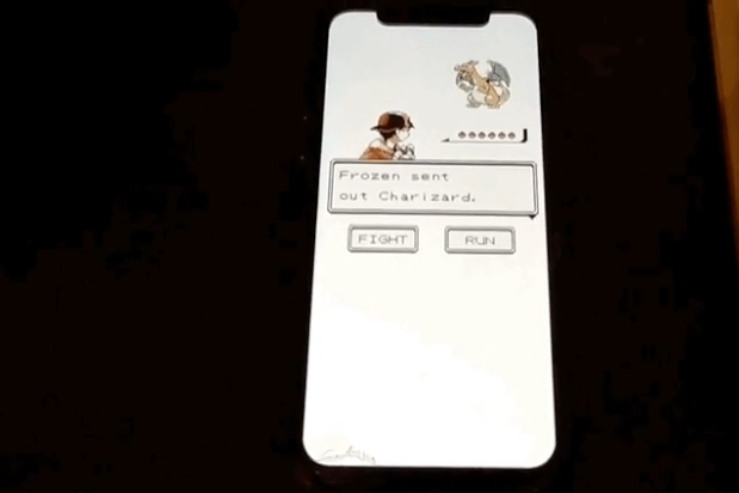
Jailbreaking iPhones has fallen out of vogue in recent years, but this upcoming PokéCall jailbreak tweak developed by Reddit user FrozenPenguinToaster might be the best argument for jailbreaking in years. The hack transforms the dull incoming call screen on iOS into a battle from the classic Pokémon Game Boy games, right down to the iconic music.
It’s surprisingly functional, too, with contacts showing up as trainers, and presenting the options to answer the call (fight) or hang up (run away). Strictly speaking, you can’t actually run away from a trainer battle in the Pokémon RPGs, but we’ll give FrozenPenguinToaster a pass for accuracy in the name of giving users an actual way to avoid calls.
The tweak is still in development, but FrozenPenguinToaster promises that you’ll be able to customize different trainer appearances for your various contacts, as well as choose which pokémon they’ll send out to battle when they call you. The developer has also commented that they’re looking into adding the option to always see the caller name and the answer / decline buttons. (In the current state there’s a several-second delay between the phone actually ringing and the animation displaying those details.)
Jailbreaking has certainly waned in popularity as Apple has continued to plug the holes that developers have used to sneak around iOS’s walled garden and as iOS has grown to include many of the big features like multitasking that were once only available to jailbreakers. But there’s still a dedicated community out there that works to circumvent Apple’s walled garden and make their iPhones their own.
And if you’re willing to put in the effort, you, too, can pretend that your incoming calls are pokémon battles.
Source: the verge









