 NEWS
NEWS
New macOS Alert Notifies Users Apple Will Soon End 32-bit App Support
 04/12/2018
 2854
2854
Starting Thursday, Apple's macOS will begin to display alert boxes when a 32-bit app is opened, warning users that the operating system will soon end support for the legacy technology.
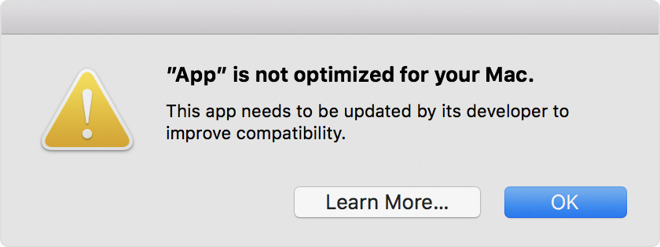
According to Apple, warning messages like the one above will appear in macOS 10.13.4, the latest Mac operating system version that saw release last month. The alert pops up once per app and serves as notification of Apple's pending transition to 64-bit technology.
Clicking on "Learn More" takes users to a support document detailing the long process of shifting away from 32-bit to the more efficient 64-bit. As noted by Apple, 64-bit apps are able to access more memory and harness the power of newer technologies like Metal graphics acceleration.
The transition began almost 15 years ago with the introduction of Power Mac G5, which boasted 64-bit PowerPC processors. Since then, the company has worked with developers to optimize their apps for 64-bit compatibility.
Apple initially announced plans to kill off support for legacy 32-bit apps in macOS during last year's Worldwide Developers Conference. At the time, the company said it planned to transition its desktop OS to 64-bit just as it did iOS with iOS 11, noting macOS High Sierra would be the last macOS version to run 32-bit apps "without compromise."
A reminder was posted to Apple's developer portal in January, urging developers to update existing App Store titles. Apple mandated all new apps submitted for review be 64-bit compatible starting January 2018, a requirement that will extend to app updates in June.
Source: appleinsider









