 NEWS
NEWS
Here’s Everything New Coming to Apple Maps in iOS 26
 06/12/2025
 1019
1019
iOS 26, the next major iPhone update, not only brings a Liquid Glass redesign, but also new features for popular apps like Apple Maps. The app got some big changes last year, but there’s more coming soon. Here are the new Apple Maps features arriving in iOS 26.
Apple Maps in iOS 26 is smarter about your daily activity
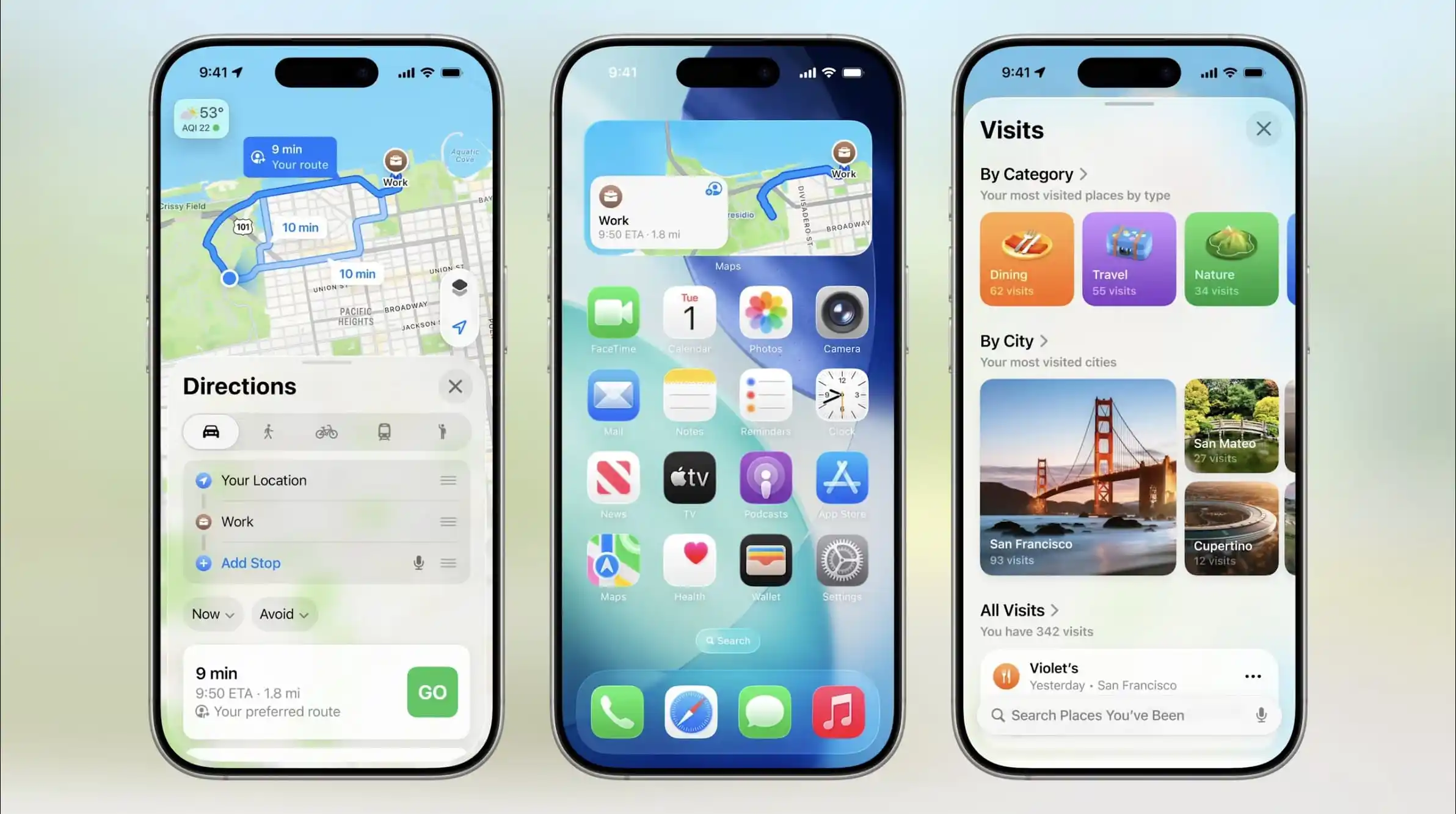
Apple Maps benefits from iOS 26’s new systemwide Liquid Glass design. This means buttons and other UI elements have been updated with a fresh look.
But Apple’s bigger focus in Maps is on two new features:
- Preferred Routes
- Visited Places
Maps can now learn from your everyday activity which routes you tend to take—for example, as part of your work commute or other regular routines.
By understanding your preferred routes, Maps can proactively alert you about potential delays you might encounter.
You’ll also be able to see key information about the route in Maps’ ‘Suggestions’ widget, so you can get a preview of what to expect right from your iPhone’s Home Screen.
Separately but somewhat related, ‘Visited Places’ is Maps’ new feature that stores a record of places you’ve been. Maps can automatically detect a restaurant or shop you visit, and will save it—with no action required on your part—inside the app for future reference.
You can find your full history of saved places inside the new ‘Visits’ menu in your Library.

Both of these new features, admittedly could prompt privacy concerns.
Apple says the preferred routes feature is powered entirely by “on-device intelligence,” so your commute habits stay on your iPhone. Similarly, Visited Places are “protected with end-to-end encryption, cannot be accessed by Apple, and can be easily removed with just a swipe.”
iOS 26 is currently in beta testing, and will be available for all users this fall.
Source: 9to5mac









