 NEWS
NEWS
Apple No Longer Hiding Apple Intelligence Storage Space Info in macOS 15.4
 03/18/2025
 1110
1110
With the second beta of macOS 15.4 that was released earlier in March, Apple changed System Settings to hide how much local storage space Apple Intelligence takes up on a Mac.
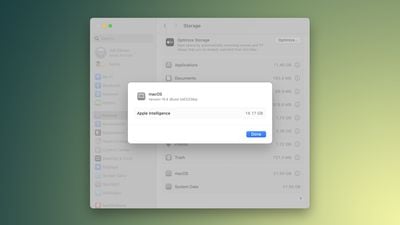
Making the change led to accusations that Apple was trying to hide the size of Apple Intelligence, and so with the fourth macOS 15.4 beta that came out today, Apple made Apple Intelligence's storage requirements easy to find once again.
To see Apple Intelligence storage space, you can go to System Settings > General > Storage and click the info button next to the macOS listing. That brings up a popup that shows the version of macOS installed and the storage space taken up by Apple Intelligence and it's the same way that System Settings works in the current release version of macOS Sequoia, 15.3.2.
It is possible that the missing Apple Intelligence storage feature in the earlier macOS 15.4 beta was a bug. Users who had System Integrity Protection (SIP) disabled were able to see the information without issue, and Apple appeared to have made the Apple Intelligence storage assets unavailable to anyone with SIP enabled.
For reference, SIP protects the Mac by preventing unauthorized code from being run, and it can only be turned off in Recovery Mode. Disabling SIP is typically only used by developers testing apps, and most users always have it on. Given that Apple returned the Apple Intelligence storage space listing to all users, it was perhaps something unintentional, though it remains unclear.
Apple says that Apple Intelligence can consume up to 7GB of storage space on a Mac, though it appears to be taking up more space on some Macs in macOS Sequoia 15.4. Apple Intelligence requires dedicated storage space because it downloads machine learning models and assets to Apple devices so that some functions can be run locally.
Disabling Apple Intelligence is the only way to keep the feature from using up space on a Mac.
Source: Macrumors









