 NEWS
NEWS
Apple Stops Signing iOS 18.0, Preventing Downgrades From 18.0.1
 10/11/2024
 1390
1390
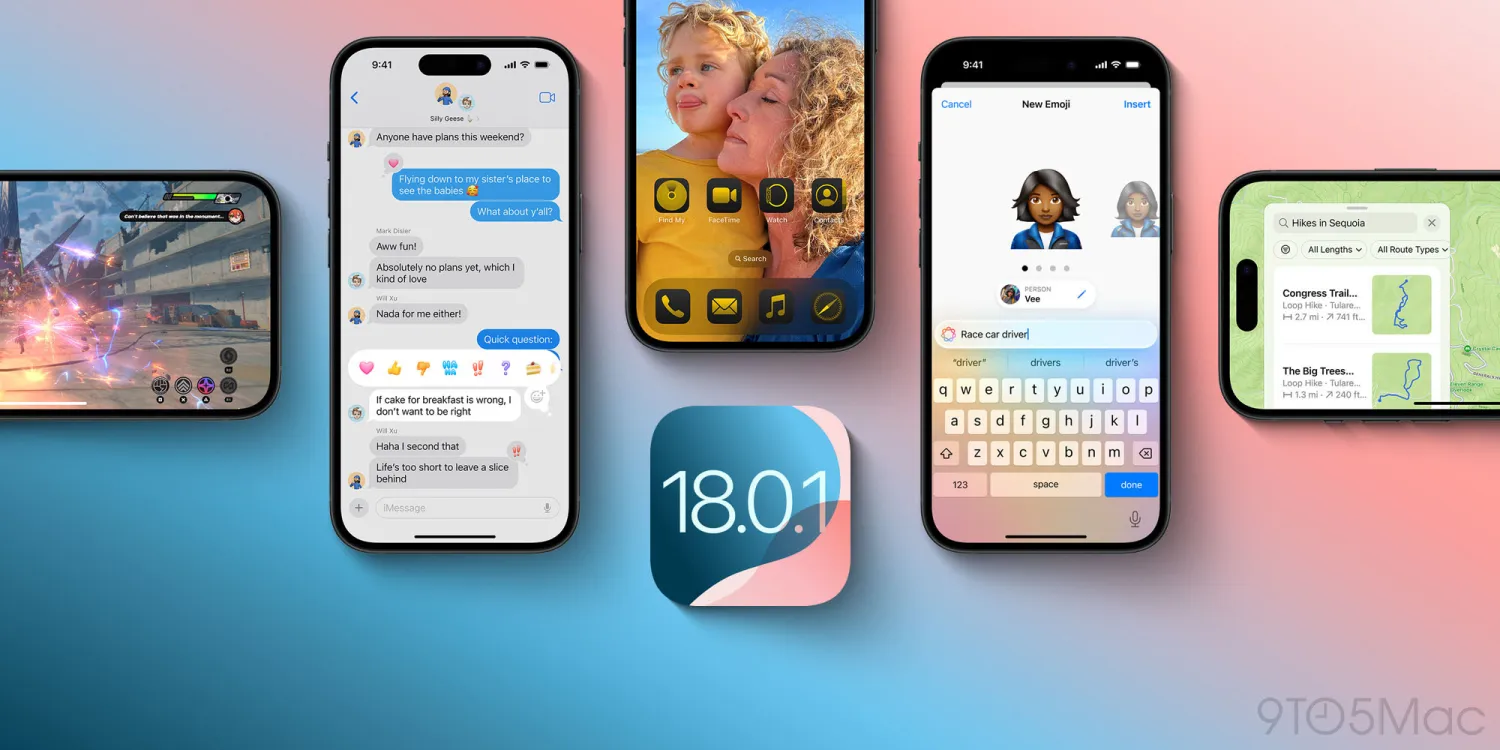
Today exactly one week after releasing iOS 18.0.1 to the public, Apple has stopped signing the prior iOS 18.0 software release. This means it’s no longer possible to downgrade to the older iPhone version.
iOS 18.0.1 can no longer be downgraded
Apple first launched iOS 18 back on September 16. The release introduced a variety of new iPhone features, like customization tools, a Photos app redesign, and big upgrades for Messages, Notes, and more.
It took a little longer than usual, but the first bug fix update for iOS 18 arrived last Thursday, October 3.
iOS 18.0.1 included fixes for the following issues:
- Touch screen may be temporarily unresponsive in certain circumstances on iPhone 16 and iPhone 16 Pro models
- Camera may freeze when recording macro mode video on the Ultra Wide camera in 4K with HDR turned off on iPhone 16 Pro models
- Messages may unexpectedly quit when replying to a message with a shared Apple Watch face
- Performance may be impacted due to an issue with memory allocation on some iPhones
As is Apple’s common practice, now that the update has been available for a week, the company has stopped signing the prior 18.0 release. Thus, it’s no longer possible to downgrade to the older software.
The bug fixes in iOS 18.0.1 are supposed to make your iPhone run more smoothly than before. Occasionally, though, users may wish to downgrade to older software because of issues encountered in a new release. Apple generally assumes that a week or so is enough time to do that.
If you’re already running iOS 18.0.1 and are happy with it, there’s nothing further you need to do. If you’re on iOS 18.0, just know that after upgrading to 18.0.1, there’s no going back.
Source: 9to5mac










