 NEWS
NEWS
Apple Is No Longer Letting Users Stay On iOS 14 With Security Updates
 01/14/2022
 2271
2271
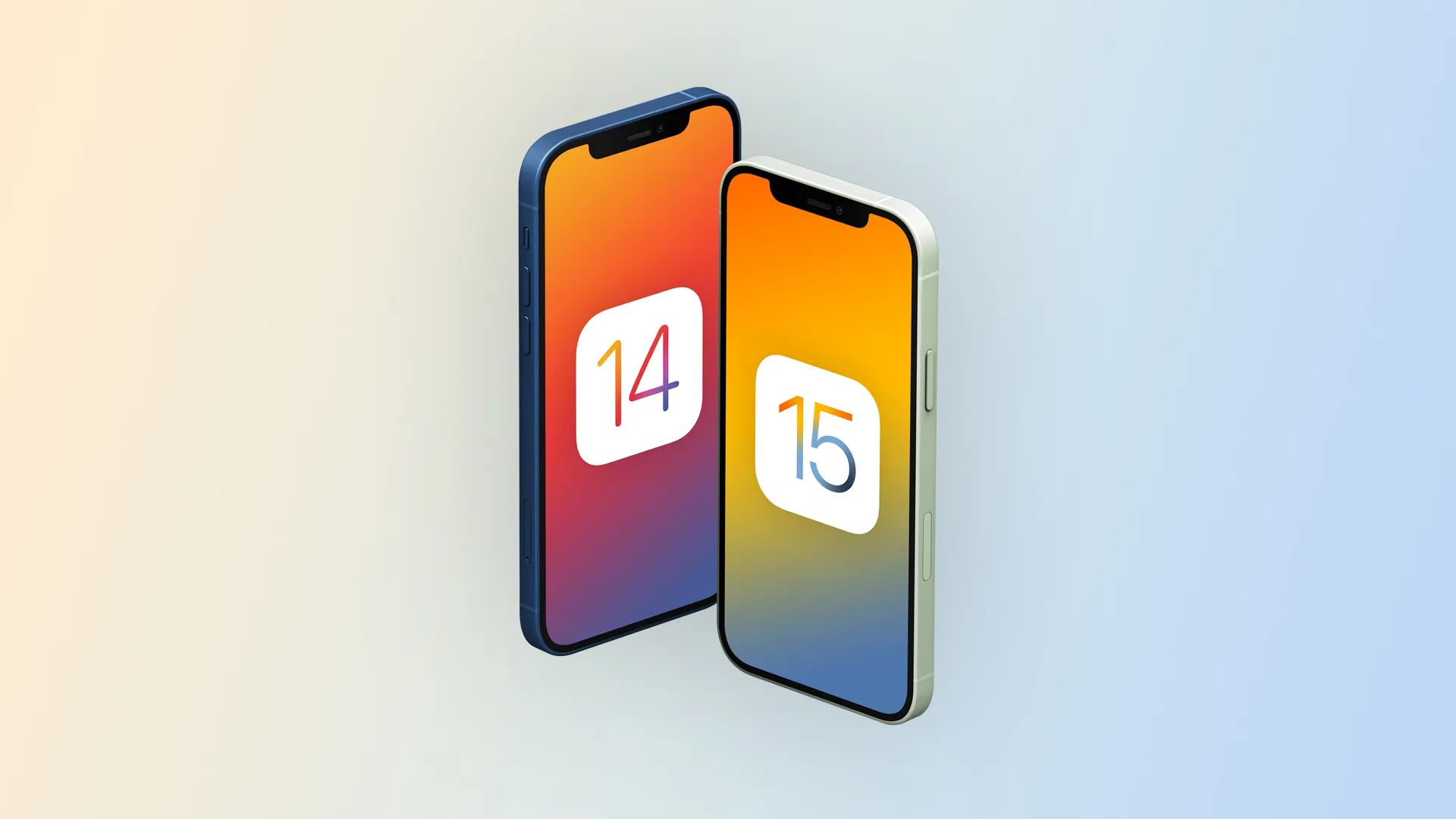
Even before the iOS 15 announcement, 9to5Mac found out that Apple was working on a new way to deliver alternate security updates to iPhone and iPad users. The company later confirmed that it would offer security patches for iOS 14 to users who weren’t ready to upgrade to iOS 15, but it seems that this is no longer the case.
For some unknown reason, the company has backtracked and is no longer letting users stay on iOS 14 with security updates. Instead, it has reverted to the traditional method of updates where users are forced to install the latest version of the operating system (which is iOS 15) to get the security improvements.
As we mentioned earlier today, (via GitHub) the change was implemented after the release of iOS 15.2 in December 2021. For instance, Apple released iOS 14.8.1 for devices not running iOS 15 on October 26, 2021, but now that update is gone.
9to5Mac was able to confirm that devices running iOS 14.8 or previous versions of the operating system can no longer be updated to iOS 14.8.1. Instead, the Software Update menu only shows the iOS 15.2.1 update. Previously, iOS 15 was shown as an optional update, while users could just install iOS 14 security patches.
While this could just be a bug, that seems unlikely since the company hasn’t released any other security patches for iOS 14 users since October. Earlier today, Apple revealed iOS 15 adoption numbers for the first time, and they’re lower than usual – which could be a result of letting users stay on iOS 14.
Although the company hasn’t confirmed or denied anything, it may have rethought its decision about alternate updates for users who don’t want to upgrade to the latest version of iOS. For now, if you want to have the latest security updates on your iPhone or iPad, you’ll have to install iOS 15.
Source: 9to5Mac









