 NEWS
NEWS
Apple to Remove Popular DOS Emulator for iOS from App Store
 07/23/2021
 2448
2448
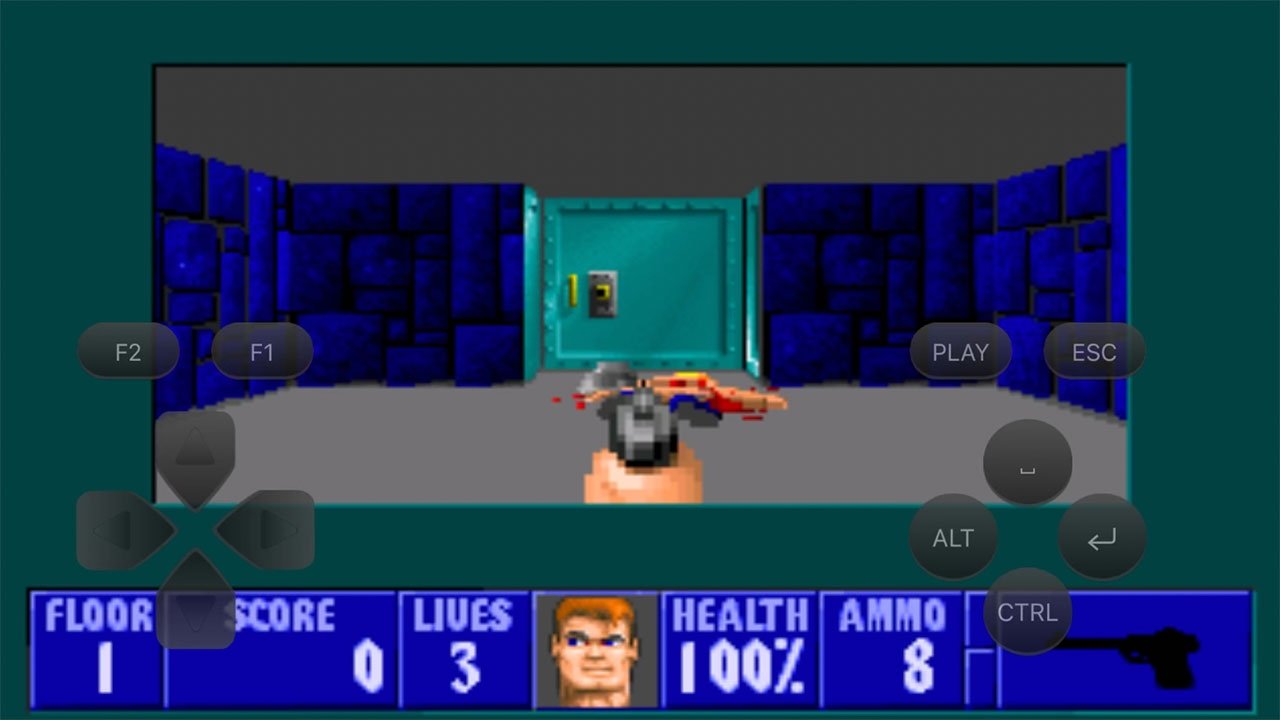
The developer of "iDOS 2," a popular DOS emulator for iOS, on Thursday said Apple will remove the app from the App Store for breaking review guidelines.
Available since 2014, iDOS 2 emulates the DOS system on iOS, allowing users to play classic games and use other DOS applications like word processors. The app comes complete with a PC keyboard, gamepad, and mouse, each of which can be operated by Bluetooth accessories.
While updates have been relatively consistent, Apple is threatening to pull iDOS 2 from the App Store for running afoul of the company's guidelines.
As detailed in a blog post from developer Chaoji Li, Apple in a letter said the app does not comply with App Store Review guideline 2.5.2, which restricts apps from installing or running executable code.
"Specifically, your app executes iDOS package and image files and allows iTunes File Sharing and Files support for importing games. Executing code can introduce or changes features or functionality of the app and allows for downloading of content without licensing," Apple said. "Please note that while educational apps designed to teach, develop, or allow students to test executable code may, in limited circumstances, download code, such code may not be used for other purposes and such apps must make the source code completely viewable and editable by the user."
According to Li, iDOS 2 uses iTunes File Sharing to run custom games or programs, a feature that is now integral to the app's identity. Removing the integration to conform with Apple's request would be a "betrayal" to paying customers, Li says.
Li was apparently open about the app's potential to clash with rules regarding interpreted code. He reportedly included a note with every app update pointing out the use of Document Browser mode and the inclusion of iTunes File Sharing.
"We are perfectly aware of AppStore policy on interpreted code. The reason of this submission is that there are similar apps on AppStore, running js or python code. In principle, iDOS is no different," the note reads. "No security risk since the user code is running inside emulator within the app sandbox."
If and when iDOS 2 is booted from the App Store, it will mark an end to an app series that dates back to 2010. Li's first iDOS emulator was also pulled before making its way back onto the storefront in 2011. A subsequent version, the current iDOS 2, launched in 2014.
Source: Appleinsider









