NEWS

Apple's M1 Now Supported by Linux Kernel in Version 5.13

06/29/2021

2104

Apple's M1 Now Supported by Linux Kernel in Version 5.13


The newest update of the Linux kernel, version 5.13, has been released with support for the Apple Silicon system-on-chip, the M1.


Previously available in May as a release candidate for public testing, the final version of Linux 5.13 has been released. Announced by Linus Torvolds on Monday, the newest version is said to be one of the bigger releases in the version 5 range, with over 16 thousand commits made by over 2 thousand developers.


For Mac users, the key addition to the kernel is support for a number of ARM-based chips, which crucially includes the M1. The new kernel is therefore able to be run natively on Apple Silicon hardware, including the M1 Mac mini and the 24-inch iMac.


While the ability to use M1 is included, Phoronix reports there's still more work to be done, including adding support for accelerated graphics. Other changes include a variety of updated drivers, architecture and file system improvements, and changes to process handling and tooling.


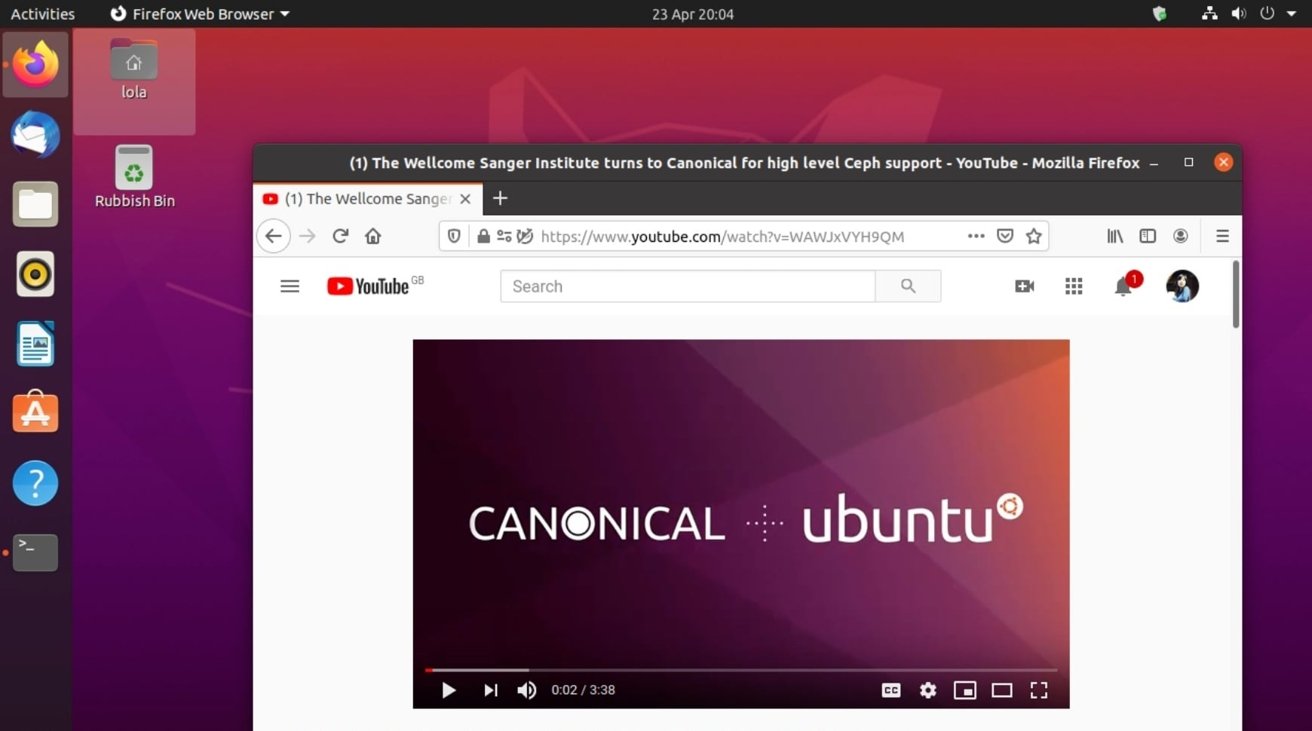
Linux 5.13 is not the first version of the operating system that works with the M1. In January, security researchers at Corellium ported a version of Ubuntu to the chip, a process that required many workarounds to get going, in part due to Apple's lack of documentation on how the chip functioned.


Source: Appleinsider

Windows
Mac OS
iOS
Linux
3uTools
Win 64-bit For this device
V9.0 2025-11-11
Download
Win 32-bit For this device
V9.0 2025-11-11
Download
3uTools
Intel Chip How to Identify Chip Type
V9.0 2025-12-02
Download
Apple Chip
V9.0 2025-12-02
Download
How to Identify Chip Type
1.  Click the Apple icon in the top-left corner of the screen and select About This Mac.
2.  Check the Processor or Chip field to determine if it is "Intel" or "Apple".
Please use the 3uTools PC client to install the iOS client:
1、 Install either the Windows or Mac version of 3uTools on your computer
2、 Open the PC client and connect your device to the computer via USB cable
3、 After the connection is successful, wait for the computer to automatically install the mobile app for the device, or locate “Install Mobile App” on the computer and manually click to install.
3uTools
deb file
V3.01 2025-11-20
Download
rpm file
V3.01 2025-11-20
Download
Windows
Windows
iOS
iOS
Android
Android
TV
TV
3uAirPlayer
Win 64-bit For this device
V6.0.2 2025-11-19
Download
Win 32-bit For this device
V6.0.2 2025-11-19
Download
iOS Device Mirroring (No App Required)
1、 Install 3uAirPlayer on the Windows PC
2、 Open Control Center and select Screen Mirroring
3、 From the list, choose your PC to start mirroring
4、 Or connect your iOS device to the PC via USB to begin mirroring
Scan to get "3uAirPlayer" App
3uAirPlayer TV V1.0.18
2025-11-28
TV System Requirements: Android 7.0 or later
Download the TV installation package, copy it to a USB drive, insert it into your TV or set-top box, then select the file from the home screen to install.