NEWS

Apple's HomePod now Lets Siri Handle Deezer Music Requests

05/08/2021

1738

Apple's HomePod now Lets Siri Handle Deezer Music Requests


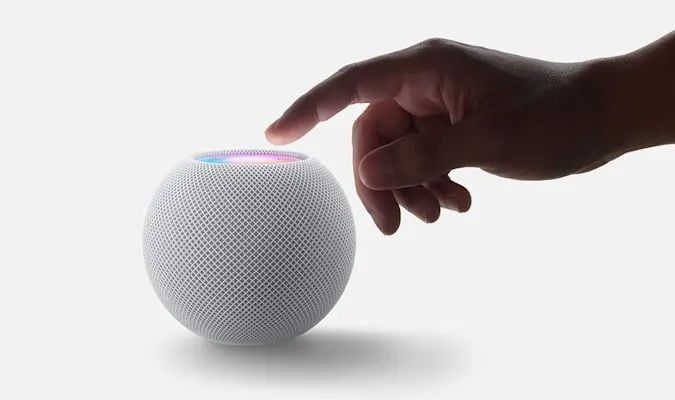
HomePod owners have had the ability to use third-party music services for several months now, but thus far only Pandora directly works with Apple's smart speakers. However, that's changing today with the introduction of Deezer integration for the original (and since discontinued) HomePod and its replacement, the cheaper HomePod Mini. 


By launching and connecting the music streaming app with an Apple speaker, paying subscribers can tell Siri to play specific tracks, artists, albums, favorites or playlists. To keep things succinct, you can set Deezer as your default music service in iOS. That way you don't have to ask Siri to play a song or artist "on Deezer" at the end of every command. For instance, once you change the setting, you can simply say "Hey Siri, play my Flow" to listen to the app's continuous stream of recommended tracks.


Naturally, the changes also apply to Deezer's HiFi tier of lossless audio, which should mix well with the original HomePod thanks to the top-notch sound emitted from its array of seven tweeters and top-firing woofer. Though, the HomePod Mini is no slouch in the audio department, either, especially when paired in stereo.


In the past, you could send Deezer from your iPhone to Apple's speakers via AirPlay 2, but the latest update is ideal for those who like to take advantage of voice controls. Deezer on the HomePod and HomePod Mini is available in the US, Canada, UK, Germany, France, Spain, Mexico, Japan and Australia. 


Source: Engadget

Windows
Mac OS
iOS
Linux
3uTools
Win 64-bit For this device
V9.0 2025-11-11
Download
Win 32-bit For this device
V9.0 2025-11-11
Download
3uTools
Intel Chip How to Identify Chip Type
V9.0 2025-12-02
Download
Apple Chip
V9.0 2025-12-02
Download
How to Identify Chip Type
1.  Click the Apple icon in the top-left corner of the screen and select About This Mac.
2.  Check the Processor or Chip field to determine if it is "Intel" or "Apple".
Please use the 3uTools PC client to install the iOS client:
1、 Install either the Windows or Mac version of 3uTools on your computer
2、 Open the PC client and connect your device to the computer via USB cable
3、 After the connection is successful, wait for the computer to automatically install the mobile app for the device, or locate “Install Mobile App” on the computer and manually click to install.
3uTools
deb file
V3.01 2025-11-20
Download
rpm file
V3.01 2025-11-20
Download
Windows
Windows
iOS
iOS
Android
Android
TV
TV
3uAirPlayer
Win 64-bit For this device
V6.0.2 2025-11-19
Download
Win 32-bit For this device
V6.0.2 2025-11-19
Download
iOS Device Mirroring (No App Required)
1、 Install 3uAirPlayer on the Windows PC
2、 Open Control Center and select Screen Mirroring
3、 From the list, choose your PC to start mirroring
4、 Or connect your iOS device to the PC via USB to begin mirroring
Scan to get "3uAirPlayer" App
3uAirPlayer TV V1.0.18
2025-11-28
TV System Requirements: Android 7.0 or later
Download the TV installation package, copy it to a USB drive, insert it into your TV or set-top box, then select the file from the home screen to install.