NEWS

Find My adds 'Items' Tab in Latest iOS 14.5 Beta

03/04/2021

2001

Find My adds 'Items' Tab in Latest iOS 14.5 Beta


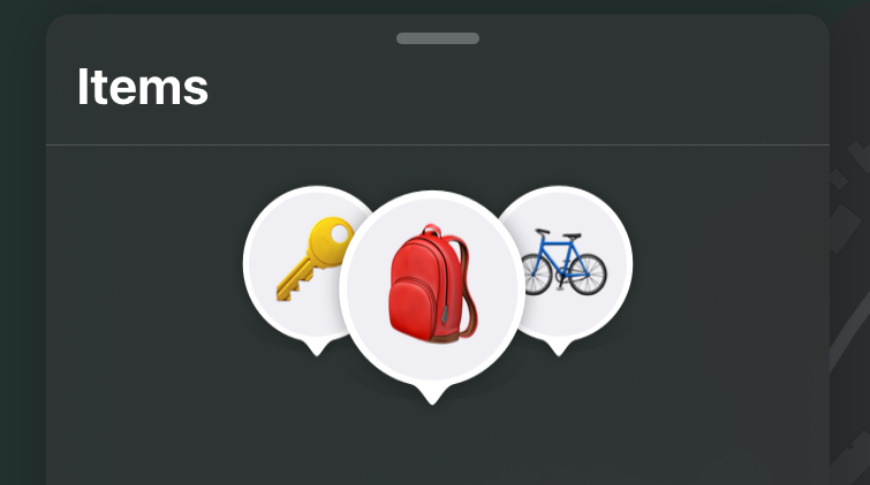
Apple's third iOS 14.5 beta now shows an "Items" tab in the Find My app. It's for tracking non-Apple devices, and comes ahead of the forthcoming launch of "AirTags."


Apple's third iOS 14.5 developer beta — launched this week, pulled, and then launched again — has surfaced a previously hidden feature. Even within the previous developer betas, an additional ability for Find My required a particular setting, or use of a URL scheme to unlock it.


Now, however, Apple has surfaced a new "Items" tab so that it is visible to all developers on installation. It is likely, though not certain, that it will therefore be the same when Apple releases a public beta.


As spotted by MacRumors, the "Items" tab is intended to extend the Find My app's abilities by having it able to track more than Apple devices.


"Add accessories or other items that are compatible with Find My," says the wording on the "Items" screen, "and they will appear here."


There is no detail in the app of what constitutes compatibility, or of how the items will be tracked. However, it is presumed that this is where items with "AirTags" will be logged. And certain compatible accessories, such as Belkin SoundForm Pro wireless earbuds, were announced at CES 2021.


"AirTags" are Apple's forthcoming version of Tile, a small device tracker that means users can locate their items even from far away.


Source: Appleinsider

Windows
Mac OS
iOS
Linux
3uTools
Win 64-bit For this device
V9.0 2025-11-11
Download
Win 32-bit For this device
V9.0 2025-11-11
Download
3uTools
Intel Chip How to Identify Chip Type
V9.0 2025-12-02
Download
Apple Chip
V9.0 2025-12-02
Download
How to Identify Chip Type
1.  Click the Apple icon in the top-left corner of the screen and select About This Mac.
2.  Check the Processor or Chip field to determine if it is "Intel" or "Apple".
Please use the 3uTools PC client to install the iOS client:
1、 Install either the Windows or Mac version of 3uTools on your computer
2、 Open the PC client and connect your device to the computer via USB cable
3、 After the connection is successful, wait for the computer to automatically install the mobile app for the device, or locate “Install Mobile App” on the computer and manually click to install.
3uTools
deb file
V3.01 2025-11-20
Download
rpm file
V3.01 2025-11-20
Download
Windows
Windows
iOS
iOS
Android
Android
TV
TV
3uAirPlayer
Win 64-bit For this device
V6.0.2 2025-11-19
Download
Win 32-bit For this device
V6.0.2 2025-11-19
Download
iOS Device Mirroring (No App Required)
1、 Install 3uAirPlayer on the Windows PC
2、 Open Control Center and select Screen Mirroring
3、 From the list, choose your PC to start mirroring
4、 Or connect your iOS device to the PC via USB to begin mirroring
Scan to get "3uAirPlayer" App
3uAirPlayer TV V1.0.18
2025-11-28
TV System Requirements: Android 7.0 or later
Download the TV installation package, copy it to a USB drive, insert it into your TV or set-top box, then select the file from the home screen to install.