 NEWS
NEWS
Apple @ Work: Now That the Mac Supports Wi-Fi 6, it’s Time to Deploy in the Enterprise
 12/07/2020
 2958
2958
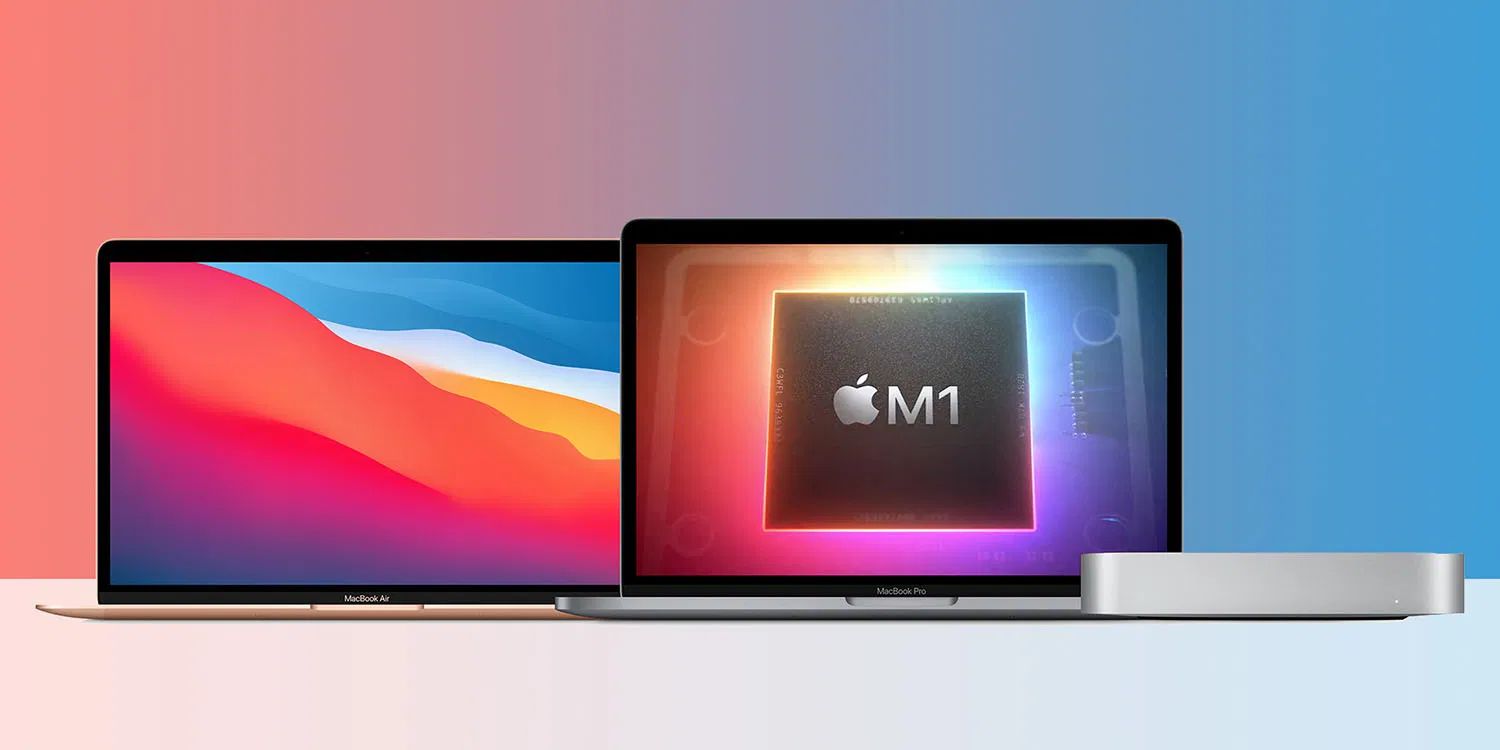
With the release of the new M1 Macbook Air, the final parts of the transition to Wi-Fi 6 are beginning for Apple. Today, the iPad Pro, iPad Air, iPhone 11, iPhone 12, M1 MacBook Air, and the M1 MacBook Pro all support Wi-Fi 6. Lacking support is the low-cost iPad, iPad mini, and all of the Intel Macs.
About Apple @ Work: Bradley Chambers has been managing an enterprise IT network since 2009. Through his experience deploying and managing firewalls, switches, a mobile device management system, enterprise-grade Wi-Fi, 100s of Macs, and 100s of iPads, Bradley will highlight ways in which Apple IT managers deploy Apple devices, build networks to support them, train users, stories from the trenches of IT management, and ways Apple could improve its products for IT departments.
Wi-Fi 6 brings several vital things to enterprise and K–12 Wi-Fi networks and addresses some critical problems with Wi-Fi connectivity. One of the main ones is increasing capacity for environments with a lot of devices. Setting up a basic Wi-Fi connection in your home is relatively easy. Unless you live in a multi-dwelling unit, it’s one thing you can’t really screw up.
Designing Wi-Fi for an environment with potentially hundreds or even thousands of connections is entirely another process. You have to be concerned with co-channel interference, how devices roam, complex security issues, and other complicated issues.
One of the biggest challenges at the moment is designing for capacity. OFDMA is one of the newest pieces of technology in Wi-Fi 6. A 20 MHz channel can be partitioned into as many as nine smaller channels in Wi-Fi 6. Using OFDMA, an access point could simultaneously transmit small frames to nine Wi-Fi 6 enabled clients.
One thing to remember is that Wi-Fi 6 brings back 2.4 GHz support, while 802.11ac was only compatible with 5 GHz. I prefer the 5 GHz band (a minimum of 19 non-overlapping channels vs. 3 for 2.4 GHz); 2.4 GHz is still popular due to its low cost and battery life.
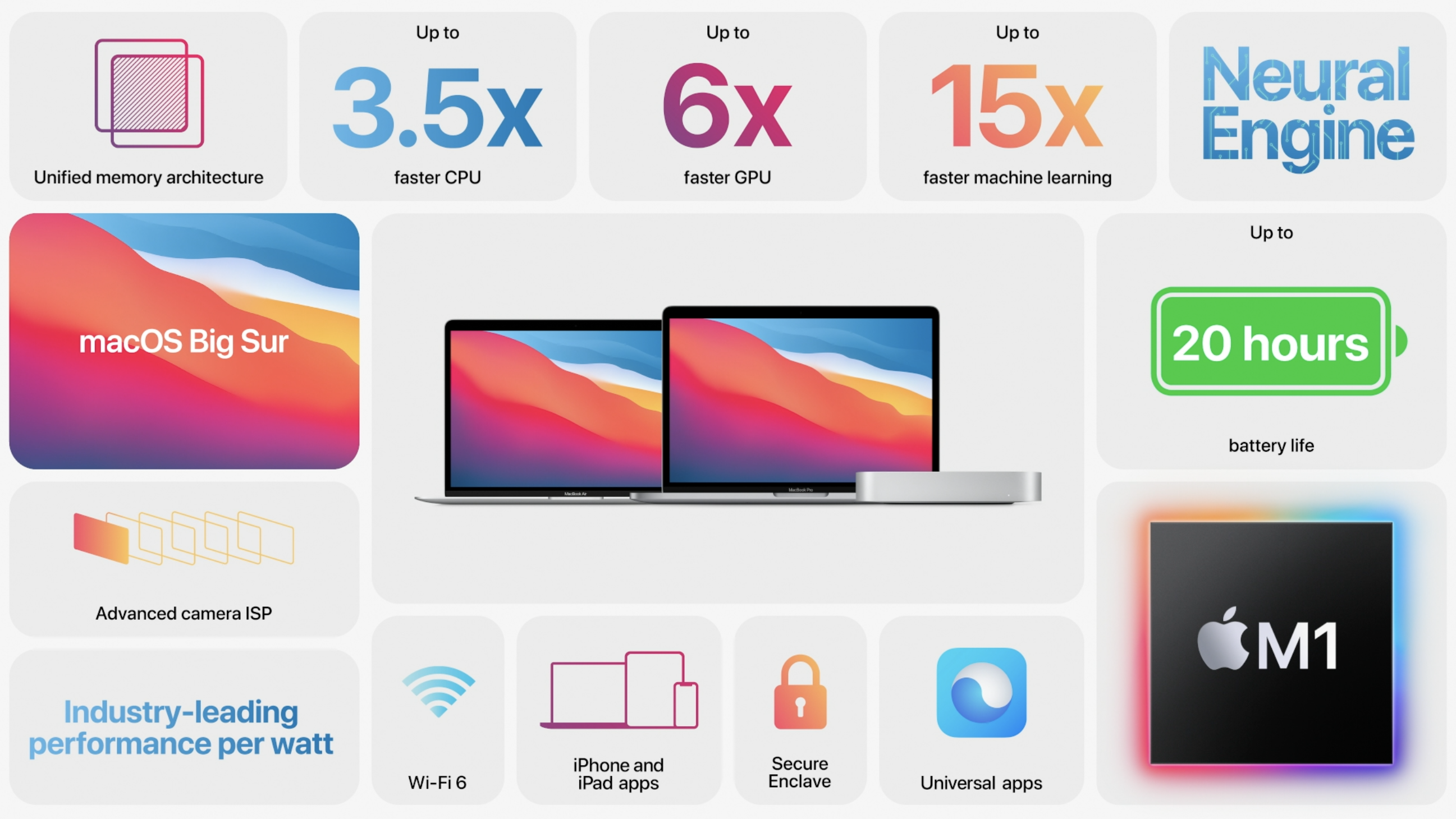
Networking vendors have been touting Wi-Fi 6 for years, but we’re just now at the place where Wi-Fi 6 has to be your default choice for Apple deployments. I know many organizations held out on supporting Wi-Fi 6 while the Mac lacked support. We’ve finally hit the ideal time when the Mac is finally seeing the transition to Wi-Fi 6, and the iPad lineup is almost completely migrated to Wi-Fi 6. While old iPhones hang around for years, we’re now a year into all of the newest iPhones supporting Wi-Fi 6. It’s safe to say that you’ll see a lot more Wi-Fi 6 enabled devices on your network in the next year.
Vendors like Ubiquiti are now releasing their Wi-Fi 6 access points where companies like Extreme have been selling them for a few years now. Even though technology like Wi-Fi6e seems like it’s just around the corner, new communications technologies tend to have a lot of news early on in their development cycle. It takes years for the technology to mature and even longer for devices to add support.
With the Mac and Wi-Fi 6, we’re at the place where the technology is mature enough that it’s come down in price significantly. The underlying code powering the access points has matured and eliminated the early bugs as well. Support in client devices is also quite common now. I say all of this to say, now is the time when Wi-Fi 6 has to be the default choice for enterprise and K–12 networks. If you look at device deployments as a five-year project, Wi-Fi 6 in 2020 is the only proper wireless decision. There is no reason to deploy an 802.11ac network or wait on Wi-Fi 6e.
Source: 9to5mac









