 NEWS
NEWS
Developers Will Get a Chance to Take Advantage of The U1 Chip With iOS 14
 06/24/2020
 2717
2717
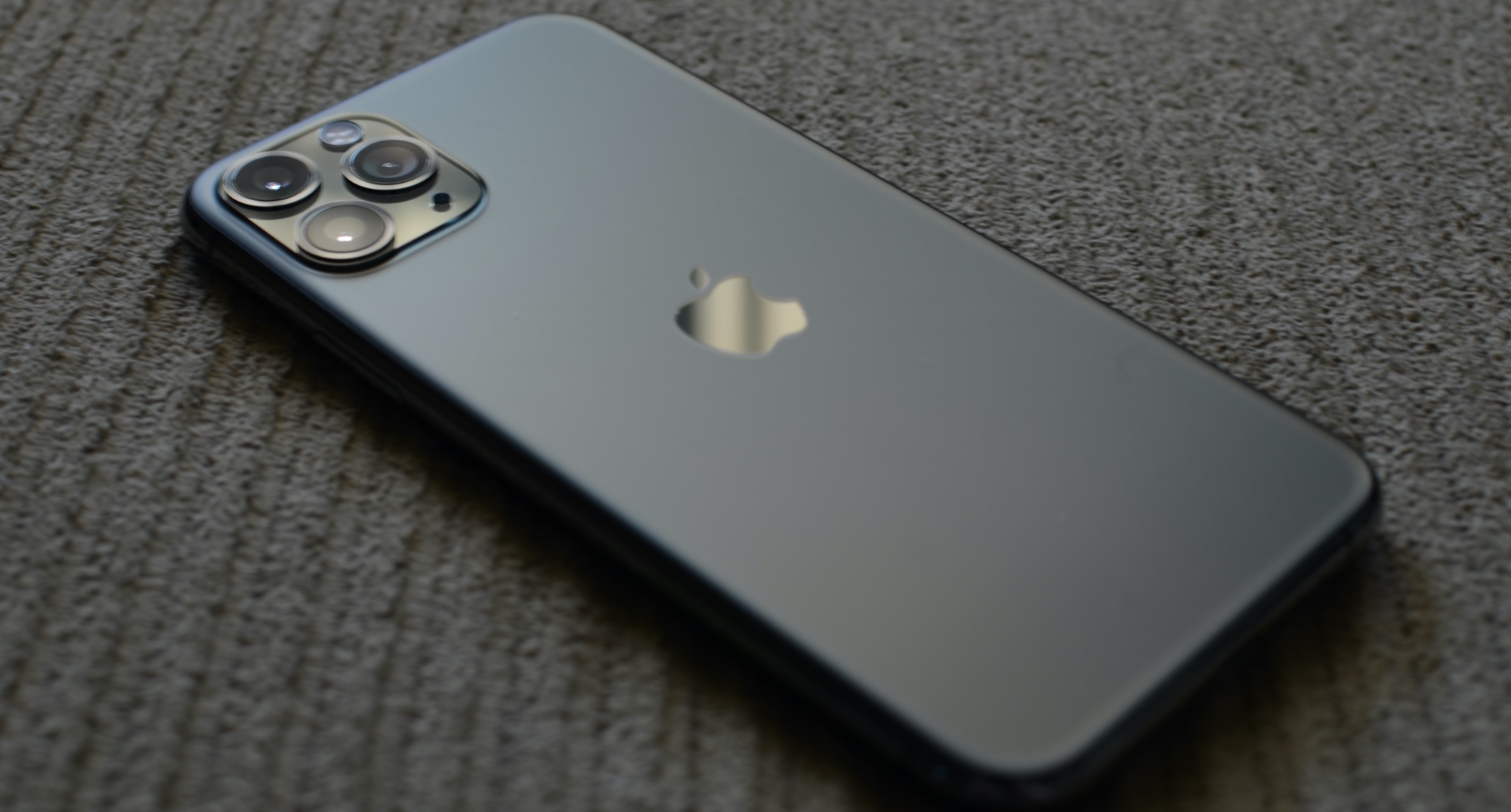
With the current iPhone lineup and iOS 13, Apple welcomed the U1 chip and Ultra Wideband technology for improved spatial awareness. But, up until this point, Apple hasn’t really done much with it.
That is going to change in iOS 14, with the U1 chip handling a bit more as far as new features are concerned. But it looks like third-party developers will get to help out starting with this year’s iOS release as well, which will probably go a long way to help boost the chip’s popularity across the board. Right now, the U1 chip is only used for some AirDrop features, but Apple has plans to expand that.
To get there, developers need to be able to take advantage of the chip, and iOS 14 will finally let that happen. Apple has confirmed that it is opening up the U1 chip to developers through a new “Nearby Interaction” framework in iOS 14. Here’s how Apple describes it in the general overview: Use NearbyInteraction (NI) in your app to acquire the position of nearby iPhones with a U1 chip, such as iPhone 11 or later. To participate in an interaction, devices in physical proximity run an app and consent to share their position and device tokens that uniquely identify their device. When the app runs in the foreground, NI notifies the interaction session of the peer’s location by reporting the peer’s direction and distance in meters.
And Apple also offers up some experiences that can make use of the U1 chip:
A multiuser AR experience places virtual water balloons in the hands of its participants.
A taxi or rideshare app employs a peer user’s direction in real time to identify the relative locations of a driver and a customer.
A game app enables a user to control a paddle with their device and respond to a moving ball on the peer user’s screen, as demonstrated by the following figure.
With the U1 chip having to do with precise location, it means that iPhone owners will need to handle permissions on a case-by-case, and app-by-app basis. Apple will require that apps that use the U1 chip will need to get permission to find and be found by other U1 chip-equipped devices. Within each session a random identifier will be used, helping keep things anonymous.
As noted by MacRumors, Apple suggests in a video overview that users should keep their iPhones in portrait orientation for the best possible measurement for both distance and direction.
Apple’s U1 chip has a lot of potentials, and while Apple will surely unlock some of that on its own, it will require some attention from third-party developers to really take off. And it looks like iOS 14 will be the first step to make that happen.
Source: iDB









