 NEWS
NEWS
Apple Has Reportedly Solved The AirPower Overheating Problem
 06/19/2020
 3864
3864
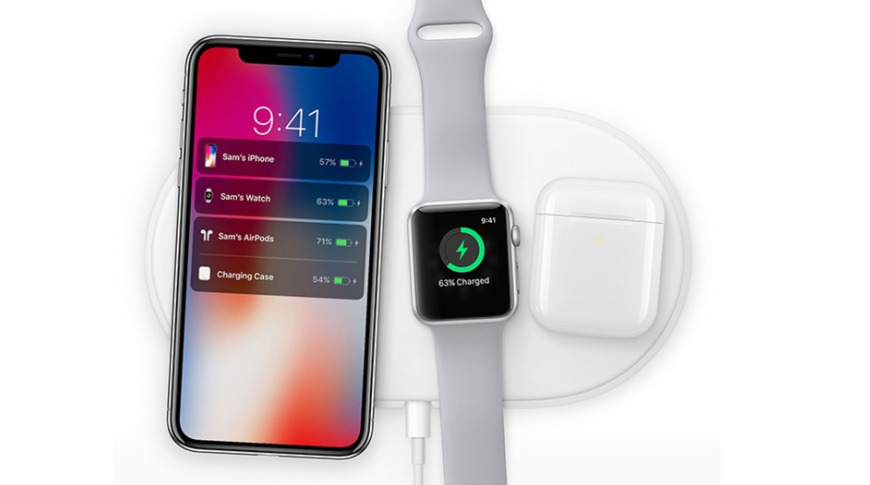
A new product leak claims that the Apple AirPower "C68" project has resolved the problem with the Apple Watch causing drastic overheating of the three-device charging pad.
A new leak from Jon Prosser claims to show an Apple Watch being charged on a "C68," the codename for an AirPower wireless charging plate. It's significant because it suggests that Apple has resolved the key overheating issue that is believed to be why the AirPower project was previously cancelled.
Previously, Apple refused to explain why it had cancelled its long-delayed AirPower product. Instead, Senior Vice President Dan Riccio just made a brief statement to AppleInsider and other publications in March 2019.
"After much effort, we've concluded AirPower will not achieve our high standards and we have cancelled the project," he said. "We apologize to those customers who were looking forward to this launch. We continue to believe that the future is wireless and are committed to push the wireless experience forward."
Subsequently, Prosser reported that it was due to overheating — and overheating to the point of combustion. The Apple Watch's proprietary wireless charging system required more energy than other devices.
AirPower was supposed to allow you to place multiple devices — such as Apple Watch, iPhone, and AirPods — anywhere on its surface and be charged. However, according to Prosser, "if you placed an Apple Watch on the mat alongside other devices, the entire mat would overheat."
Prosser had reported that the "C68" prototype devices under test earlier this year had added an A11 processor in order to manage heat. He says that those prototypes wouldn't support the Apple Watch, and now they do.
Source: Appleinsider









