 NEWS
NEWS
Apple Updates Second-Generation AirPods Firmware to Version 2D15
 05/13/2020
 2898
2898
A week after releasing a new firmware update for the AirPods Pro, Apple has pushed the same firmware to the second-generation AirPods, updating them from the previous 2A364 firmware to the new 2D15 firmware.
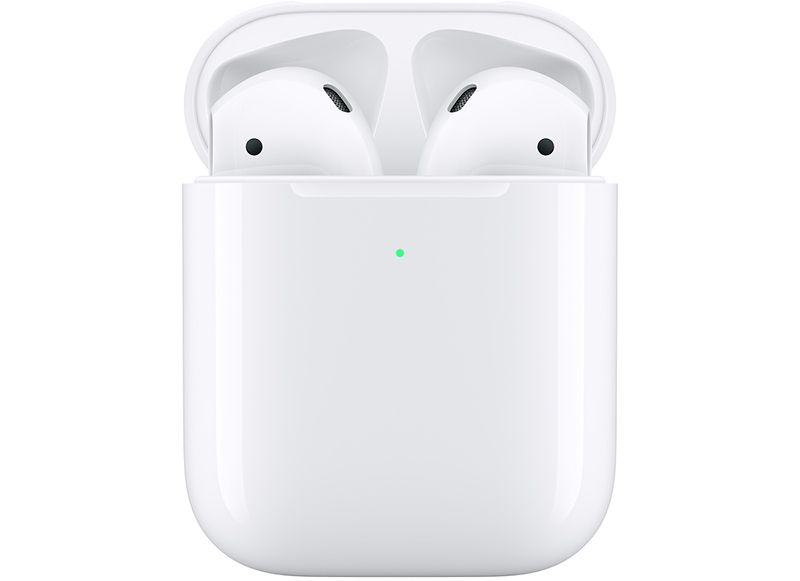
Apple didn't make it clear what's new in the refreshed firmware at this time, and AirPods Pro owners had mixed reactions to the update, with some saying that it improved Active Noise Cancellation and others finding that it did not.
The second-generation AirPods don't have Active Noise Cancellation, so it's unknown what improvements are included in the firmware. AirPods firmware updates often provide performance improvements, bug fixes, and feature tweaks. This software update likely fixes the bug that caused some customers who were sent a replacement AirPod with unreleased firmware to be unable to use them as it should update the 2D3 firmware to 2D15, allowing them to once again be paired with existing AirPods.
You can check to see what firmware your AirPods have installed by following these steps:
Make sure the AirPods are connected to your iOS device.
Open the Settings app.
Tap General.
Tap About.
Tap AirPods.
Look at the number next to "Firmware Version."
Apple hasn't provided explicit instructions to customers on how to initiate a firmware update, but activating the AirPods with audio and then putting them in the case and connecting them to a power source seems to be a reliable way of forcing an update.
Apple in December released the 2C54 firmware update, but later pulled it, so it's worth noting that some people who updated right away have the 2C54 firmware while others are still on 2A364.
Source: Macrumors









