 NEWS
NEWS
Apple Releases Apple Maps Mobility Data Trends Tool to Help Mitigate COVID-19 Spread
 04/15/2020
 2570
2570
Apple today announced the release of a new mobility data trends tool using information collected from from Apple Maps, which is designed to help mitigate the spread of COVID-19 by providing helpful insights to local governments and health authorities.
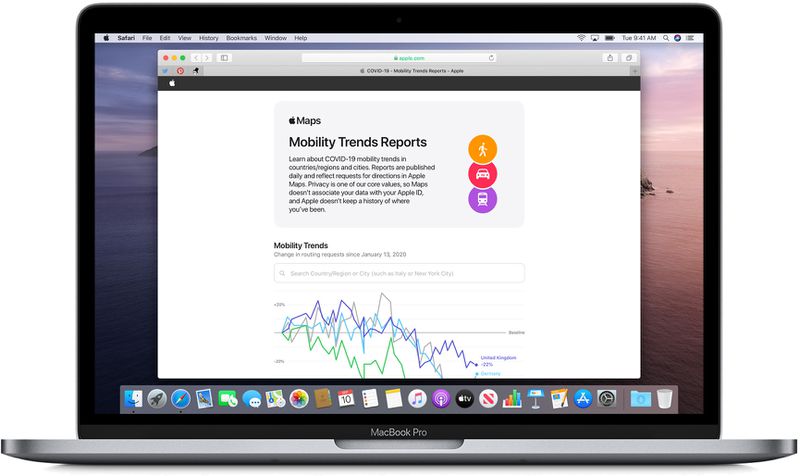
Apple believes that the data could be used as a foundation for new public policies by showing changes in the volume of people driving, walking, or taking public transit.
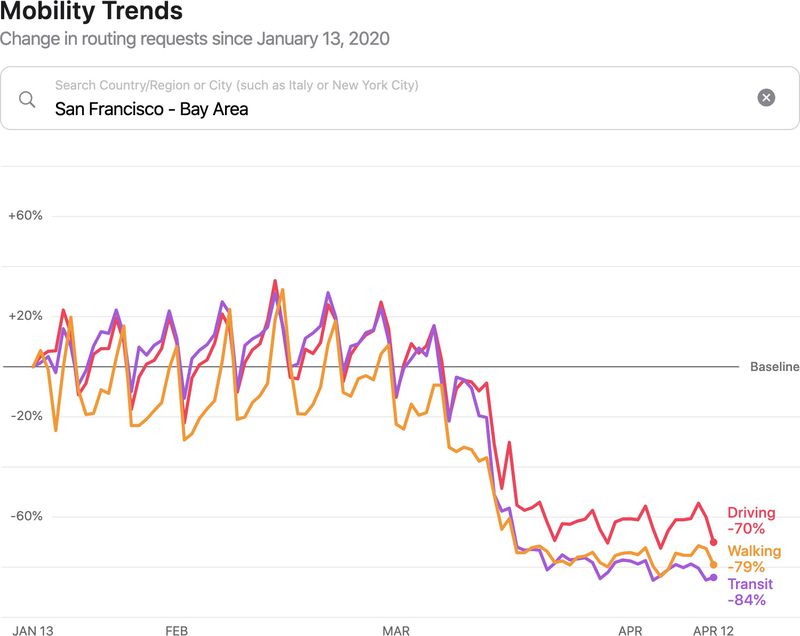
The mobility data site uses aggregated data collected from Apple Maps to show mobility trends for major cities and 63 countries or regions. Apple generates the data by counting the number of requests made to Apple Maps for directions.
The data sets are compared to reflect a change in the number of people who are driving, walking, or taking public transit, and Apple says that data availability in a particular place is subject to factors like minimum thresholds for direction requests made per day.
With the tool, users can search by city, country, or region to see how routing requests have shifted since January 13, 2020, leading up to today. Apple also provides a complete downloadable data set that features daily changes in requests for directions by transportation type for all available countries and cities.
Mobility data sourced from Apple Maps is not associated with a user's Apple ID and Apple does not keep a history of where a user has been. Data collected by Maps, such as search terms, navigation routing, and traffic information is associated with random, rotating identifiers that continually reset, which prevents a profile of movements and searches from being built.
Along with debuting its mobility trends tool, Apple today also highlighted some of the other efforts that it has made in the fight against COVID-19, such as sourcing and donating more than 30 million face masks, and creating and designing face shields.
Apple helped Stanford Medicine build a new app for first responders to screen symptoms, and has added new features to Siri and Maps. Siri Audio Briefs help users receive the latest news and information through the pandemic through short podcasts, and Siri can provide resources if asked questions about coronavirus.
In Maps, Apple is prioritizing grocery, food delivery, and medical services, and Apple has provided learning tools to parents and a selection of curated telehealth apps through the App Store.
Apple has also created a COVID-19 app and website in partnership with the CDC and others to serve as a screening tool, and it is partnering with Google on an initiative that will see the two building a Bluetooth-based privacy-focused platform for tracking COVID-19 exposure.
Source: Macrumors









