
NEWS

A12Z Chip in 2020 iPad Pro Confirmed to be Recycled A12X

04/14/2020

3231

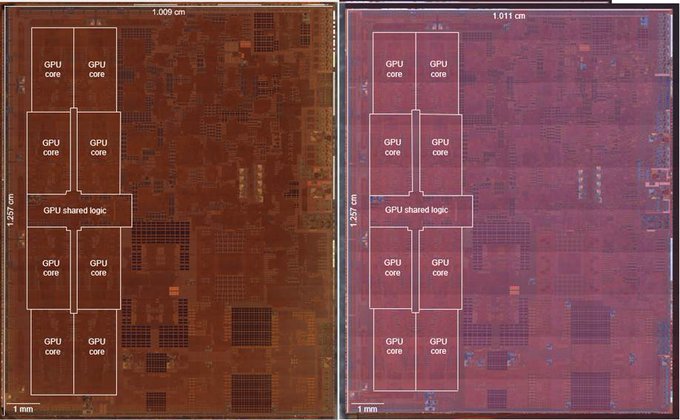
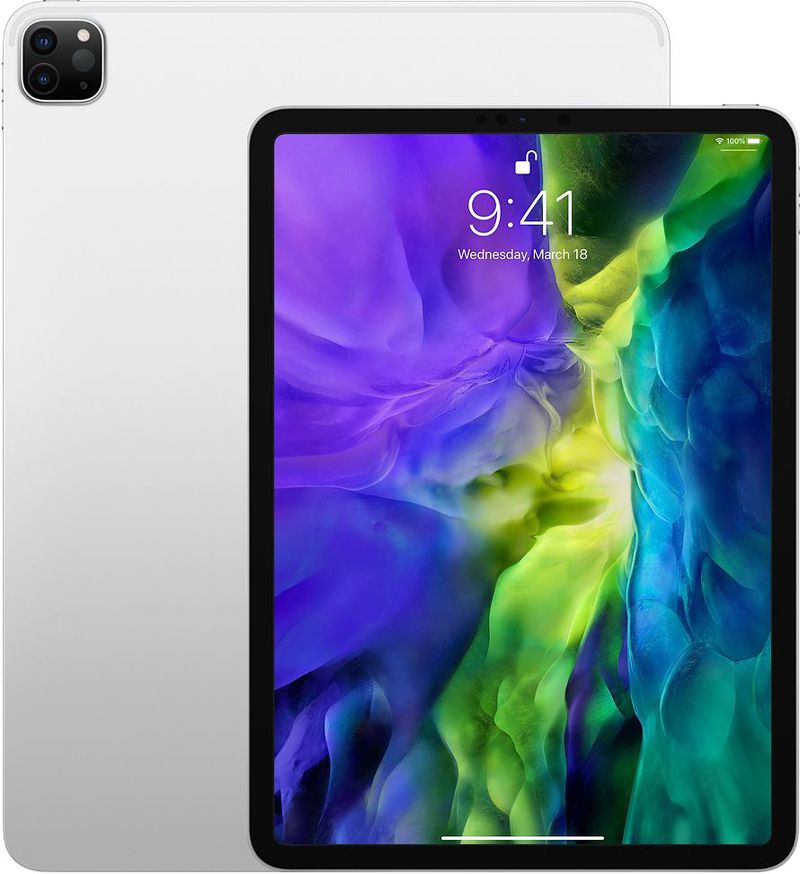
The 2020 iPad Pro models are equipped with an A12Z processor that is the same as the A12X processor in the 2018 ‌iPad Pro‌ models but with an extra GPU core enabled, TechInsights confirmed today.
A12Z Chip in 2020 iPad Pro Confirmed to be Recycled A12X
Speculation that Apple was using the same chip began shortly after the new iPad Pros launched and benchmarks found little in the way of performance improvements.


A12Z Chip in 2020 iPad Pro Confirmed to be Recycled A12X


Apple didn't highlight changes to CPU performance, but there is one difference - the A12Z features an 8-core GPU, while the A12X has a 7-core GPU.


Information provided in March by TechInsights suggested that the A12X was simply an 8-core GPU chip with one GPU core disabled, indicating the A12Z is a re-binned A12X with that latent GPU core enabled.


At the time, TechInsights said that it planned to conduct a floorplan analysis to determine whether there are any differences between the A12X and the A12Z, which has now been completed, and the GPU chips are the same. A full report on TechInsights findings will be available on its website to those with a subscription.


It is not unusual for chip manufacturers to disable one core of a processor when a chip isn't meeting yield levels, and that's perhaps what happened with the A12X. The manufacturing of the chip has now improved enough that yields have gotten better and all 8 cores are functional, resulting in the A12Z chip.


Source: Appleinsider

Windows
Mac OS
iOS
Linux
3uTools
Win 64-bit For this device
V9.0 2025-11-11
Download
Win 32-bit For this device
V9.0 2025-11-11
Download
3uTools
Intel Chip How to Identify Chip Type
V9.0 2025-12-02
Download
Apple Chip
V9.0 2025-12-02
Download
How to Identify Chip Type
1.  Click the Apple icon in the top-left corner of the screen and select About This Mac.
2.  Check the Processor or Chip field to determine if it is "Intel" or "Apple".
Please use the 3uTools PC client to install the iOS client:
1、 Install either the Windows or Mac version of 3uTools on your computer
2、 Open the PC client and connect your device to the computer via USB cable
3、 After the connection is successful, wait for the computer to automatically install the mobile app for the device, or locate “Install Mobile App” on the computer and manually click to install.
3uTools
deb file
V3.01 2025-11-20
Download
rpm file
V3.01 2025-11-20
Download
Windows
Windows
iOS
iOS
Android
Android
TV
TV
3uAirPlayer
Win 64-bit For this device
V6.0.2 2025-11-19
Download
Win 32-bit For this device
V6.0.2 2025-11-19
Download
iOS Device Mirroring (No App Required)
1、 Install 3uAirPlayer on the Windows PC
2、 Open Control Center and select Screen Mirroring
3、 From the list, choose your PC to start mirroring
4、 Or connect your iOS device to the PC via USB to begin mirroring
Scan to get "3uAirPlayer" App
3uAirPlayer TV V1.0.18
2025-11-28
TV System Requirements: Android 7.0 or later
Download the TV installation package, copy it to a USB drive, insert it into your TV or set-top box, then select the file from the home screen to install.




