 NEWS
NEWS
Last Apple Store with ‘the Studio’ Relocating in Japan
 09/17/2019
 3222
3222
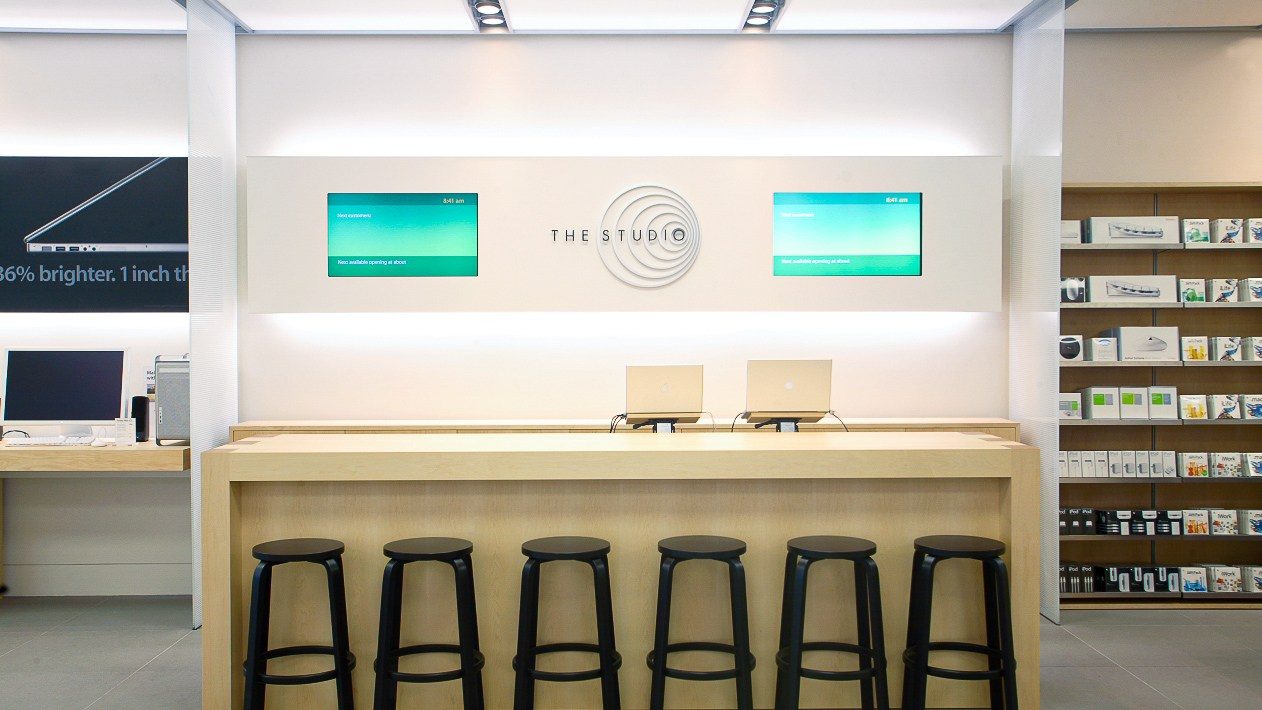
A little piece of Apple retail history is coming to an end in the service of progress. On September 28 at 10:00 a.m., Apple Fukuoka will move to an expansive new storefront within walking distance of the existing store. When the original location closes, it will take with it the last of a store feature Apple called The Studio.
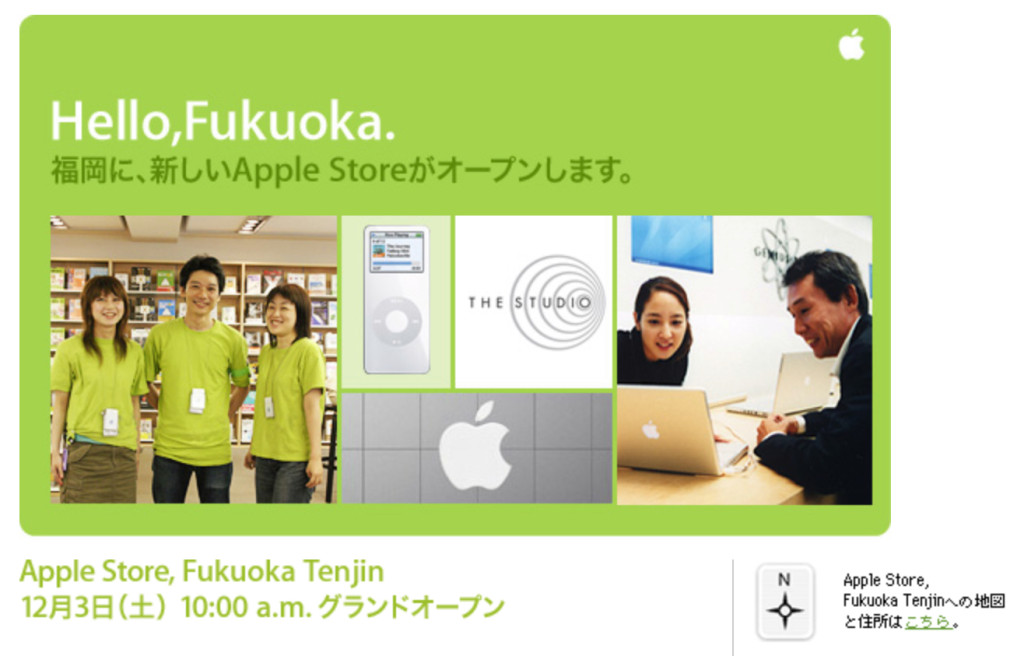
Apple Fukuoka opened in Japan on December 3, 2005. At the time, Apple was in the midst of rolling out an extension of its Genius Bar experience with a focus on creative projects. Studio bars were installed in new stores and added to existing locations beginning with Apple Shadyside in Pittsburgh. The new service was featured when Apple Regent Street opened in 2004:
Whether your interest is photography, moviemaking, music or everyday use of your Mac, we can help you. We’ll teach you one-on-one how to re-touch photos, compose music and make Hollywood-style movies. Or how to make a logo or design a slick letterhead. The Studio is the place to bring your creative projects and get tips, tricks and help in making your ideas real.
Apple Fukuoka Tenjin opened with a circular version of The Studio in the rear center of the store. The hypnotic logo with concentric circles was placed between two LCD monitors. Later on, Apple began merging the Genius Bar, Studio, and iPod Bar into one longer counter, and eventually discontinued the feature altogether.
The Studio lives on today through a Today at Apple session called Product Skills: Studio Hour, and at one lone bar in Fukuoka. While every other store location has been remodeled over the years to remove its Studio branding, Apple Fukuoka has remained unchanged. The Studio now functions as more of an ad-hoc Genius Bar.

September 28 marks the grand reopening of Apple Fukuoka at a brand-new space in the Tenjin district. Apple has created a towering glass facade with its signature contemporary architecture. Two stone walls running the depth of the store are cut to fit the angle of the street and bridged by a wedge of the planked canopy.
To celebrate the new store, Apple has published a fun animated video on its store page, and like all new stores in Japan, created wallpapers in a variety of formats for every device.
Earlier this month, Apple gave a rough timeline for the store’s reopening at a preview of Apple Marunouchi in Tokyo. Fukuoka’s new store had been rumored for nearly a year as one of the many retail projects Apple had scheduled for Japan in 2019. One more new store is promised to open before the end of the year.
On the same day Apple Fukuoka moves, Apple Shanghai iapm in China will reopen its ground level with a new video wall and Forum. On September 27, Apple’s second store in Mexico, Apple Antara, opens its doors.
Source: 9to5mac










