NEWS

iPhone Miraculously Saves Man from Death by Arrow

03/15/2019

2821

iPhone Miraculously Saves Man from Death by Arrow


Richmond police officers were called out to a disturbance in Nimbin, northern New South Wales, following reports a man was shot at with a bow and arrow in his driveway. On Wednesday morning, a man allegedly waited for the victim to arrive, wielding the unusual weaponry. 

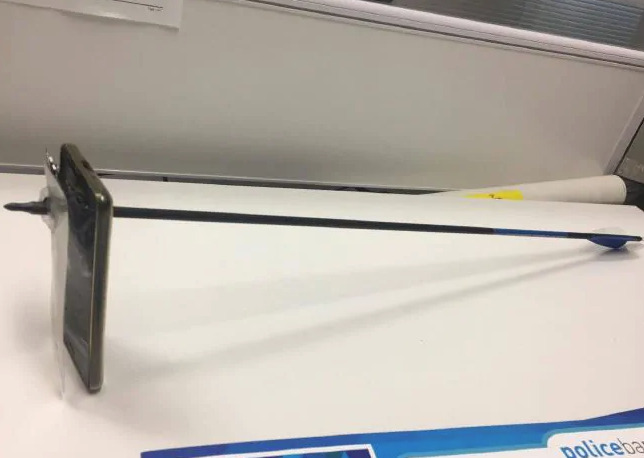
The 43-year-old victim is said to have held up his iPhone to take a photograph of the assailant, who then took his shot at the homeowner, 
reports News.com.au. The arrow struck the iPhone, with the arrowhead partially passing through the device but ultimately embedding the ammunition. 
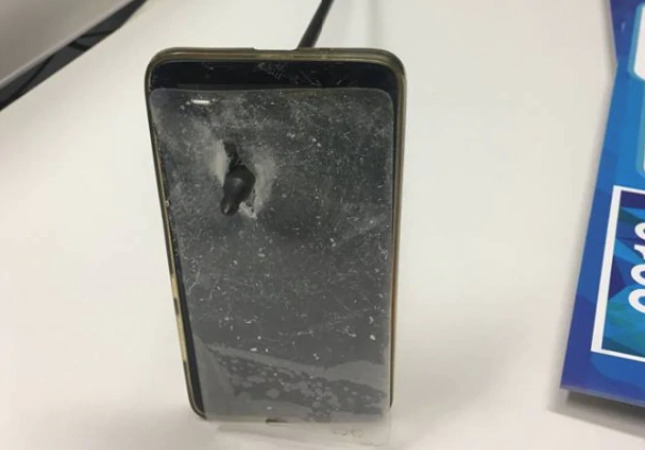
iPhone Miraculously Saves Man from Death by Arrow


The man did not require medical treatment, but it did leave a small laceration, likely caused when the iPhone hit the victim's chin. The assailant, said to be aged 39 and known to the home owner, was arrested at the scene by officers. 

Charged with being armed with intent to commit an indictable offense, assault occasioning actual bodily harm, and malicious damage, the bow owner has been granted conditional bail and is set to appear in court on April 15. 

While Apple does not advertise any of its products as being capable of providing physical security from projectiles, this is not the first time a person has escaped major harm thanks to the company's hardware. In 2017, a witness to a shooting at a Fort Lauderdale airport revealed a MacBook Pro in his backpack was hit by a 
stray bullet, one that could have caused serious injury.


Source: appleinsider

Windows
Mac OS
iOS
Linux
3uTools
Win 64-bit For this device
V9.0 2025-11-11
Download
Win 32-bit For this device
V9.0 2025-11-11
Download
3uTools
Intel Chip How to Identify Chip Type
V9.0 2025-12-02
Download
Apple Silicon
V9.0 2025-12-02
Download
How to Identify Chip Type
1.  Click the Apple icon in the top-left corner of the screen and select About This Mac.
2.  Check the Processor or Chip field to determine if it is "Intel" or "Apple".
Please use the 3uTools PC client to install the iOS client:
1、 Install either the Windows or Mac version of 3uTools on your computer
2、 Open the PC client and connect your device to the computer via USB cable
3、 After the connection is successful, wait for the computer to automatically install the mobile app for the device, or locate “Install Mobile App” on the computer and manually click to install.
3uTools
deb file
V3.01 2025-11-20
Download
rpm file
V3.01 2025-11-20
Download
Windows
Windows
iOS
iOS
Android
Android
TV
TV
3uAirPlayer
Win 64-bit For this device
V6.0.2 2025-11-19
Download
Win 32-bit For this device
V6.0.2 2025-11-19
Download
iOS Device Mirroring (No App Required)
1、 Install 3uAirPlayer on the Windows PC
2、 Open Control Center and select Screen Mirroring
3、 From the list, choose your PC to start mirroring
4、 Or connect your iOS device to the PC via USB to begin mirroring
Scan to get "3uAirPlayer" App
3uAirPlayer TV V1.0.18
2025-11-28
TV System Requirements: Android 7.0 or later
Download the TV installation package, copy it to a USB drive, insert it into your TV or set-top box, then select the file from the home screen to install.