 NEWS
NEWS
Apple Says the iPhone Doesn't Listen to Your Conversations
 08/09/2018
 3081
3081
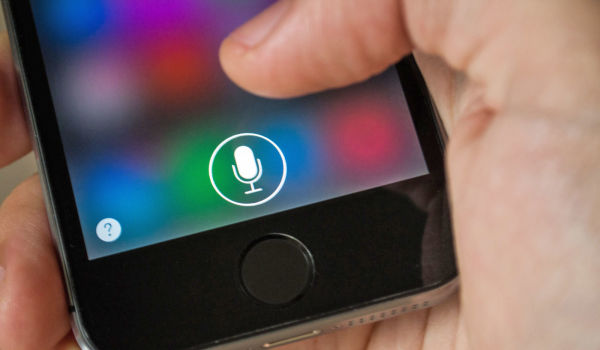
Last month, members of the House Energy and Commerce Committee fired off a letter to Apple following reports that phones and other devices, such as smart speakers, can listen in on conversations. Now, the tech giant has sent the Representatives its response: iPhones, it says, don't listen to people's conversations and don't share people's spoken words with third-parties. In what could be interpreted as a dig at its staunchest competitors, Cupertino explains in the letter that the customer is not its product and that its business model "does not depend on collecting vast amounts of personally identifiable information to enrich targeted profiles marketed to advertisers."
In the original letter the lawmakers sent, they specifically noted reports that third-party apps could access the data devices supposedly collect while listening for their "trigger words," such as "Hey, Siri, "OK Google" and "Hey, Alexa." During Facebook's congressional hearing back in April, Senator Gary Peters (D-MI) even asked Mark Zuckerberg whether the social network listens in on people through their phone mics in order to serve relevant ads. The Facebook chief said no, the company's apps don't spy on people's conversations. He called the idea a conspiracy theory.
Just like Facebook, Apple denies that it listens to users as they go about their everyday lives. It says the iPhone's speech recognizer only listens for two words: "Hey Siri." When the voice assistant wakes up, it confirms whether the user truly intended to summon it, and anything you ask it will be tied to a random device identifier and not your Apple ID. Further, you can change the random device identifier by switching Siri and Dictionary off and on again.
Apple also expounds on how it handles location information in the letter. It says it doesn't keep a record of location data associated with a person's name and Apple ID -- it doesn't use someone's location to serve targeted ads, as well. The tech giant points out that it leaves the decision to switch on location info to users and that it requires apps to ask people upon installation whether they want to grant that specific application access to location info "always," "never" or "while using" it.
"We believe privacy is a fundamental human right and purposely design our products and services to minimize our collection of customer data," the letter reads. Apple warns, however, that it "does not and cannot monitor what developers do with the customer data they have collected, or prevent the onward transfer of that data."
Source: engadget









