
NEWS

What's New in iOS 11.4 Beta 1?

04/04/2018

4292

Apple today seeded the first beta of an upcoming iOS 11.4 update to developers, a little under a week after releasing iOS 11.3, an update that introduced a wide range of new features like Battery Health for monitoring the status of your iPhone's battery, Business Chat in Messages, ARKit 1.5 with augmented reality improvements, new Animoji on iPhone X, Health Records from participating medical providers, and more. 


Registered developers can download the new iOS 11.4 beta from Apple's Developer Center or over-the-air once the proper configuration profile has been installed from the Developer Center. It appears there's currently a bug preventing the beta profile from being downloaded, but it should be addressed soon. 
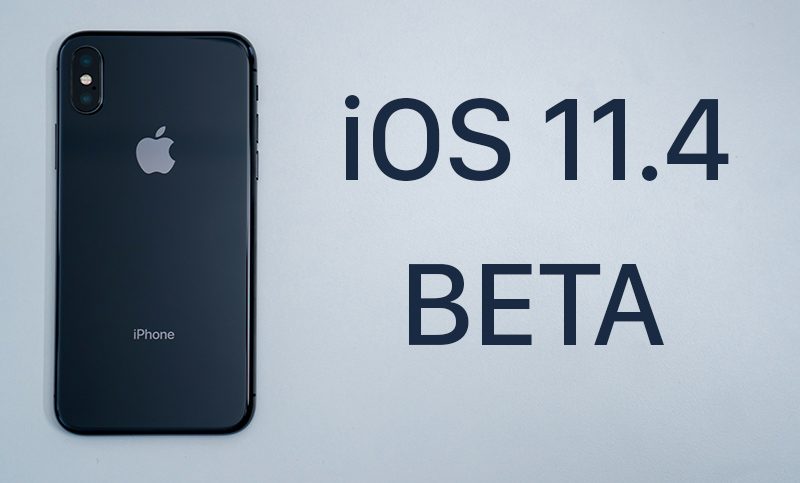

What's New in iOS 11.4 Beta 1?


It's not yet clear what new features will be included in the iOS 11.4 beta aside from the new ClassKit framework Apple introduced at its March event, but we are waiting on several features to be added to iOS 11, including iCloud Messages and AirPlay 2, functionality that has popped up in previous betas and then disappeared before release. 
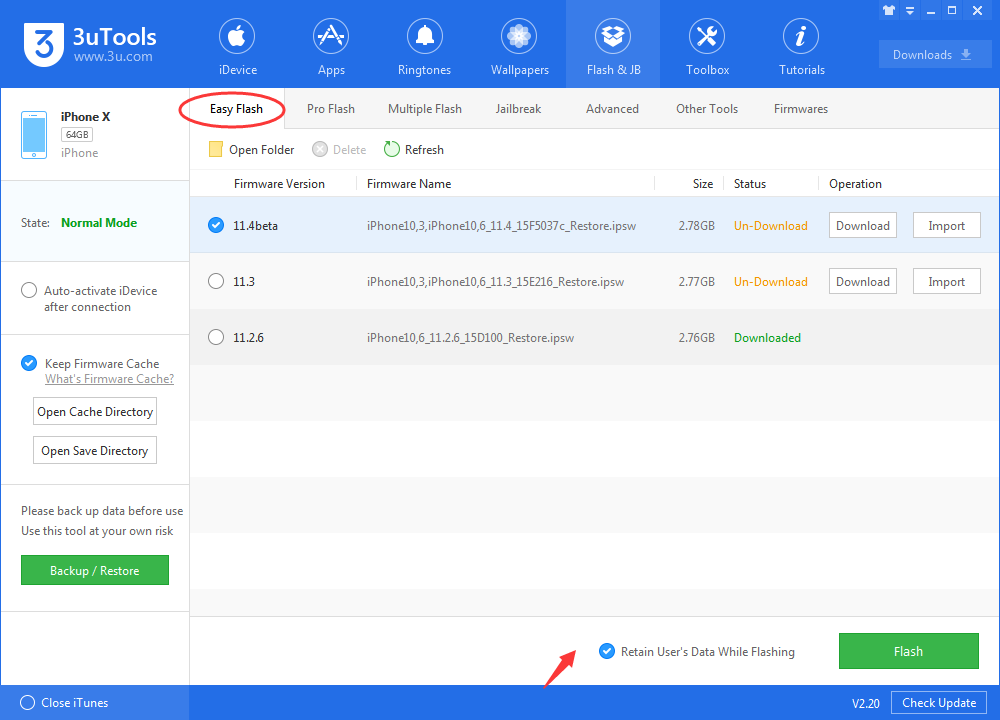

What's New in iOS 11.4 Beta 1?


What's new in iOS 11.4 Beta 1: Messages on iCloud is present in the iOS 11.4 beta after being removed from iOS 11.3 ahead of its release, as are AirPlay 2 features. Apple TV devices are once again listed in the Home app, an AirPlay 2 option. 


Stereo support for the HomePod is included, but the feature doesn't work properly as it requires unreleased HomePod software. 


Source: macrumors

Windows
Mac OS
iOS
Linux
3uTools
Win 64-bit For this device
V9.0 2025-11-11
Download
Win 32-bit For this device
V9.0 2025-11-11
Download
3uTools
Intel Chip How to Identify Chip Type
V9.0 2025-12-02
Download
Apple Chip
V9.0 2025-12-02
Download
How to Identify Chip Type
1.  Click the Apple icon in the top-left corner of the screen and select About This Mac.
2.  Check the Processor or Chip field to determine if it is "Intel" or "Apple".
Please use the 3uTools PC client to install the iOS client:
1、 Install either the Windows or Mac version of 3uTools on your computer
2、 Open the PC client and connect your device to the computer via USB cable
3、 After the connection is successful, wait for the computer to automatically install the mobile app for the device, or locate “Install Mobile App” on the computer and manually click to install.
3uTools
deb file
V3.01 2025-11-20
Download
rpm file
V3.01 2025-11-20
Download
Windows
Windows
iOS
iOS
Android
Android
TV
TV
3uAirPlayer
Win 64-bit For this device
V6.0.2 2025-11-19
Download
Win 32-bit For this device
V6.0.2 2025-11-19
Download
iOS Device Mirroring (No App Required)
1、 Install 3uAirPlayer on the Windows PC
2、 Open Control Center and select Screen Mirroring
3、 From the list, choose your PC to start mirroring
4、 Or connect your iOS device to the PC via USB to begin mirroring
Scan to get "3uAirPlayer" App
3uAirPlayer TV V1.0.18
2025-11-28
TV System Requirements: Android 7.0 or later
Download the TV installation package, copy it to a USB drive, insert it into your TV or set-top box, then select the file from the home screen to install.




