 NEWS
NEWS
How an Apple II Gave Stephen Hawking his Voice
 03/15/2018
 3908
3908
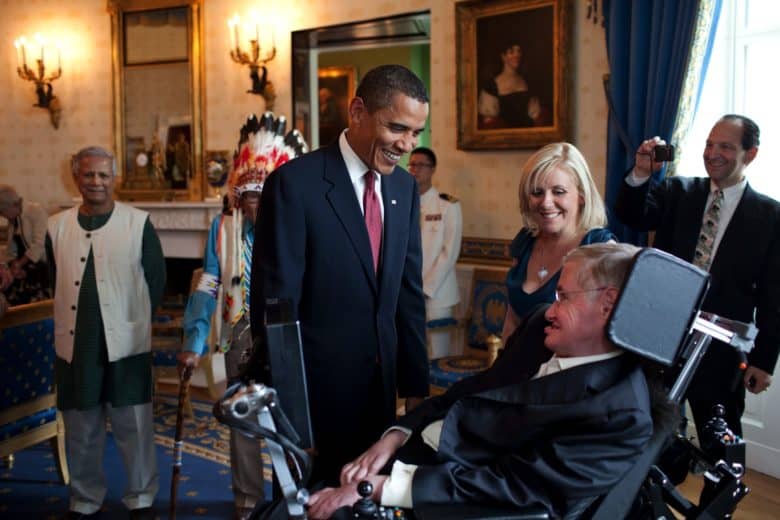
As one of the world’s most visionary physicists and popular science writers, it’s no surprise to hear that Hawking inspired folks at Apple — just as he did people all around the planet.
But Apple and Hawking share an interesting connection: It was an Apple machine that first gave him the ability to verbally communicate using a computer.
The dream of synthesized speech
When I first heard that Stephen Hawking died, I went to Google to find an image I could post on my Facebook page as a tribute. I half-remembered that Hawking had been one of the 29 creators, inventors and visionaries who had been portrayed in Apple’s “Think Different” ad campaign in the late 1990s. No such luck.
But there was an Apple connection that existed with Hawking — and it was a profound one. After developing ALS in the 1960s, Hawking’s physical capabilities slowly worsened until, by the late 1970s, he was barely able to speak. At first, he was able to verbally communicate sufficiently that friends and family could understand him, and relay this information to others.
He lost his ability to speak entirely in 1985, however. For a while, he attempted to communicate by raising his eyebrows to indicate letters on cue cards, which could spell out words. But when this ability also diminished, he turned to technology to help.
In 1984, Steve Jobs introduced the Macintosh. In Jobs’ onstage demo, the Mac introduced itself using a synthesized voice. For the first time, the idea of a computer speaking for someone entered the public consciousness.
That same year, an MIT engineer named Dennis Klatt created a synthesized voice for Hawking to use. Using a program called Equalizer and a Speech Plus synthesizer, Hawking could select words and commands that would then be spoken out loud. The first version of the program ran on an Apple II, Cupertino’s most popular computer at the time. It gave Hawking the ability to “speak” at 15 words per minute.
While Hawking later changed the Apple II and Equalizer for other machines and programs, it was a crucial piece of technology that allowed the physicist to communicate his brilliant ideas to other people.
Leaving humanity free to think and create
While Apple’s involvement with Hawking’s career was relatively minor (in some senses), what I love about this story is the fact that it demonstrates how technology can work with humanity at its best.
For the last few years of his life, Hawking talked about the dangers of artificial superintelligence, joining the likes of Tesla’s Elon Musk in sounding an alarmist note about the risks that AI poses. (In this clash, Hawking was positioned opposite Apple co-founder Steve Wozniak, who disagrees with the anti-AI stance.)
Hawking may or may not have been wrong about the risks of super-intelligent machines. But the concept of using cutting-edge technology to perform certain tasks, while leaving humans free to concentrate on generating creative ideas, is a profoundly important one. This is the optimistic view of hybrid human-machine intelligence described in MIT professors Erik Brynjolfsson and Andrew McAfee’s book, The Second Machine Age.
They suggest we can use smart technology to do the routine tasks that we do not want to, or cannot, perform. That should leave us with more time for the meaningful activities we can perform far better than any machine.
The role that technology played in the life of Hawking is a testimony to how this relationship can work at its best.
Source: cult of mac










