NEWS

Google Assistant Lands on iPad

03/14/2018

3297

Google Assistant Lands on iPad


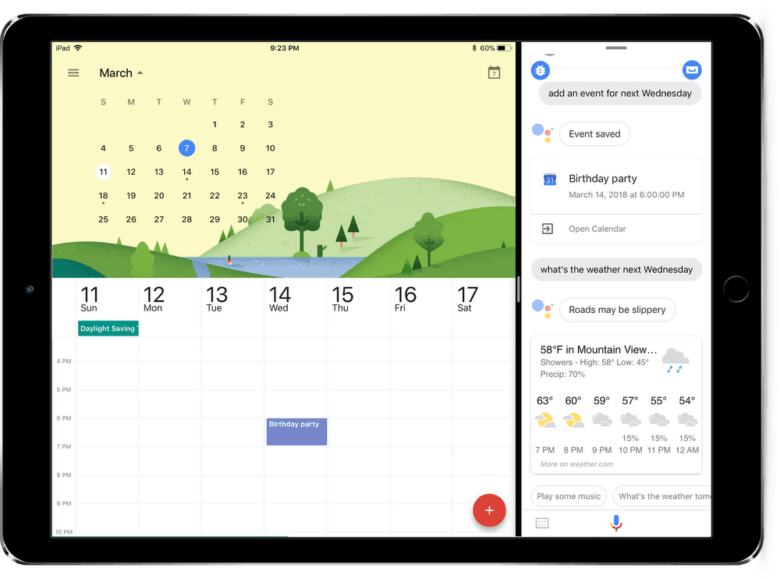
Anyone wanting to try out Google’s rival to Siri can now do so on their iPad: A version of the Google Assistant optimized for iOS tablets just debuted.


With the press of a button, the application will answer questions and retrieve information from the internet, but that’s just the start.


Google Assistant can read out upcoming calendar events and set reminders and calendar entries. In addition, it displays turn-by-turn directions and weather forecasts when queried. Plus, some smart home accessories can only be controlled by Google Assistant.


Google Assistant is available immediately on the App Store. It’s free to download and use. A version for iPhone debuted last summer, but today is the first time this software runs well on a tablet. That includes support for side-by-side multitasking on iPad.


Is Google Assistant on iPad really necessary?

Of course, there is a great deal of overlap with Apple’s offering, Siri. Both handle basic tasks like weather, calendars and driving directions about equally well.


However, the Google software has no equivalent to “Hey Siri” on iOS devices. Instead, users must push an on-screen button to get Google Assistant to start listening.


Some smart home accessories controlled by Google Assistant also support Apple’s HomeKit, but not all of them.


Google reaches out to iOS

Although Google has its own Android operating system, it typically doesn’t slam the door on iPhone and iPad. Google released iOS equivalents of all its top applications, such as Chrome, the Google search app and its FaceTime rival. There’s even an iMessage plugin and a Safari extension.


Source: cult of mac

Windows
Mac OS
iOS
Linux
3uTools
Win 64-bit For this device
V9.0 2025-11-11
Download
Win 32-bit For this device
V9.0 2025-11-11
Download
3uTools
Intel Chip How to Identify Chip Type
V9.0 2025-12-02
Download
Apple Chip
V9.0 2025-12-02
Download
How to Identify Chip Type
1.  Click the Apple icon in the top-left corner of the screen and select About This Mac.
2.  Check the Processor or Chip field to determine if it is "Intel" or "Apple".
Please use the 3uTools PC client to install the iOS client:
1、 Install either the Windows or Mac version of 3uTools on your computer
2、 Open the PC client and connect your device to the computer via USB cable
3、 After the connection is successful, wait for the computer to automatically install the mobile app for the device, or locate “Install Mobile App” on the computer and manually click to install.
3uTools
deb file
V3.01 2025-11-20
Download
rpm file
V3.01 2025-11-20
Download
Windows
Windows
iOS
iOS
Android
Android
TV
TV
3uAirPlayer
Win 64-bit For this device
V6.0.2 2025-11-19
Download
Win 32-bit For this device
V6.0.2 2025-11-19
Download
iOS Device Mirroring (No App Required)
1、 Install 3uAirPlayer on the Windows PC
2、 Open Control Center and select Screen Mirroring
3、 From the list, choose your PC to start mirroring
4、 Or connect your iOS device to the PC via USB to begin mirroring
Scan to get "3uAirPlayer" App
3uAirPlayer TV V1.0.18
2025-11-28
TV System Requirements: Android 7.0 or later
Download the TV installation package, copy it to a USB drive, insert it into your TV or set-top box, then select the file from the home screen to install.