 NEWS
NEWS
Apple Breaks File Sharing on Macs While Fixing 'huge' Password Security Flaw
 12/01/2017
 3921
3921
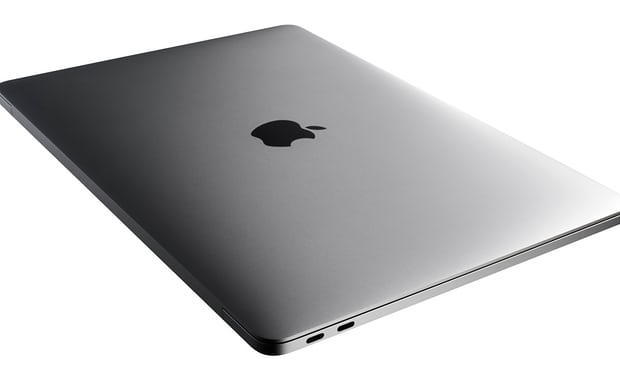
In its haste to fix the macOS High Sierra bug that allowed anyone to take control of a Mac computer with a blank password, Apple broke file sharing for some users.
Having been notified of the “huge” security hole on Tuesday, the company’s security engineers raced to fix the problem, releasing an update that was pushed out to users of macOS High Sierra on Wednesday afternoon.
Unfortunately, that fix introduced another bug, this time within the file sharing system of macOS, preventing some users from authenticating with or connecting to file shares, which are used both in business and on home networks.
The company quickly acknowledged the problem, releasing a support documentguiding users through how to fix the problem caused by the critical bug patch. Unfortunately, to perform the necessary repair, users have to use an advanced feature of the operating system called the Terminal and perform command line actions:
Open the Terminal app, which is in the Utilities folder of your Applications folder.
Type sudo /usr/libexec/configureLocalKDC and press Return.
Enter your administrator password and press Return.
Quit the Terminal app.
Despite the straightforward explanation and commands provided by Apple, many Mac users will not have experience of running commands within Terminal, a program designed to give advanced users direct, text-based access to underlying systems within macOS. Some took to Twitter to vent their frustration.
Others were more pragmatic, saying that breaking file-sharing tools was better than leaving the root-access bug unpatched for longer.
I'm looking forward to having to explain to my family why they have to use the terminal to fix file sharing they use at home or at work because of Apple's fucking incompetence.
— Olivier Charavel (@charavel) November 30, 2017
Apple apologised on 29 November for the original bug, saying that security was still a top priority for the company and that it had “stumbled” with macOS High Sierra. A spokesperson said: “We greatly regret this error and we apologise to all Mac users, both for releasing with this vulnerability and for the concern it has caused. Our customers deserve better. We are auditing our development processes to help prevent this from happening again.”
Source: the guardian











