 NEWS
NEWS
iOS 11 Includes Software to Avoid Burn-in on iPhone X OLED Screen
 09/12/2017
 4226
4226
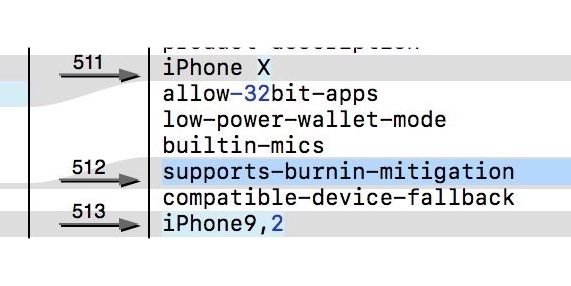
In digging through the iPhone X firmware leaked over the weekend, we have found one more small tidbit: reference to a burn-in mitigation feature for the OLED screen.
The iPhone X will be the first iPhone to feature an OLED display.
Whilst LCD panels can experience it too, OLED panels currently on the market are especially prone to experiencing burn-in on the display: where a faint ‘ghost’ image sticks around for a long time.
How much Apple’s new iPhone would be affected by the downsides of OLED displays has been a question of much debate in the community, but this leak suggests users of the new device will at least have to be wary that burn-in is a possibility.
It isn’t clear exactly how the iOS 11 software will try to mitigate the burn-in effect. The feature could be toggleable in Settings or permanently enabled at the system level.
Burn-in arises when the same static content is visible on screen for a long time with no variation in brightness or hue.
Some Samsung phones use pixel shifting techniques to subtly change the position of content on the screen to limit the amount of time a pixel is constantly displaying the same color.
Thanks to the proliferation of translucent materials in iOS design, it is hard to name places where the interface stays constant for extended periods. The relatively-static white text and iconography in the status bar could be one such example.
However, the simple fact that we have found the reference in the code signals that iOS 11 includes accommodations to reduce the chance of customers ever experiencing burn-in.
We’ll have to wait and see if this becomes a real problem for people when the phones ship later this month. Stay tuned to 9to5Mac for coverage of all the announcements from tomorrow’s event.
Source: 9to5mac










