
NEWS

Apple vs. FBI One Year Later: Everything's Fine?

02/16/2017

3961

It's been a year since Apple fought the FBI over data privacy, and we've barely heard a peep from either side on the issue. So everything's fine, right?


Uh, no.
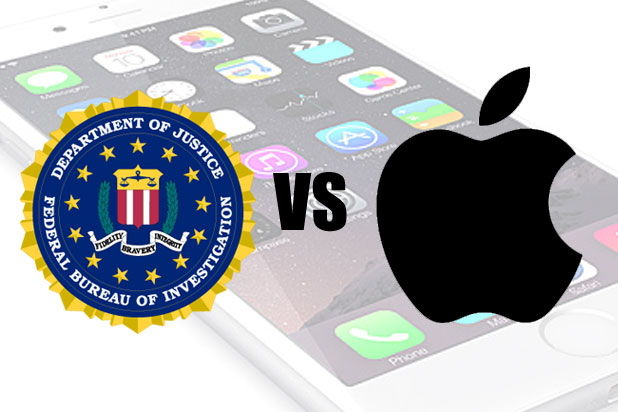

Apple vs. FBI One Year Later: Everything's Fine?


The FBI's attempt to force Apple to unlock an iPhone used by a terrorist set up a grand legal battle between security and privacy. On one side is a massive tech company envisioning a future similar to the setting in George Orwell's "1984" (which, coincidentally, has become a bestseller again after President Donald Trump's inauguration). On the other is the world's most powerful government dangling the threat of a terrorist attack if it can't get access to vital information.


The stakes were sky-high. Cybersecurity experts said the dispute could have far-reaching implications for everything from how private our personal photos are to how tech companies operate in other countries.


Both were poised to head to court, and then a funny thing happened: The FBI suddenly said it didn't need Apple's help, and the whole affair just faded away. But that doesn't mean everything is hunky-dory.


FBI expects more legal actions over encrypted devices. Because the battle never went to court, we never got an answer on whether security or privacy takes priority. A year later, the only thing that's clear from the public battle is just how hazy everything still is. And the conflict isn't going away anytime soon, especially if there's another terrorist attack.


Source: cnet

Windows
Mac OS
iOS
Linux
3uTools
Win 64-bit For this device
V9.0 2025-11-11
Download
Win 32-bit For this device
V9.0 2025-11-11
Download
3uTools
Intel Chip How to Identify Chip Type
V9.0 2025-12-02
Download
Apple Chip
V9.0 2025-12-02
Download
How to Identify Chip Type
1.  Click the Apple icon in the top-left corner of the screen and select About This Mac.
2.  Check the Processor or Chip field to determine if it is "Intel" or "Apple".
Please use the 3uTools PC client to install the iOS client:
1、 Install either the Windows or Mac version of 3uTools on your computer
2、 Open the PC client and connect your device to the computer via USB cable
3、 After the connection is successful, wait for the computer to automatically install the mobile app for the device, or locate “Install Mobile App” on the computer and manually click to install.
3uTools
deb file
V3.01 2025-11-20
Download
rpm file
V3.01 2025-11-20
Download
Windows
Windows
iOS
iOS
Android
Android
TV
TV
3uAirPlayer
Win 64-bit For this device
V6.0.2 2025-11-19
Download
Win 32-bit For this device
V6.0.2 2025-11-19
Download
iOS Device Mirroring (No App Required)
1、 Install 3uAirPlayer on the Windows PC
2、 Open Control Center and select Screen Mirroring
3、 From the list, choose your PC to start mirroring
4、 Or connect your iOS device to the PC via USB to begin mirroring
Scan to get "3uAirPlayer" App
3uAirPlayer TV V1.0.18
2025-11-28
TV System Requirements: Android 7.0 or later
Download the TV installation package, copy it to a USB drive, insert it into your TV or set-top box, then select the file from the home screen to install.




