 TUTORIALS
3uAirPlayer iOS Device User Guide: Dual Wireless and USB Cable Solution
 03/09/2026
 10907
10907
3uAirPlayer, as an efficient cross-device screen mirroring tool, is optimized for iOS devices with both wireless and USB cable connection options. It delivers both the freedom of wireless convenience and the stability of a smooth mirroring experience. This tutorial will guide you through four key areas—preparation, detailed steps, practical tips, and troubleshooting—to help you quickly master screen mirroring.
I. Preparation: Basic Environment Setup
Before starting screen mirroring, complete the following preparations to avoid connection issues:
Device and Network Requirements: It is recommended to update your iOS device to the latest system version for better compatibility. Ensure your computer has a functional USB port. For wireless mirroring, make sure the phone and computer are connected to the same stable Wi-Fi network. A 5 GHz Wi-Fi network is preferred for lower latency.
II. Wireless Screen Mirroring: A Convenient Cable-Free Solution
Wireless mirroring connects devices through the same Wi-Fi network without the need for a data cable. It is suitable for everyday video viewing, document presentations, and similar scenarios. Follow these steps:
Step 1: Ensure Both Devices Are on the Same Network
Connect your iOS device (iPhone/iPad) and computer to the same Wi-Fi network. Prioritize a 5 GHz Wi-Fi band (to avoid interference and bandwidth bottlenecks common with 2.4 GHz). Make sure any VPN or proxy software on the computer is turned off to prevent network isolation.
Step 2: Launch 3uAirPlayer and Scan for Devices
Open 3uAirPlayer on your computer and click “Wireless Mirroring.” The software will automatically scan for iOS devices on the same network. If no device is found, click “Refresh Device List” to rescan or check whether the Wi-Fi connection is stable.
Step 3: Enable Screen Mirroring on the iOS Device
Open Control Center according to your iOS device model:
1. Full-screen devices (iPhone X and later / iPad Pro, etc.): swipe down from the top-right corner of the screen.
2. Non-full-screen devices (iPhone 8 and earlier): swipe up from the bottom of the screen.
In Control Center, tap “Screen Mirroring” (or “AirPlay Mirroring” on some systems), then select the device name that matches the one shown in 3uAirPlayer on your computer (usually formatted as “Computer Name + 3uAirPlayer”).
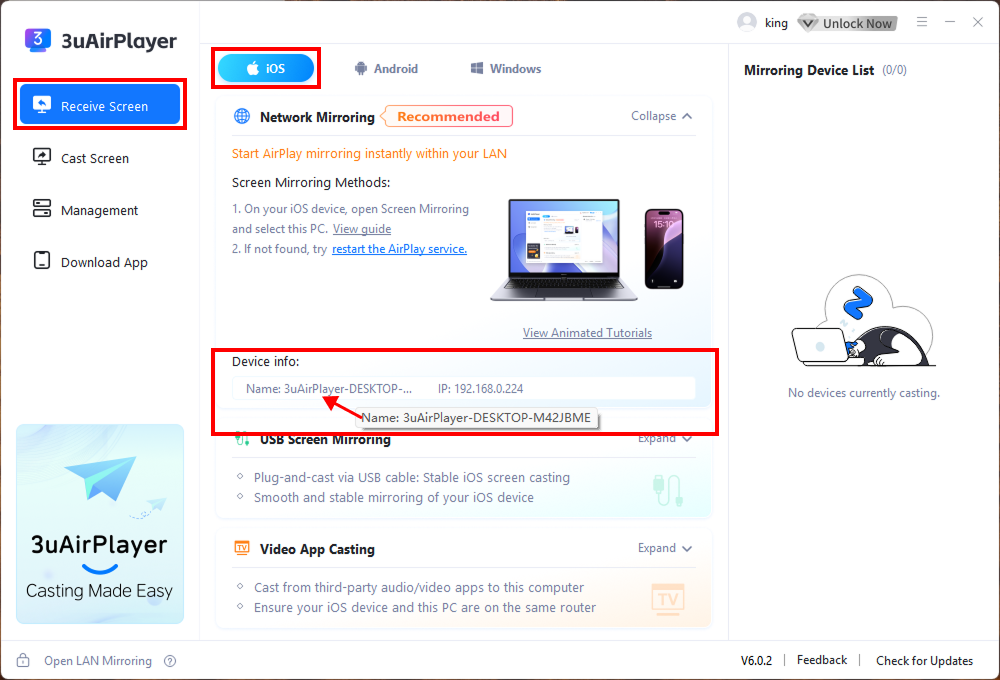
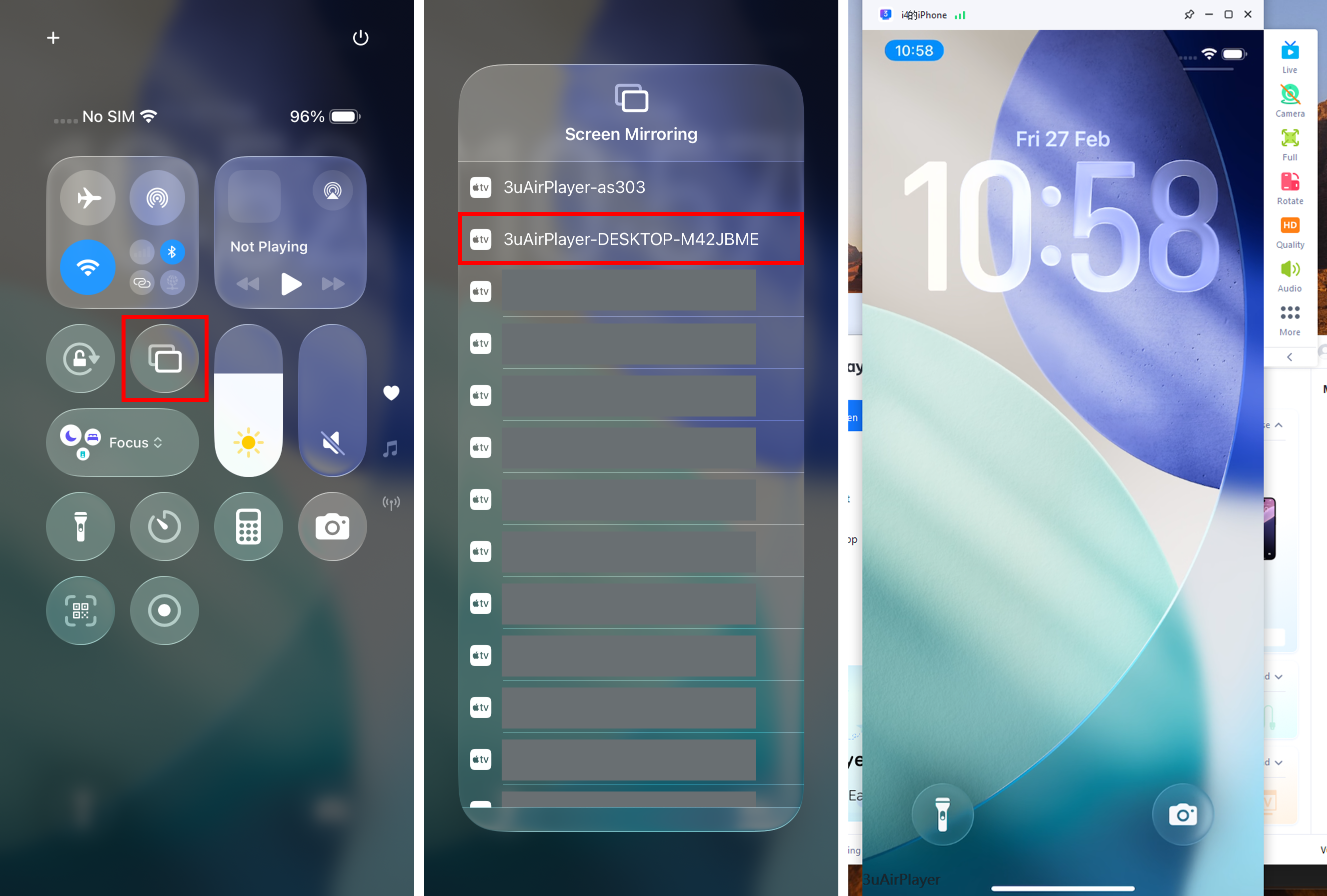
Step 4: Complete the Connection and Adjust Settings
After selecting the device, the iOS screen will mirror to the computer within 3-5 seconds. You can now adjust settings in the 3uAirPlayer interface:
● Click “Resolution” to select 1080P HD mode.
● Enable “Audio Sync” for seamless audio-visual synchronization.
● To record the mirrored content, click the “Start Recording” button. The file will automatically save to the preset location.
III. USB Cable Mirroring: The Preferred Stable Solution
USB mirroring transmits signals through a physical cable and is not affected by network fluctuations. It offers lower latency and is ideal for game streaming and high-definition video playback.
Step 1: Use a Certified Cable and Connect
Use an Apple MFi-certified USB cable (avoid low-quality cables that support charging only). Connect one end to the iOS device’s Lightning port and the other end to a rear USB port on the computer (rear ports provide more stable power). Ensure the cable is firmly connected.
Step 2: Trust the Computer and Install Drivers
A “Trust This Computer” prompt will appear on the iOS device. Tap “Trust” and enter the device passcode to authorize. 3uAirPlayer will automatically detect the device. On first connection, the software will install the appropriate iOS driver automatically. Wait 10–20 seconds for installation to complete (keep the computer connected to the internet during this process).
Step 3: Start Mirroring and Optimize Performance
Click “USB Mirroring” on the main interface to establish the connection immediately. Compared with wireless mode, USB supports higher frame rates (up to 60 FPS on some devices). You can enable Hardware Acceleration in Settings → Advanced Options to further reduce lag. During long mirroring sessions, you may connect the iOS device to a charger to avoid battery drain.
IV. Practical Tips and Troubleshooting
After mastering the basic steps, use the following tips to optimize your experience and quickly resolve common issues.
1. Experience Optimization Tips
Network optimization: When using wireless mirroring, turn off Bluetooth on both the computer and iOS device to reduce interference. Place the router near the devices and ensure Wi-Fi signal strength is at least 70%.
Feature expansion: Streamers can use the Push Streaming feature to broadcast the mirrored screen to live platforms. Click Virtual Camera to share the iOS screen in video conferences.
Software updates: Regularly update the software via Settings → Check for Updates in 3uAirPlayer. New versions fix compatibility issues and improve transmission efficiency.
2. Common Issues and Solutions
Wireless mirroring cannot find the device: Check that both devices are on the same Wi-Fi network. Restart the router and Aisi Screen Mirroring. If still not detected, go to Settings → Wi-Fi on the iOS device, tap the “i” icon next to the current network, choose “Forget This Network,” and reconnect
No response with USB connection: Replace with an MFi-certified cable. Try another USB port on the computer. Open Device Manager (Windows) or System Report (Mac) to check for Unknown Device; if present, uninstall it and reinstall the Aisi driver
Lag or delay during mirroring: Wireless mode: switch to 5 GHz Wi-Fi and close bandwidth-heavy background apps (e.g., download tools). USB mode: disable Low Power Mode on the iOS device and lower the resolution to 720P in Aisi (recommended for gaming)
The two connection methods in Aisi Screen Mirroring each have their advantages: Wireless mirroring: focused on convenience, ideal for quick sharing in mobile scenarios. USB mirroring: focused on stability, suitable for high-definition and low-latency professional needs. Choose the appropriate method based on your scenario. With the optimization tips and troubleshooting steps above, you can easily achieve seamless screen mirroring between your iOS device and computer. For further assistance, please visit the official Aisi Assistant website for customer support.










