 TUTORIALS
When Should We Use Recovery Mode on iPhone/iPad/iPod?
 07/18/2017
 9449
9449
We have introduce How to enter Recovery Mode. But when should we use Recovery Mode to fix problems on our iPhone, iPad and iPad? You will find the answer in this article.
1. "Connect to iTunes" Screen on iPhone/iPad/iPod
When you try to get a OTA update for, say, iOS 10, the “Connect to iTunes” screen suddenly shows up. This means that there is an error happening during the iOS update and your iDevice have entered the Recovery Mode automatically.
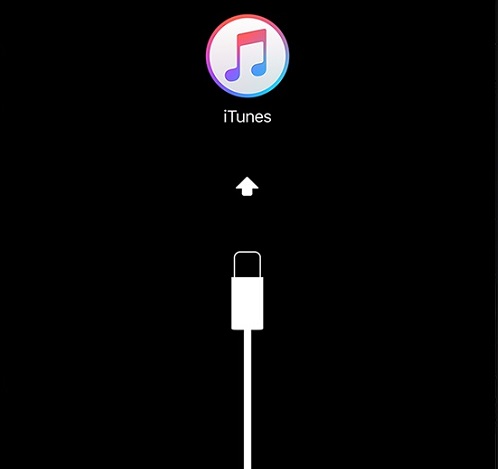
Troubleshooting:
Firstly, you could try to restart your iDevice:
For an iPhone 6s and earlier, iPad, or iPod touch: Long press both the "Power off" and "Home" buttons simutaneously for at least ten seconds, until you see the Apple logo.
For an iPhone 7 or iPhone 7 Plus: Press and hold both the "Power off" and "Volume Down" buttons. Don't release the two buttons until you see the Apple logo.
But most of the time a restart would not work. For example, this year when iPhone/iPad bricked during iOS 10 OTA update, a restart didn't work and we needed to connect our devices to iTunes and reinstall iOS in recovery mode.
Step 1. Make sure your iTunes has been updated to the newest version.
Step 2. Use lightning cable to connect your iOS device to iTunes.
Step 3. You'll get the message "The software on iPhone/iPad/iPod needs to be restored to factory settings or updated".
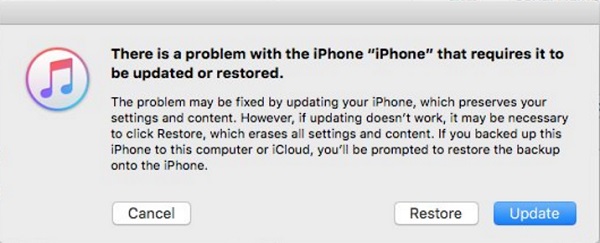
Step 4. Click "Update" to reinstall iOS and so that you can keep personal data . If you choose "Restore", it will delete all contents in your device.
2. iDevice Stuck at An Apple Logo
The error often happens when you try to restore your iDevice from a backup. An apple logo appears on your iPhone/iPad/iPod touch screen with no progress bar. And users who attempt to jailbreak their devices also encounter the problem sometimes.
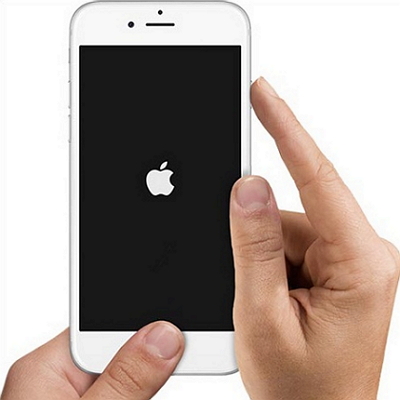
Troubleshooting:
To get your iDevice out of the problem, you need to force a restart on the device to recovery mode.
Step 1. Connect your device to a computer via USB cable. Then launch iTunes on the computer.
Step 2. Put your iDevice into Recovery Mode.
Step 3. When you get the option to restore or update your device, click "Update". iTunes will try to reinstall iOS to your device without erasing to data. If iTunes takes more than 15 minutes to download iOS and your device exits the recovery mode, enter the recovery mode again and try for another time.
Plus, you could also “Easy Flash” your iDevice by 3uTools, but make sure your iDevice is in Recovery mode.
3. iTunes Couldn't Recognize Your iDevice
You could also face the situation when you try to get an iOS update. iTunes can't recognize your iDevice and says the device is in recovery mode.
Step 1. Close your iTunes. And re-open iTunes after you have connected your device to your computer.
Step 2. Put your device into recovery mode.
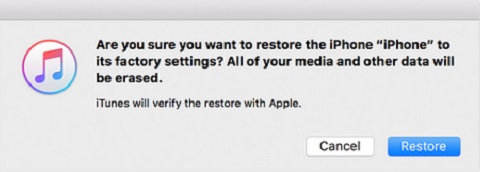
Step 3. Click "Update" first to reinstall iOS. But if it takes more than 15 minutes and your device exits recovery mode. Re-enter recovery mode and try "Restore". Restoring your device in recovery mode will wipe out all personal data. But you can then restore a iTunes or iCloud backup and recover the deleted data via 3uTools.
4. iDevice is Disable Because of Wrong Passcode
Please check this tutorials: How to Restore A Disabled iPhone Using 3uTools?










