 TUTORIALS
How to Update Cydia Safely with Cydia Update Helper?
 07/27/2018
 19308
19308
The latest Cydia updates by Coolstar break a lot of stuff and render it unusable. Here’s how you can update your device properly.
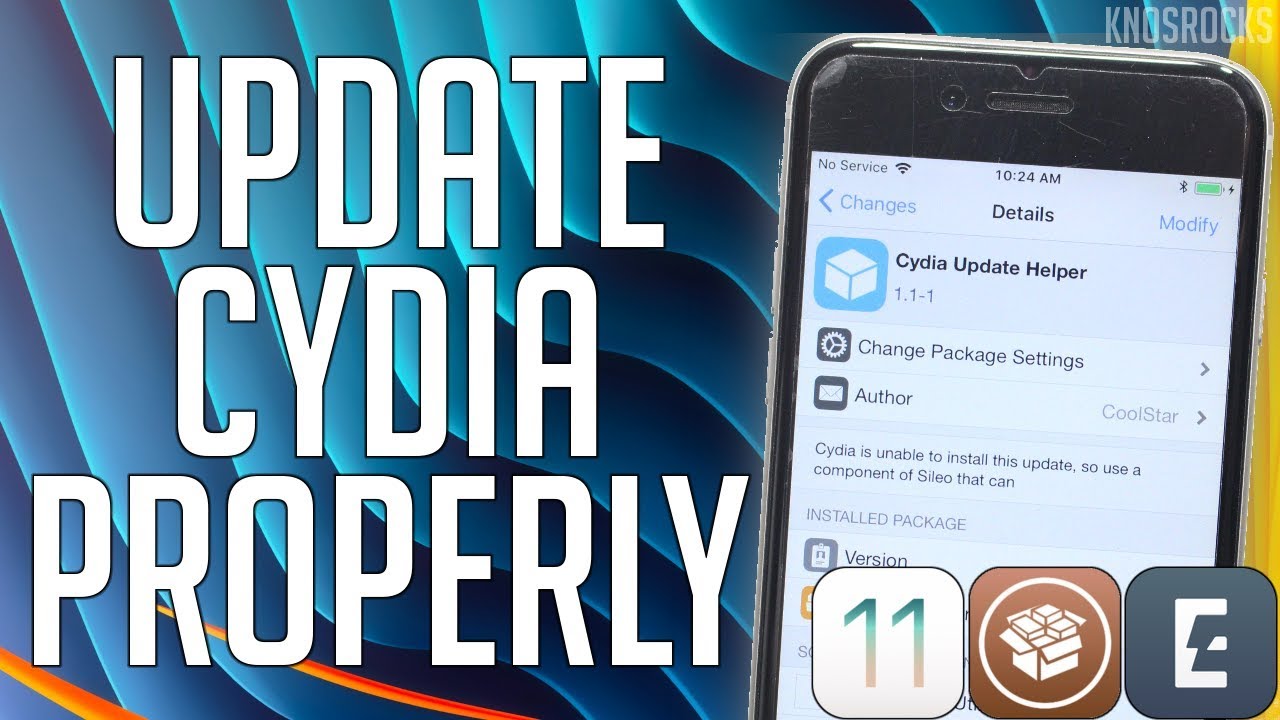
Electra developer Coolstar recently released two system updates, namely, Cydia (GUI Only) and Cydia Compatibility Package.
These packages split the jailbreak package manager into two components – user interface and compatibility.
According to Coolstar, this update prepares your device for the Sileo. To disable “Upgrade Essential” updates, simply add Electra’s iOS Utilities source (electrarepo64.coolstar.org) to your hosts file. You can always go back and remove this line from the hosts file to re-enable updates.
Preparation
Step 1 Launch Cydia and ignore all update alerts, then go to Sources → Refresh → Search tab, then enter “Cydia Update Helper” and select the first result.
Step 2 Tap Install and then tap Confirm to confirm and start the installation.
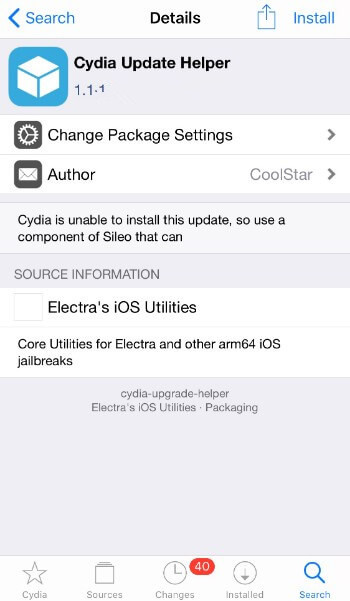
Step 3 Once the package is installed on your device, close Cydia. Remember, the app doesn’t have an icon and this is normal since you will be deleting afterward.
Update
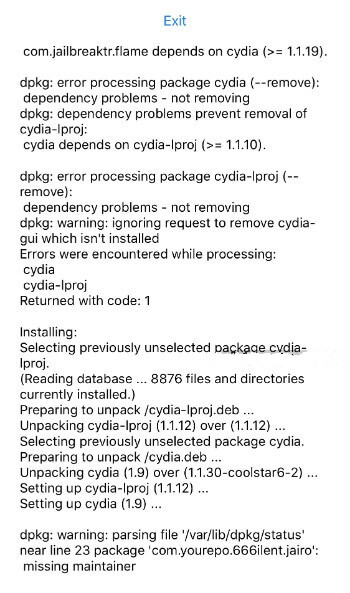
Step 4 Open Cydia Update Helper from the home screen. Tap Update Cydia to kickstart the update process.
Step 5 Wait for it to install the update. Once the update finishes, tap Exit.
Uninstall
Once the upgrade is done, you can safely uninstall the Helper app. However, you can’t just remove the app from your home screen, you will need to go back and remove it from Cydia.
Step 6 Open Cydia, go to the Installed tab, scroll down and select the Helper app.
Step 7 Tap Modify → Remove and wait for the uninstall to finish.
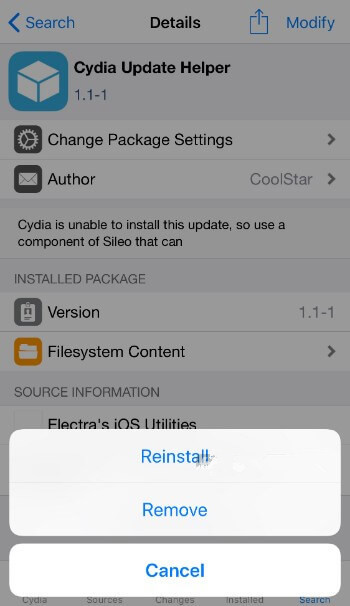
Step 8 Once it’s done, tap Return to Cydia.
If you have already udpated Cydia, but the Cydia is broken, please refer: How to fix Broken Cydia if you Have Already Updated Cydia?










