 TUTORIALS
Reinstall Apple Maps to Fix iOS 11 Jailbreak Electra 1.0.4 Freezing
 03/16/2018
 14402
14402
Electra jailbreak has been for a period of time. However, for a lot of users, part of that experience has been having to live with a jailbroken device which freezes randomly, seemingly without any explanation.
Thankfully, it seems that CoolStar – developer of Electra – has gotten to the bottom of that mysterious issue.
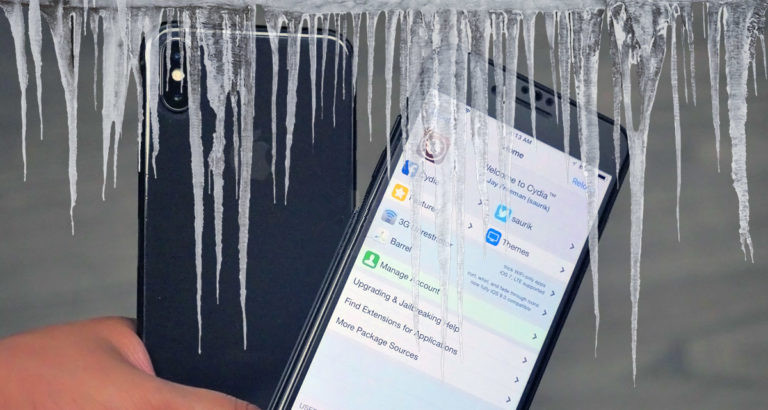
Even though 1.0.3 and 1.0.4 which were specifically released to fix freezing issue, iPhone and iPad owners running iOS 11 were still experiencing random and frustrating hanging problems after they had jailbroken with Electra. CoolStar has taken to Twitter to speak out about this and seems to have what is hopefully a final resolution.
Bizarrely, it seems that the problem has been tracked down to affecting devices which have the native Apple Maps app uninstalled from the device. You may or may not be aware but Apple used to ship iOS with a collection of first-party apps which simply couldn’t be removed. However as of last few versions of iOS, it’s possible to delete a stock app from the device, preserving its underlying data, and then reinstall it from the App Store if needed.
“Fixed” pic.twitter.com/qKyQdmf1la
— CoolStar (@coolstarorg) March 15, 2018
CoolStar and his testers have detected that a daemon process called “mapspushd” is constantly running in the background even when the stock Maps app is removed, and that’s what has been causing the “freezing” problem as it has been conflicting with Electra.
A simple solution here is to just reinstall the Apple Maps app from the App Store. However, for a lasting solution, CoolStar also suggests doing this:
TweakInjector 1.0.5 and 1.0.5-1 had some issues.
— CoolStar (@coolstarorg) March 15, 2018
Rejailbreak with tweaks switch disabled in Electra, install 1.0.5-2 from Cydia, then reboot and rejailbreak
So, there you have it, finally, a solution to one of the biggest problems which has been affecting those who have liberated their devices using Electra.
Source: Twitter









