TUTORIALS

NGXPlay Cydia Tweak Runs all iOS Apps on CarPlay Screen

05/22/2017

26659

How NGXPLAY works:

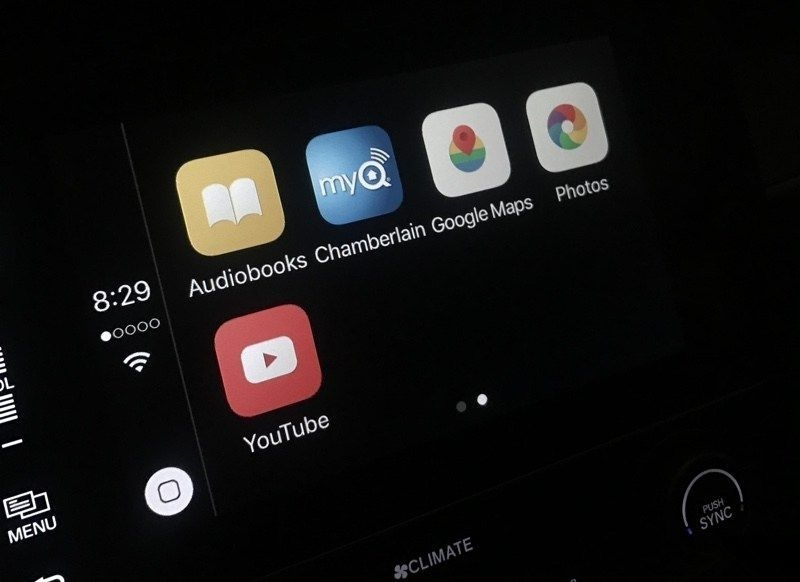
By default, you can only open compatible applications on your CarPlay screen. If any application is incompatible with CarPlay, it simply won’t work. This is where NGXPlay Cydia tweak comes in.

NGXPlay runs any application on your CarPlay irregardless of their compatibility. It is developed by Eason Wu, who is a newcomer on the jailbreak scene.


If you want to run 3rd party app on your CarPlay screen, these are necessary.

1. CarPlay system has installed on your car;

2. Required iPhone 5 and later versions;

3. iDevice has been jailbroken on iOS 9-iOS 10.2.

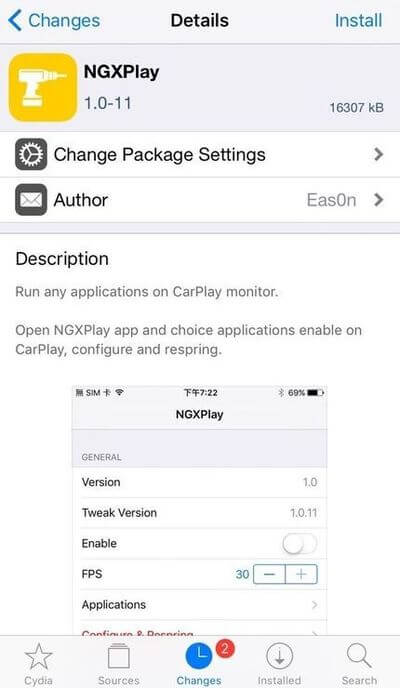
Download NGXPlay


NGXPlay Cydia Tweak Runs all iOS Apps on CarPlay Screen


It doesn’t run the applications natively on the CarPlay screen. It simply mirrors the applications meaning you won’t have a keyboard. 


Once installed, you can configure it in the Settings. The Settings section allows you to:


  • Enable/disable the tweak

  • Set FPS (Frames per second)

  • Select Applications


NGXPlay Cydia Tweak Runs all iOS Apps on CarPlay Screen


If you are wondering why this tweak is so useful, read this:


The whole point of CarPlay is to port your iPhone’s functionality to a screen in your car. This allows you to use your iPhone straight from that screen.

This protects you from the dangers of using your phone while driving. The screen is also much more ergonomic while driving.


  • If you want to test this tweak, you must have CarPlay in your car.

  • NGXPlay is available for download on BigBoss Cydia repo for free. It is compatible with iOS 10.


Windows
Mac OS
iOS
Linux
3uTools
Win 64-bit For this device
V9.0 2025-11-11
Download
Win 32-bit For this device
V9.0 2025-11-11
Download
3uTools
Intel Chip How to Identify Chip Type
V9.0 2025-12-02
Download
Apple Chip
V9.0 2025-12-02
Download
How to Identify Chip Type
1.  Click the Apple icon in the top-left corner of the screen and select About This Mac.
2.  Check the Processor or Chip field to determine if it is "Intel" or "Apple".
Please use the 3uTools PC client to install the iOS client:
1、 Install either the Windows or Mac version of 3uTools on your computer
2、 Open the PC client and connect your device to the computer via USB cable
3、 After the connection is successful, wait for the computer to automatically install the mobile app for the device, or locate “Install Mobile App” on the computer and manually click to install.
3uTools
deb file
V3.01 2025-11-20
Download
rpm file
V3.01 2025-11-20
Download
Windows
Windows
iOS
iOS
Android
Android
TV
TV
3uAirPlayer
Win 64-bit For this device
V6.0.2 2025-11-19
Download
Win 32-bit For this device
V6.0.2 2025-11-19
Download
iOS Device Mirroring (No App Required)
1、 Install 3uAirPlayer on the Windows PC
2、 Open Control Center and select Screen Mirroring
3、 From the list, choose your PC to start mirroring
4、 Or connect your iOS device to the PC via USB to begin mirroring
Scan to get "3uAirPlayer" App
3uAirPlayer TV V1.0.18
2025-11-28
TV System Requirements: Android 7.0 or later
Download the TV installation package, copy it to a USB drive, insert it into your TV or set-top box, then select the file from the home screen to install.