 TUTORIALS
How to Bypass Jailbreak Detection from Apps On Your iPhone?
 11/15/2017
 25271
25271
Some apps block you from using them because they know your iPhone is jailbroken. This tutorial aimsto show you two jailbreak tweaks that help you bypass jailbreak detection from apps on your iPhone.
Bypass Jailbreak Detection With tsProtector8
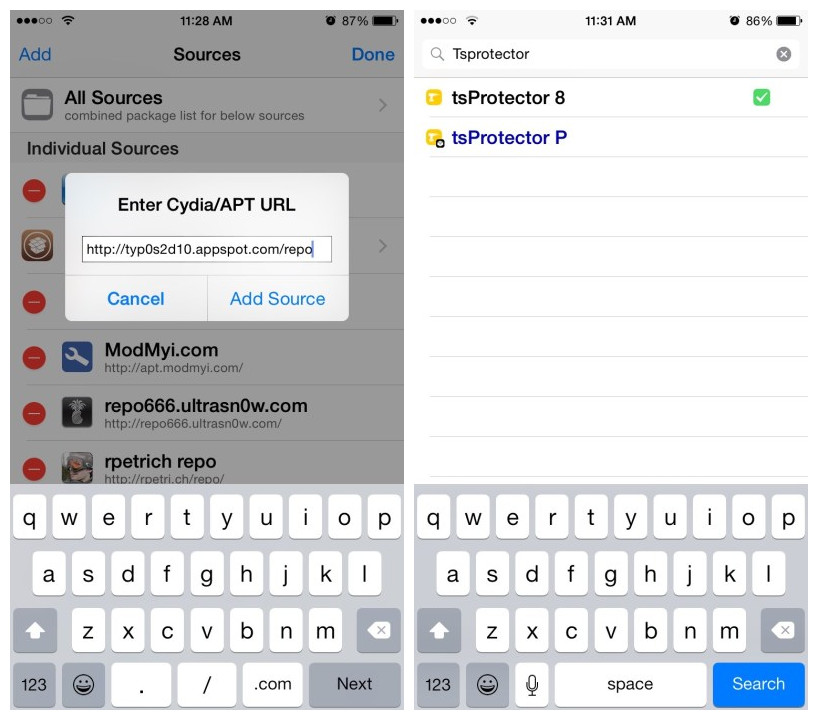
The best jailbreak tweak for bypassing jailbreak detection is probably tsProtector 8. The tweak is minor and doesn’t have settings you need to adjust. You only need to install the tweak and any normal app that has jailbreak detection will be bypassed, allowing you to use the app with no trouble.
* Before you can install tsProtector 8, you must add a new repo to Cydia.
* Open Cydia app and click Source at the bottom. Then click Edit in the upper-right corner of the screen. Click Add in the top-left corner.
* A pop-up will appear. Then enter typ0s2d10.appspot.com/repo. Then click “Add Source.”
Once you have added the source, it will refresh the Sources list. This will only a few seconds, depending on how quickly the servers are running.
* Click Search. Then type in “tsprotector” in the search bar. You should see tsProtector 8 appear in the Search result list. When you see a green checkmark next to it, you will know that you already have it installed. Otherwise tap on it and then tap Install in the top-right corner of the screen.
Bypass Jailbreak Detection With Flex 2
Flex 2 is another option for you to bypass jailbreak detection. Flex 2 is a jailbreak app that you can install from Cydia.
Once you install Flex 2, there will be a Flex app icon on your Home screen. There are no separate settings to be configured via the stock Settings app. At the bottom of Flex 2’s screen, you can see three tabs: patches, cloud, and info.
Whether you choose Flex 2 or tsProtector 8, if you have a jailbroken phone you’ll need to have some options to ensure you can use the apps you want without being blocked.










