 TUTORIALS
How to Use DLNA Screen Mirroring?
 11/04/2025
 13436
13436
3uAirPlayer is a screen mirroring tool designed for streamers and business professionals. You can use it to project your Android device’s screen onto a Windows computer for live streaming, business presentations, or entertainment.
Before You Begin
Make sure that:
-
Your Android device and the computer running 3uAirPlayer are connected to the same Wi-Fi network (same router and subnet).
-
3uAirPlayer is installed and running on your Windows computer.
-
Any VPN or proxy connections are turned off on both devices.
Mirror Using DLNA
DLNA is a built-in screen casting feature available in many video apps. You can use it to cast videos directly to your computer through 3uAirPlayer.
Step 1: Connect to the Same Network
Connect both your Android device and your Windows computer to the same local Wi-Fi network.
Step 2: Start Casting
-
Open the video app on your Android device.
-
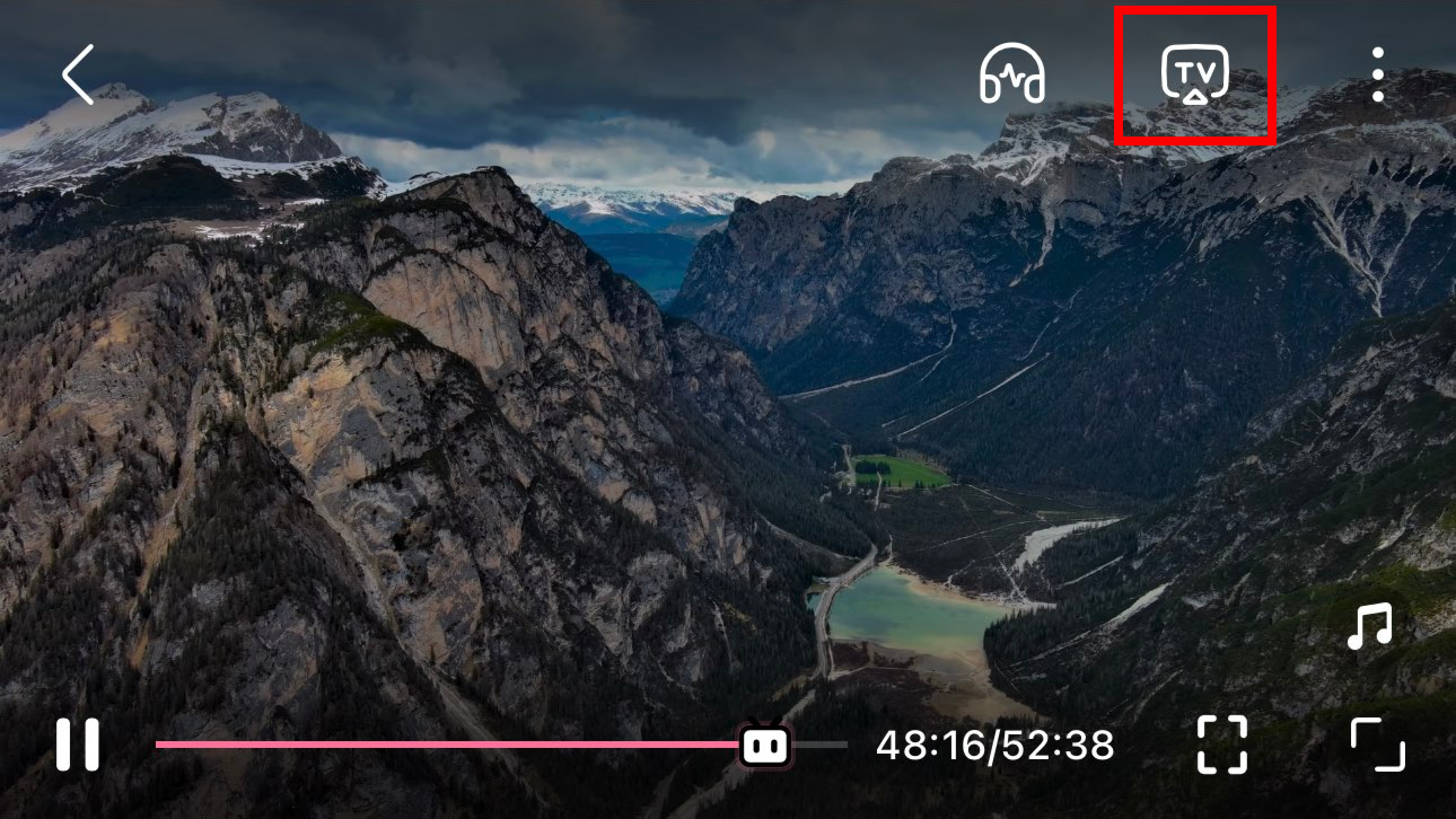
Play a video and find the Airplay or DLNA button.
-
Tap the button, then select your 3uAirPlayer device from the list.
-
The video will begin mirroring on your computer.
If You Can’t Find Your Computer
If your Android device doesn’t detect 3uAirPlayer:
-
Check the IP addresses of both devices.
-
For example:
-
3uAirPlayer shows 192.168.0.156
-
Phone shows 192.168.1.123
These addresses are on different subnets, so the devices can’t find each other.
-
-
-
Connect both devices to the same router.
-
If your computer is using an Ethernet connection, plug the cable into the same router your phone’s Wi-Fi is connected to.
-
-
Try searching again from your video app.
Tips for a Better Experience
-
Keep both devices close to your router to maintain a stable connection.
-
Use a 5GHz Wi-Fi network if available for smoother video playback.
-
Avoid connecting through mobile hotspots or enterprise networks that restrict DLNA.










