
TUTORIALS

What's the Difference Between "My Devices" and "Favorite Codes"?

01/02/2025

5407

What's the Difference Between "My Devices" and "Favorite Codes"?


  • My Devices


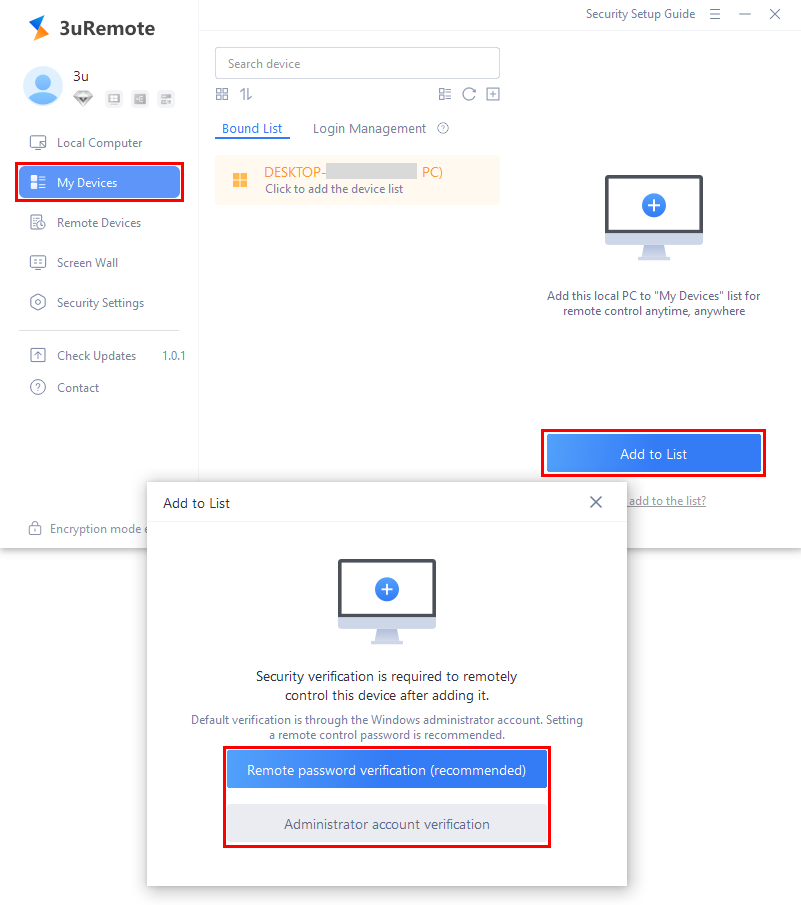
"My Devices" refers to personal devices associated with the same 3uRemote account but located in different places, such as at home, the office, or other locations.  


Personal devices under the same 3uRemote account can be added to the "My Devices" after verification through either the **Remote Password** or the **Administrator Account**.


This simplifies subsequent remote operations.  
 

What's the Difference Between


  • Other Devices


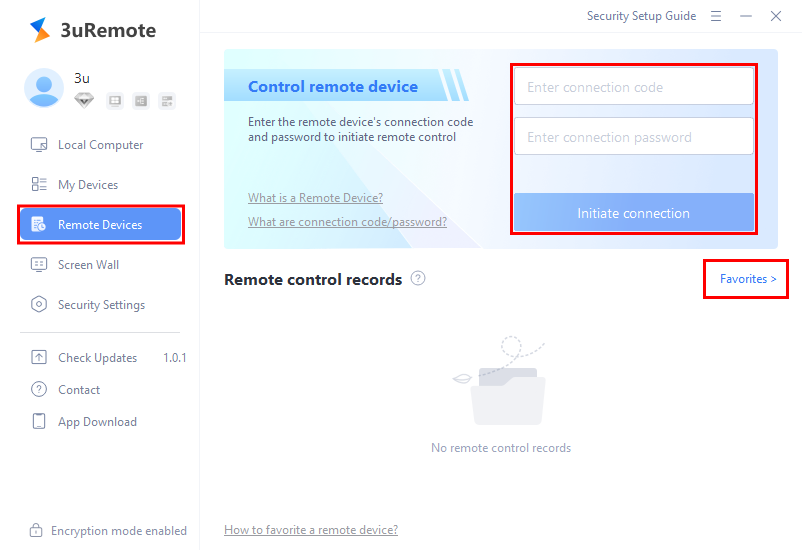
"Other Devices" refers to non-personal devices. The **Favorites** feature is designed for frequently accessed non-personal devices. 


After connecting to other devices using their connection code and password, you can save the connection details to make future remote access easier.
 

What's the Difference Between


Once saved, you can initiate remote access to these devices without re-entering the Connection Code and Connection Password.  


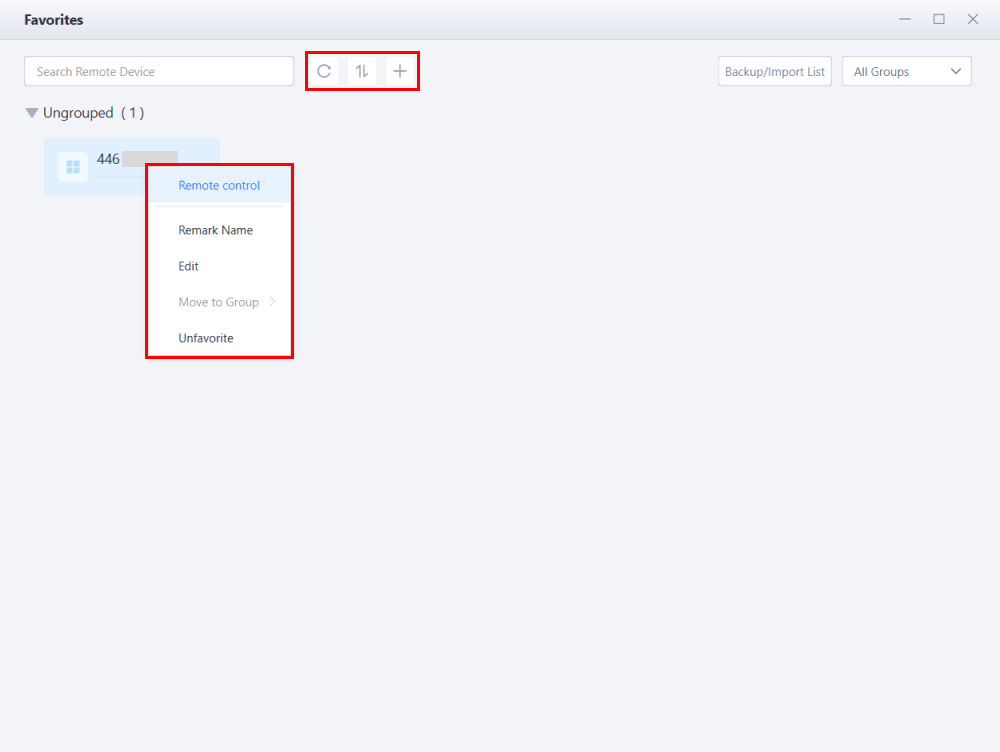
Additionally, you can:  

- Add notes for identification.  

- Reorganize, rename, or delete saved devices as needed.  
 

What's the Difference Between

Windows
Mac OS
iOS
Linux
3uTools
Win 64-bit For this device
V9.0 2025-11-11
Download
Win 32-bit For this device
V9.0 2025-11-11
Download
3uTools
Intel Chip How to Identify Chip Type
V9.0 2025-12-02
Download
Apple Chip
V9.0 2025-12-02
Download
How to Identify Chip Type
1.  Click the Apple icon in the top-left corner of the screen and select About This Mac.
2.  Check the Processor or Chip field to determine if it is "Intel" or "Apple".
Please use the 3uTools PC client to install the iOS client:
1、 Install either the Windows or Mac version of 3uTools on your computer
2、 Open the PC client and connect your device to the computer via USB cable
3、 After the connection is successful, wait for the computer to automatically install the mobile app for the device, or locate “Install Mobile App” on the computer and manually click to install.
3uTools
deb file
V3.01 2025-11-20
Download
rpm file
V3.01 2025-11-20
Download
Windows
Windows
iOS
iOS
Android
Android
TV
TV
3uAirPlayer
Win 64-bit For this device
V6.0.2 2025-11-19
Download
Win 32-bit For this device
V6.0.2 2025-11-19
Download
iOS Device Mirroring (No App Required)
1、 Install 3uAirPlayer on the Windows PC
2、 Open Control Center and select Screen Mirroring
3、 From the list, choose your PC to start mirroring
4、 Or connect your iOS device to the PC via USB to begin mirroring
Scan to get "3uAirPlayer" App
3uAirPlayer TV V1.0.18
2025-11-28
TV System Requirements: Android 7.0 or later
Download the TV installation package, copy it to a USB drive, insert it into your TV or set-top box, then select the file from the home screen to install.





