 NEWS
NEWS
YouTuber Makes Original Macintosh Keyboard Work with iPhone X Running iOS 13
 08/21/2019
 3328
3328
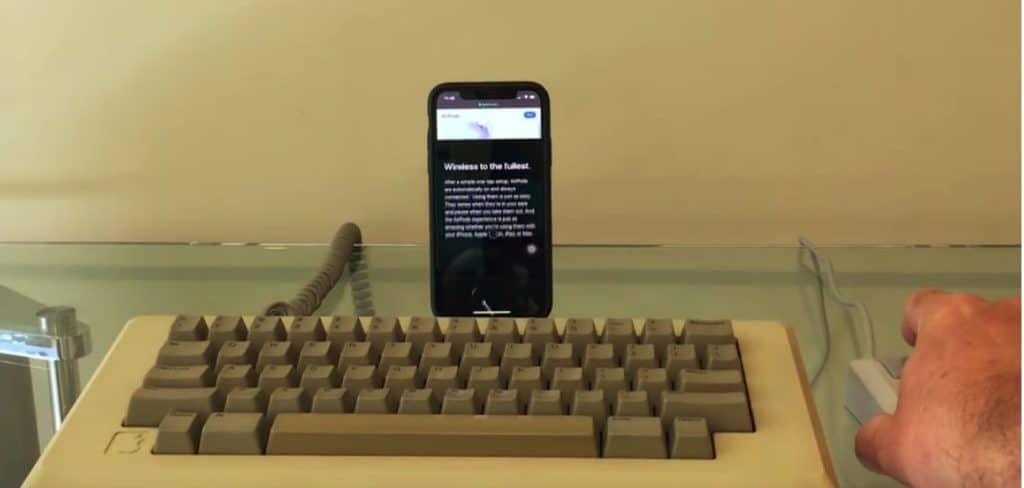
Apple’s latest iOS 13 is designed to work with keyboard and mouse. We have already seen a demo of this at the iOS 13 unveiling. A YouTuber has taken things a notch up by pairing the original Macintosh keyboard with an iPhone. The Macintosh keyboard was launched in 1984 and still, it worked just fine with the latest iPhone X.
The video shows how the YouTuber connected the iPhone to the old keyboard. He also remarks that the three-decade-old keyboard layout pretty much resembles the latest Apple Keyboard. New accessibility feature is actually aimed at iPad. That being said, the YouTuber demonstrates how easy it is to use the keyboard with iPhone X.
As expected it was not easy to find the adapters to connect the keyboard with the iPhone. Back in those days, USB was yet to arrive and Macintosh keyboard used an old-school RJ11 serial connector for both keyboard and mouse. The YouTuber finally sourced an otherwise obscure adapter that let him connect RJ11 to a USB adapter. In the next step, he plugged in USB into a hub which interfaced with a lightning connector. Once done he went about configuring settings in iOS 13 Accessibility menu.
The original Macintosh mouse with a DE9 connector was plugged into a USB adapter as well. He used an USB-lightning connector hub so as to connect multiple devices with iPhone. As you can see in the video, both mouse and the keyboard worked pretty well with the iPhone X.
It is amazing to see how Apple peripherals that are more than three decades old can still connect with the iPhone. I mean what better way to taste a slice of Apple’s early history than to use Macintosh keyboard on iOS 13! Do you collect and use retro Apple devices?
Source: iphonehacks










