
NEWS

Apple Removes Bank Transfer Payments From Online Store in Germany

12/28/2016

3995

In a small change to their online checkout system, Apple has removed the support for bank transfer payments (also known as prepayment) from their online store in Germany. It’s unclear if any other countries are currently affected in the online store change but the change today leaves German buyers with the choice of using a credit card, PayPal, or financing as payment options.
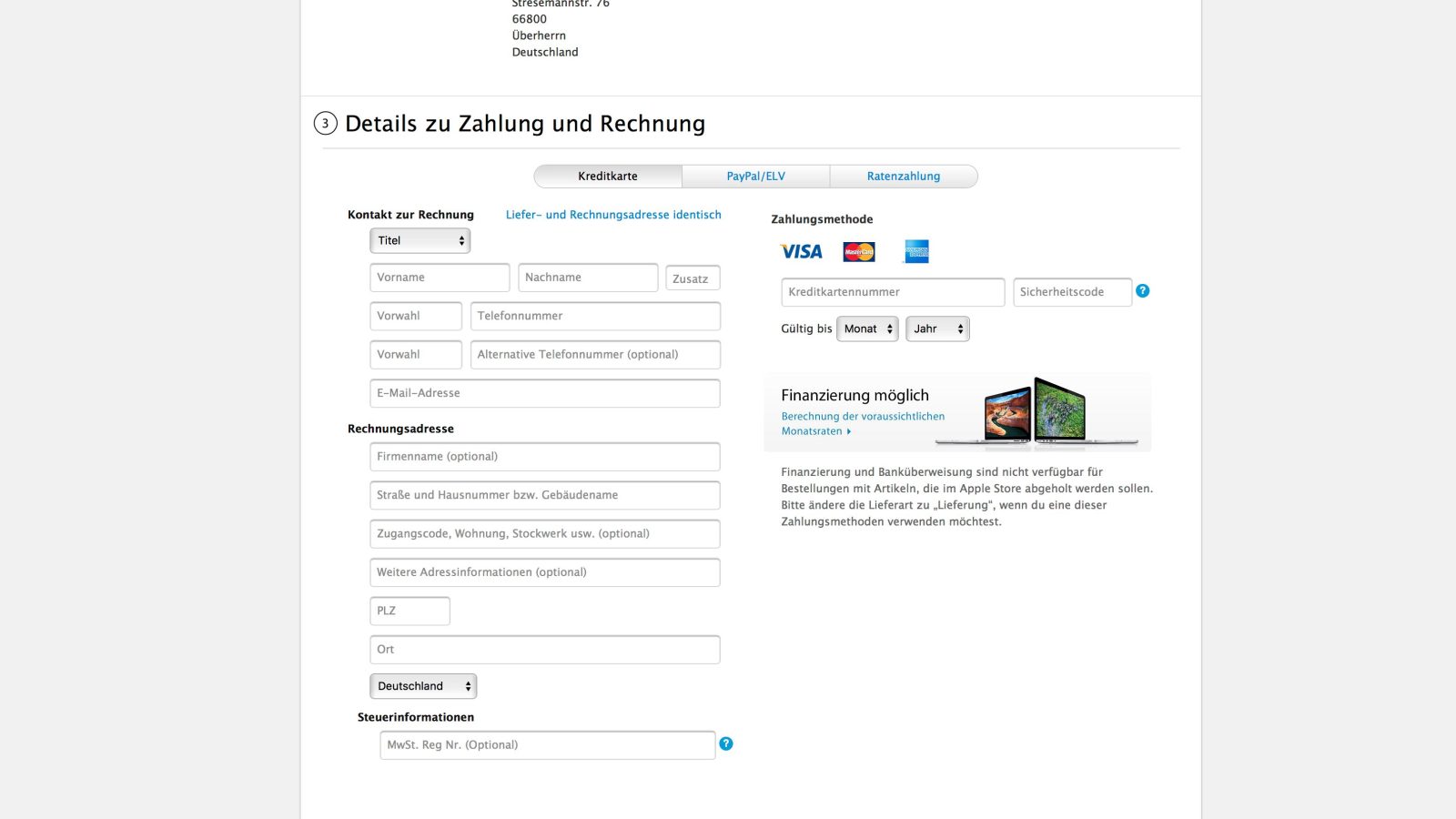

Apple Removes Bank Transfer Payments From Online Store in Germany


The prepayment option previously offered to German Apple online store customers allowed buyers to complete a bank wire transfer instead of using a credit card or PayPal to purchase their products. Customers would send payment to Apple’s payment processing company, and once the money had been received and cleared, Apple would then move onto to building and shipping out the order.


Customers shopping stateside on Apple’s site wouldn’t normally see these options, but it appears to be more common overseas. Apple’s Shopping Help page gives more information on Bank Transfers explaining that for the UK, customers must call a specific number to place the order. For Germany, customers were providedwith Apple’s payment processor’s banking information to help complete the transaction. Although the German Bank Transfer help page is still available, it’s not known if Apple will eventually move away from this option altogether. Customers who used to utilize the bank transfer could potentially see a delay in orders as the transfer would take five business days for payment processing.


Source: 9to5mac



Windows
Mac OS
iOS
Linux
3uTools
Win 64-bit For this device
V9.0 2025-11-11
Download
Win 32-bit For this device
V9.0 2025-11-11
Download
3uTools
Intel Chip How to Identify Chip Type
V9.0 2025-12-02
Download
Apple Chip
V9.0 2025-12-02
Download
How to Identify Chip Type
1.  Click the Apple icon in the top-left corner of the screen and select About This Mac.
2.  Check the Processor or Chip field to determine if it is "Intel" or "Apple".
Please use the 3uTools PC client to install the iOS client:
1、 Install either the Windows or Mac version of 3uTools on your computer
2、 Open the PC client and connect your device to the computer via USB cable
3、 After the connection is successful, wait for the computer to automatically install the mobile app for the device, or locate “Install Mobile App” on the computer and manually click to install.
3uTools
deb file
V3.01 2025-11-20
Download
rpm file
V3.01 2025-11-20
Download
Windows
Windows
iOS
iOS
Android
Android
TV
TV
3uAirPlayer
Win 64-bit For this device
V6.0.2 2025-11-19
Download
Win 32-bit For this device
V6.0.2 2025-11-19
Download
iOS Device Mirroring (No App Required)
1、 Install 3uAirPlayer on the Windows PC
2、 Open Control Center and select Screen Mirroring
3、 From the list, choose your PC to start mirroring
4、 Or connect your iOS device to the PC via USB to begin mirroring
Scan to get "3uAirPlayer" App
3uAirPlayer TV V1.0.18
2025-11-28
TV System Requirements: Android 7.0 or later
Download the TV installation package, copy it to a USB drive, insert it into your TV or set-top box, then select the file from the home screen to install.




