 NEWS
NEWS
2018 MacBook Pro Owners Complain of Crackling Speakers
 08/10/2018
 3627
3627
Apple’s latest MacBook Pro lineup has bigger and better speakers than previous machines, but some users haven’t been enjoying the improved sound.
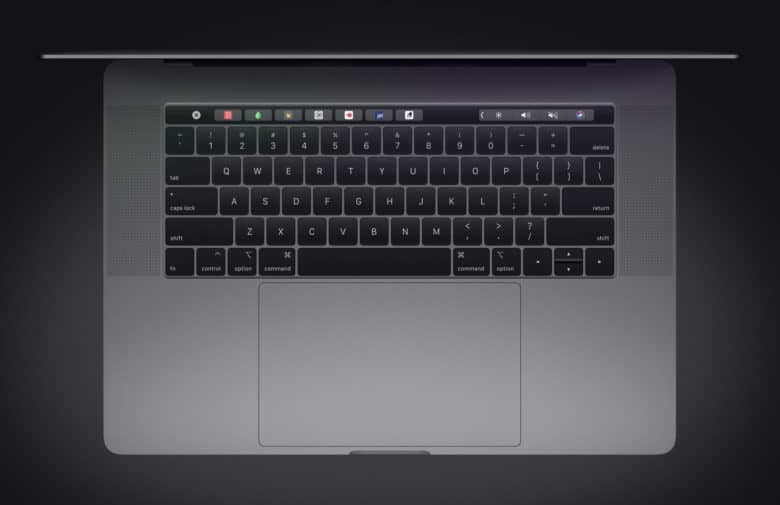
Instead, they hear crackling when they play music or watch videos. The issue appears to be affecting both 13- and 15-inch devices, and it’s not yet clear what’s causing it.
The 2018 MacBook Pro’s first few weeks on the market hasn’t exactly gone smoothly. After we welcomed its improved butterfly keyboard, we soon learned of a nasty throttling issue that dramatically reduced the speed of the most expensive Core i9 machines.
Now users are running into issues with the MacBook Pro’s new speakers.
MacBook Pro doesn’t sound good
Users of the 13- and 15-inch models are taking to Apple’s Support Communities and other online forums to report crackling sounds when using the MacBook Pro’s built-in speakers.
The cracking occurs spontaneously under different conditions — like listening to music in iTunes or GarageBand, watching videos on YouTube, and even when running Windows in Boot Camp — and it’s unclear what causes it.
Adjusting playback volume or frequency doesn’t appear to solve the problem.
Apple remains silent
Apple hasn’t acknowledged the problem yet, but when a similar issue affected the 2016 MacBook Pro lineup, the company quickly rolled out a fix in updated audio drivers. Fans will be hoping it can do the same this time around.
The crackling issue isn’t persistent, so it doesn’t look like faulty speakers are the problem. It shouldn’t be too difficult for Apple to eliminate the bug once it has identified the cause, then. Some suggest the problem disappears after installing macOS Mojave, which could have updated audio drivers.
Only a small number of users have reported this problem so far, so you shouldn’t let it put you off if you’re considering the new MacBook Pro. If you do run into the issue, however, we recommend contacting Apple Support.
Source: cultofmac










