
NEWS

Danish Court Rules Apple Must Replace Man's iPhone With New Rather Than Refurbished Model

12/12/2016

3642

A court in Denmark today ruled Apple must replace a Danish man's iPhone with a new model rather than a refurbished model in accordance with local law. 
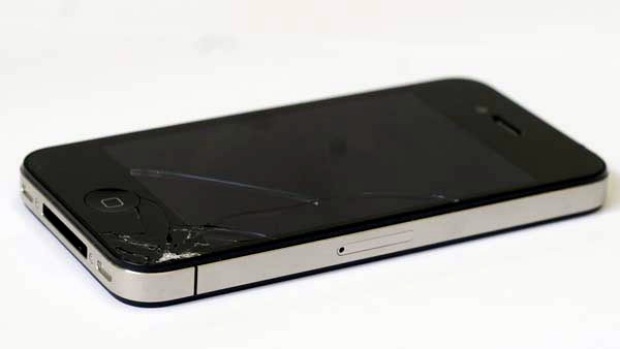

Danish Court Rules Apple Must Replace Man's iPhone With New Rather Than Refurbished Model


A trio of judges found Apple was not entitled to replace David Lysgaard's iPhone 4 with a refurbished model since it may contain recycled parts, which could result in a lower resale value and went against his "legitimate expectation" of receiving a brand new iPhone equivalent to his original purchase. 

By providing Lysgaard with a refurbished iPhone, rather than an equivalent new model, the court found Apple to have violated the Danish Sale of Goods Act. The judges upheld an earlier decision reached by Denmark's Consumer Complaints Board, which also said the replacement should be a new, not refurbished, model. 

Apple disagreed with the Consumer Complaints Board's decision in 2014 and sued Lysgaard, arguing that refurbished iPhones are produced and tested in the same way as new iPhones. Apple also said refurbished iPhones undergo rigorous tests and strict quality control. Apple can now appeal the judgment with a higher court. 

Earlier this year, a Dutch court 
similarly ordered Apple to replace a woman's iPhone 6 Plus with a new model, not a refurbished one.


Source: MacRumors

Windows
Mac OS
iOS
Linux
3uTools
Win 64-bit For this device
V9.0 2025-11-11
Download
Win 32-bit For this device
V9.0 2025-11-11
Download
3uTools
Intel Chip How to Identify Chip Type
V9.0 2025-12-02
Download
Apple Chip
V9.0 2025-12-02
Download
How to Identify Chip Type
1.  Click the Apple icon in the top-left corner of the screen and select About This Mac.
2.  Check the Processor or Chip field to determine if it is "Intel" or "Apple".
Please use the 3uTools PC client to install the iOS client:
1、 Install either the Windows or Mac version of 3uTools on your computer
2、 Open the PC client and connect your device to the computer via USB cable
3、 After the connection is successful, wait for the computer to automatically install the mobile app for the device, or locate “Install Mobile App” on the computer and manually click to install.
3uTools
deb file
V3.01 2025-11-20
Download
rpm file
V3.01 2025-11-20
Download
Windows
Windows
iOS
iOS
Android
Android
TV
TV
3uAirPlayer
Win 64-bit For this device
V6.0.2 2025-11-19
Download
Win 32-bit For this device
V6.0.2 2025-11-19
Download
iOS Device Mirroring (No App Required)
1、 Install 3uAirPlayer on the Windows PC
2、 Open Control Center and select Screen Mirroring
3、 From the list, choose your PC to start mirroring
4、 Or connect your iOS device to the PC via USB to begin mirroring
Scan to get "3uAirPlayer" App
3uAirPlayer TV V1.0.18
2025-11-28
TV System Requirements: Android 7.0 or later
Download the TV installation package, copy it to a USB drive, insert it into your TV or set-top box, then select the file from the home screen to install.




