 NEWS
NEWS
Using Wireless Charging on the iPhone X or 8 Might Actually Hurt your Phone
 03/15/2018
 2787
2787
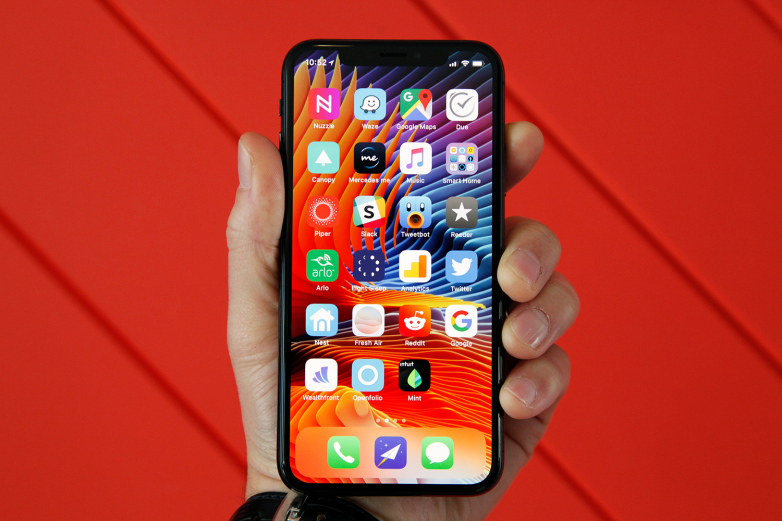
Apple’s 2017 iPhone lineup is unique in a number of ways. For one thing, 2017 marks the first time Apple has ever released three high-end iPhones in the same calendar year. Apple did release three different iPhone models in 2016, but one was the entry-level iPhone SE, a special lower-cost iPhone introduced in March 2016 with a smaller display that hasn’t seen an update in the past two years. In 2017, however, Apple unveiled the iPhone 8, iPhone 8 Plus, and iPhone X all at the same time. All three of these new iPhone models feature specs that are practically identical, with the iPhone 8 and 8 Plus following up the iPhone 7 and 7 Plus, and the iPhone X featuring a new design and a sky-high price tag.
All three of the most recent iPhones added a number of new features to Apple’s smartphone lineup. But there’s one feature in particular that Apple fans had been wanting for years, and it turns out that you actually might not want to use it now that it’s here.
Though rival smartphones have supported wireless charging for years now, Apple took its time in adding the feature to its iPhone lineup. In fact, the current crop of iPhones is the first to support the feature. Typically when Apple takes its time adding new technology to the iPhone, it ends up adding it in such a way that is far better than anything seen on Android smartphones. In the case of wireless charging, however, Apple’s iPhone lineup doesn’t even support the fastest available wireless charging tech.
As it turns out, however, users with iPhones that support wireless charging might want to think twice before they actually use it. According to a report from ZDNet, using wireless charging on the iPhone X, iPhone 8, or iPhone 8 Plus is harmful to the devices’ batteries.
ZDNet blogger Adrian Kingsley-Hughes says he became suspicious earlier this year that wireless charging tech might have an impact on battery life down the road. Apple says its iPhone batteries are designed to “retain up to 80 percent of its original capacity at 500 complete charge cycles,” which Kingsley-Hughes thought would take him about three years to reach. But the blogger found that using wireless charging instead of wired charging is causing him to run through battery cycles more quickly. At this rate, he expects that he’ll hit 500 complete charge cycles at around the 20-month mark. That’s not even two full years of usage.
Why would wireless charging cause the battery to deplete more quickly? Kingsley-Hughes explains:
"The issue is that when the iPhone is being charged using a cable, the phone is being powered by the cord (there is some load on the battery, but it’s minimal), but when using wireless charging, the battery is what’s powering the iPhone, with the wireless charger only being used to top up the battery. This means that by switching from a cable to a wireless charger, my battery isn’t getting a break, and in turn, this is making me go through recharge cycles at an even faster rate."
Source: bgr










