 NEWS
NEWS
Microsoft Plans to Deepen Integration of Cortana in Outlook for iOS
 03/06/2018
 3240
3240
Microsoft is reportedly planning to increase the integration of Cortana in Outlook for iOS, with the digital assistant said to be undergoing internal testing that could eventually allow users of the popular email client to manage their iPhone-based messages using verbal requests alone.
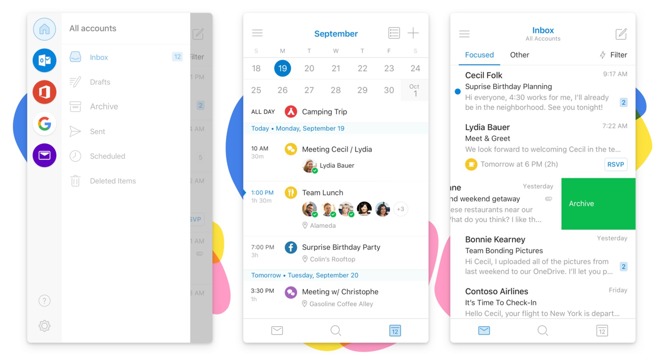
Sources familiar with the future plans for Outlook told The Verge of Microsoft's internal testing of Cortana with the iOS and Android apps. While internal for the moment, Cortana's integration may also extend to the beta and public releases of the Outlook app, if positive feedback is received from testers, though there appears to be no timetable for when this could take place.
It is claimed Cortana will be used to answer requests about the user's inbox, including reading out messages and transcribing the user's verbal response to specific emails. Cortana will also be able to read out emails from specific contacts, and can even provide the user's own email address to the query "What's my email?"
Due to Apple's integration of Siri throughout iOS, it is likely that Cortana will only be summonable when the Outlook app is open, just like the current standalone Cortana app. As the Cortana app doesn't currently perform queries from voice prompts automatically, instead requiring users to tap a button or set it to listen when the app is opened, it is unclear if the Outlook version will behave in the same way.
If true, this would mark an expansion of usability for Cortana in Outlook from its current implementation in the app. Currently Cortana provides reminders to users based on items raised in an email, with machine learning used to detect potentially important items worth notifying the user about later.
The Cortana rumor arrives weeks after it was revealed the head of Outlook for iOS and Android, Javier Soltero, moved to a new role overseeing Cortana's development in early February.
Source: appleinsider










