 NEWS
NEWS
Apple Investigating Advanced 3D Touch Technology With Integrated Feedback
 10/20/2017
 3060
3060
Apple is continuing work on advanced haptic feedback technologies, with the latest development outlined in a patent application describing methods of dynamically attracting or repelling a cover glass depending on user input.
Apple's application for a "Dynamically stabilized magnetic array" contains claims that detail a system that relies on embedded electromagnets to sense, quantify and respond to user touch.
In some embodiments, magnetic element arrays are disposed on display and protective layers — a screen and its cover glass — within a flexible display assembly. When a user presses down on the cover glass, or otherwise applies force to the stack, a magnetic circuit is formed between the two elements.
When the layers move closer to each other, and once a circuit forms, the magnetic elements can generate attractive or repulsive forces, thus enabling tactile feedback. Firmware driving the system controls the amount of current supplied to the electromagnet system, allowing variation in haptic response.
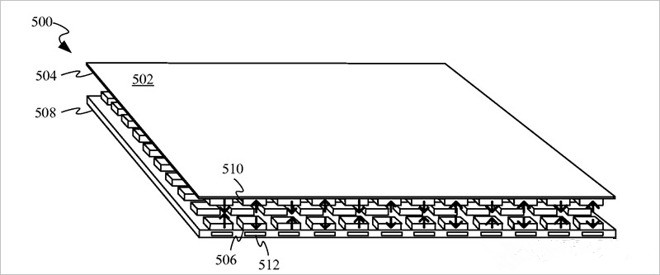
Alternatively, a tactile response might be generated when a user touches an onscreen input element like a key on a virtual keyboard.
The system might also be applied to detect and respond to changes in the strength of the magnetic circuit caused by a depression of the display layer. If the vacillation exceeds a threshold value, current is supplied to one electromagnet element, resulting in a tactile response.
In broad terms, the filing describes a substitute feedback mechanism for current Taptic Engine technology. Apple's existing haptic feedback solution relies on a patented actuator module capable of accurately reproducing a variety of sensations, from taps to vibrations.
Today's filing is a continuation of Apple's U.S. Patent No. 9,696,752, which covers a slew of device features powered by electromagnetic reactions.
Other embodiments describe a technique by which magnets embedded in a protective case might be used to prevent damage during drop events. When an accelerometer, gyroscope or other sensor — or the magnetic element itself — detects rapid motion, a device might energize onboard electromagnets to draw an attached case toward one of its sides or corners. This action forms a crush zone that reduces the rate at which force is imparted onto the device.
Finally, the patent covers methods of creating raised formations on a flexible display to depict keys or other protrusions that correspond with a device's graphical interface. These buttons can be configured to respond to user interactions, for example providing a "clicky" feel during keyboard key presses. Apple notes the technology is not necessarily restricted to displays, and might also be applied to input devices like keyboards and trackpads.
Source: appleinsider










