 NEWS
NEWS
Safari in iOS 11 Strips Google AMP Links Down to Original URL for Sharing
 08/24/2017
 3461
3461
When iOS 11 launches this fall, users sharing Google AMP pages from Safari will find Apple's operating system automatically remove Google's proprietary URL in favor of the webpage's original format.
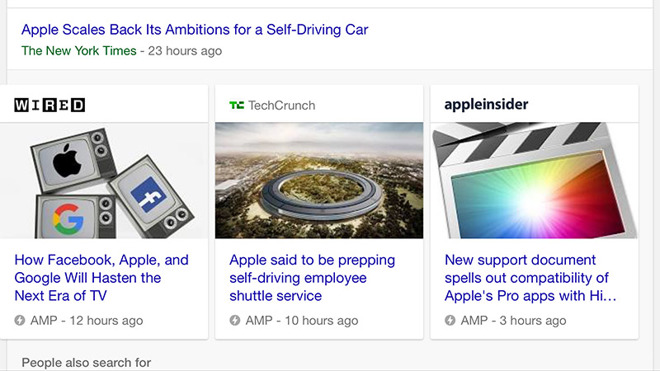
The new feature, is present in the latest version of iOS 11 beta that was released on Monday.
Unveiled in 2015, Google AMP, or Accelerated Mobile Pages, is a custom-developed framework for rendering lightweight webpages designed for mobile consumption. Online media entities.
Stripped down to text, rich graphics and video, AMP pages normally sport special links that in many cases do not relate to an originating article's URL.
Currently, users who share AMP pages from iPhone and iPad are forced to share Google's non-standard URLs, which in turn leads recipients to the AMP page. This behavior will change in iOS 11.
"Very nice: when sharing AMP pages to iMessage or Reading List, iOS 11 Safari automatically removes AMP's crap from the URL. Go Apple," Viticci said in a tweet on Wednesday.
As Viticci notes, Safari in iOS 11 reformats AMP's specialized links when sharing story URLs. The feature appears to go further than simply stripping out text, however, as Google obscures or does not include original URL in its AMP page URLs.
For example, the URL for The Verge referenced in Viticci's tweet begins with "www.theverge.com/platform/amp," which leads to the AMP page for that particular story. In another example, USA Today typically formats its AMP pages with "amp.usatoday.com," followed by a story identification number.
In both cases, Safari must perform a backend process to suss out the AMP page's originating URL, then deliver that information in text form for sharing.
Apple is slated to release iOS 11 this fall with a bevy of new features, user interface tweaks and performance enhancements.
Source: appleinsider










