 NEWS
NEWS
A 15-Year-Old Has Saved an 80GB Archive of Apple Videos From YouTube’s Censors
 08/23/2017
 3284
3284
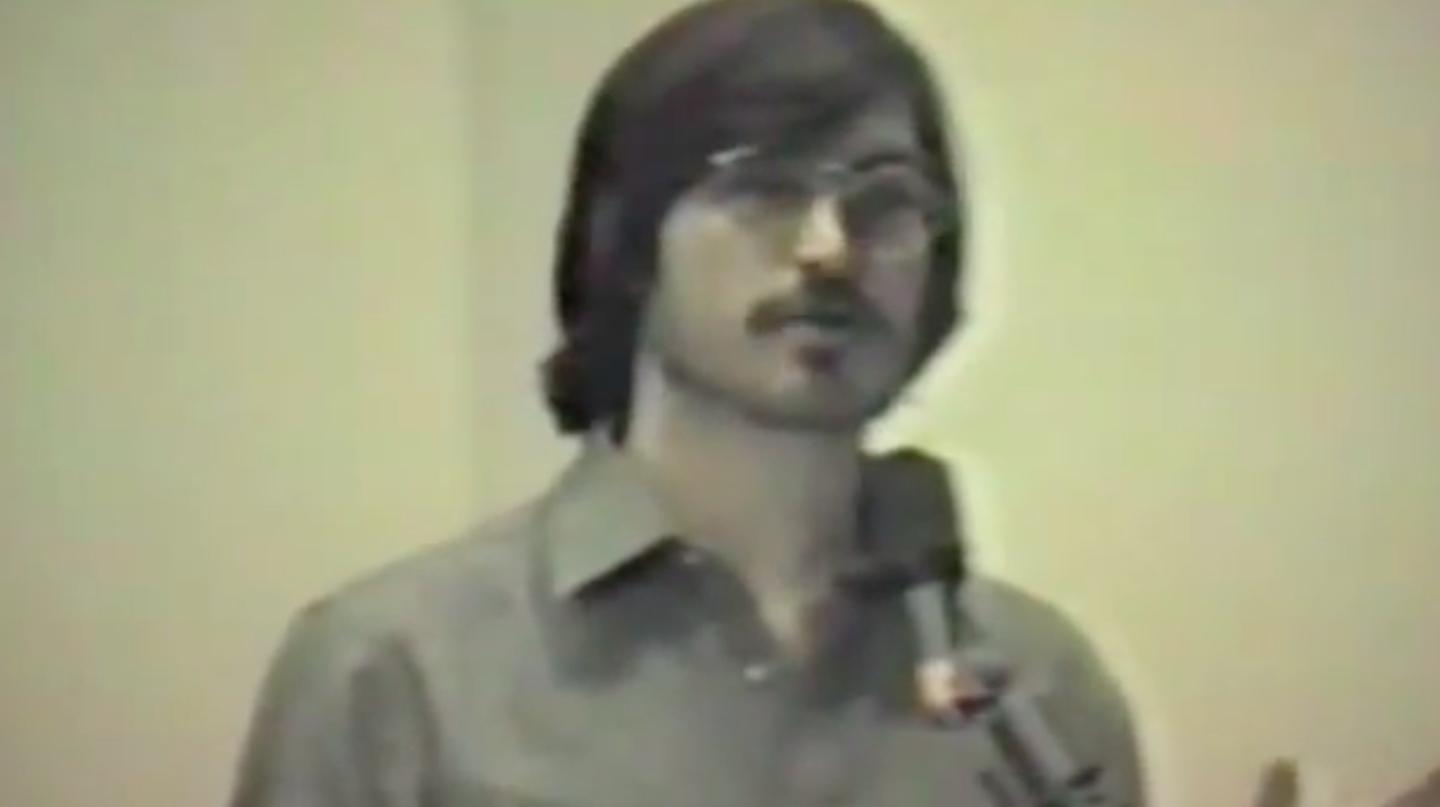
Apple existed for 26 years before Sam Henri was born. But he's so passionate about the brand, the 15-year-old YouTube content creator spent months archiving more than 810 Apple-related videos—commercials, keynotes, bizarre training and launch spots—that date back as far as 1980.
"I've been using Apple products and services since I can remember," Henri, who produces videos on technology trends for more than 5,000 subscribers, told me in an email.
In April, he saw a Reddit post about the YouTube channel "Every Apple Video" being removed by YouTube. To keep the content alive and accessible, he started uploading his own archive—built from archive.org, YouTube, archived versions of Apple's own website, and contributions from other Redditors—to a new channel called "Every ? Video" (later renamed "The Unofficial Apple Archive," which 9to5Mac reported on in April). Neither Apple nor YouTube immediately responded to Motherboard's requests for comment.
YouTube removed his new channel a week later, citing "multiple or severe violations of YouTube's policy against spam, deceptive practices, and misleading content or other Terms of Service violations." This could have been due to copyrights held by Apple, but other, similar channels with Apple content stay up, so it's unclear why this one was removed.
Three days ago, he posted a call for help to the /r/apple subreddit: What should he do with nearly 80 gigabytes of videos now that YouTube booted them off? Several users there directed him to the r/datahoarder subreddit, and he began to transfer the files to various redditors, one of whom turned them into a torrent file for anyone to download. Another redditor named -Archivist hosted the files on their server in order to make the videos available to everyone.
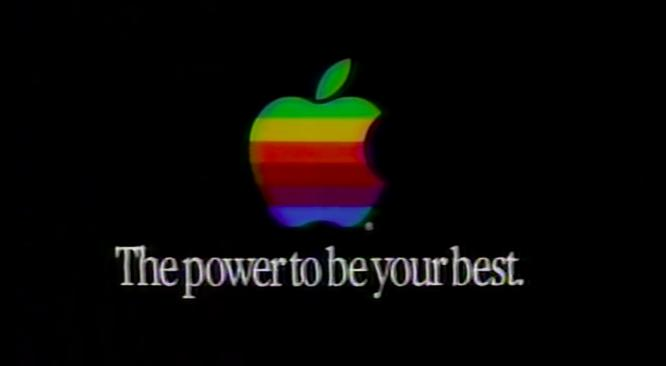
Much of the content consists of simple Apple ad spots and WWDC keynotes (some of them bootleg), but some of the videos are truly bizarre to watch now. An EasyPay video (a point-of-sale system used in Apple retail stores) from the early aughts, for example, features a remix of "Baby Don't Hurt Me" and a lot of terrible acting. The "Pencil Test" video (still available on a different YouTube channel) is equally weird and wonderful, even without the help of gyrating Apple Store employees.
Henri said he's doing this to preserve the history and evolution of a company that's influenced him in a profound way. "Apple has played such a huge part of my life," he said. "I remember getting the 1st generation iPod nano on my sixth birthday, making my first iMovie, and coming home early from school to watch the iPad 2 keynote... Apple is not only a company, it's a 'tipping point' for my generation, and to archive it feels like a responsibility."
Source: motherboard










