 NEWS
NEWS
HomePod Software Leaks New ‘SmartCamera’ Feature for iPhone
 08/03/2017
 3559
3559
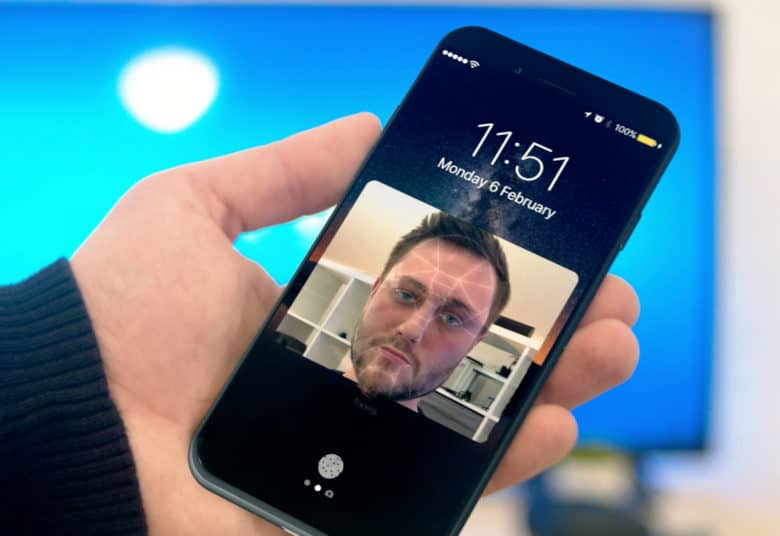
Apple’s HomePod might have revealed another huge new iPhone feature after developers did some more digging into the beta software for the upcoming smart speaker.
The software appears to reference an unannounced “SmartCamera” feature built into iOS 11 or the yet-to-be-released 2017 iPhone. And it could totally change the way we snap photos.
iOS developer Guilherme Rambo unearthed references to the new feature. He posted a screenshot of a section of the code to Twitter, showing the different factors that will trigger the feature.
iOS 11 (or the next iPhone) will have something called SmartCam. It will tune camera settings based on the scene it detects pic.twitter.com/7duyvh5Ecj
— Guilherme Rambo (@_inside) August 2, 2017
iPhone 8 SmartCamera
It looks like the SmartCamera feature will be able to tune your camera settings based on the scene it detects. DSLRs possess similar features, so it makes sense that Apple would bring this capability to the iPhone camera.
The HomePod code contains references to Fireworks, Foliage, Pet, BrightStage, Sport, Sky, Snow and Sunset/Sunrise scenarios.
Some aspects of the SmartCamera feature might make it into older iPhones, too. The software includes a Confidence parameter for QR codes, documents, pets and more. Since iOS 11 added the ability to scan QR codes with the Camera app, other options could follow in the future.
The new SmartCamera also could be used for facial recognition. HomePod’s software contains mentions of facial recognition. Previous rumors also claimed Apple would add facial scanning to the iPhone 8 as a replacement to Touch ID.
Apple likely will unveil the next generation of iPhones during an event at the Steve Jobs Theater later this fall. HomePod, the $349 smart speaker that Apple unveiled at this year’s WWDC, should land on store shelves this December.
Thanks to the HomePod software that Apple released to developers, we know more about the smart speaker than most other products in Cupertino’s pipeline. We already know what the HomePod audio UI will likely sound like and details about the device’s touchscreen panel and other hardware.
Source: cult of mac










