 NEWS
NEWS
iPhone 8 Infrared Face Detection and General Device Design in HomePod
 07/31/2017
 3199
3199
Late last week, Apple released early firmware for its HomePod smart speaker, which won't be launching to the public until December. HomePod will run a version of iOS, and the firmware released by Apple corresponds to iOS 11.0.2.
One iOS developer has dug into the firmware and discovered that it also contains hints of what we can expect for other devices. Most importantly, the firmware includes numerous references to infrared face detection within the BiometricKit framework that is currently home to Touch ID authentication, supporting claims that the iPhone 8 will rely at least in part on facial recognition. Developer Steven Troughton-Smith has also confirmed these discoveries.
Within BiometricKit are new "FaceDetect" methods addressing such circumstances as faces being too close or too far from the camera, the presence of multiple faces, and more.
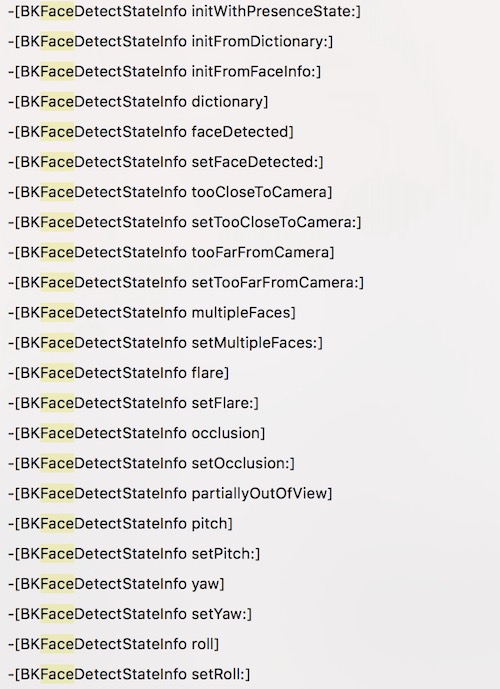
Other references point to infrared capture in BiometricKit, pointing toward the rumored infrared sensors on the front of the iPhone being involved in capturing images for authentication, rather than using visible light through a traditional camera.
Various references point toward the code name for this functionality being "Pearl," while the code name for the iPhone 8 is "D22." The iOS 11.0.2 HomePod firmware also includes a glyph for this D22 device representing an iPhone that looks much like the rumored iPhone 8, featuring a full-front display with a notch cut out at the top for the earpiece and sensors.
The iPhone 8 is expected to debut around the usual September timeframe, but availability may be delayed somewhat due to production difficulties. Apple has reportedly been trying to incorporate Touch ID fingerprint sensing beneath the device's display, but some rumors have suggested Apple has had difficulty achieving that goal and may instead switch to facial recognition for authentication purposes.
Source: macrumor










