 NEWS
NEWS
iPhone LED Light Led to A Nat Geo Cover Photo
 07/27/2017
 3269
3269
Photographer Alessandro Barteletti had one of his photo featured on the cover of this month’s issue of National Geographic Italia. It’s a beautiful portrait of Italian astronaut Paolo Nespoli that was created thanks to quick thinking and the LED flashlight on an iPhone.
DPReview writes that Barteletti has spent the past year working on a photo essay about the 60-year-old Nespoli for National Geographic. The astronaut has been training at centers across the world for yet another upcoming space mission, becoming the first 60-year-old to undertake such an endeavor.
For the cover photo, Barteletti was photographing Nespoli inside a Soyuz launch module simulator in Star City, Russia. While snapping away with his Nikon D3, the lights unexpectedly went out. As people began knocking on the module door to end the photo shoot, Barteletti had to think fast… and he came up with an idea.
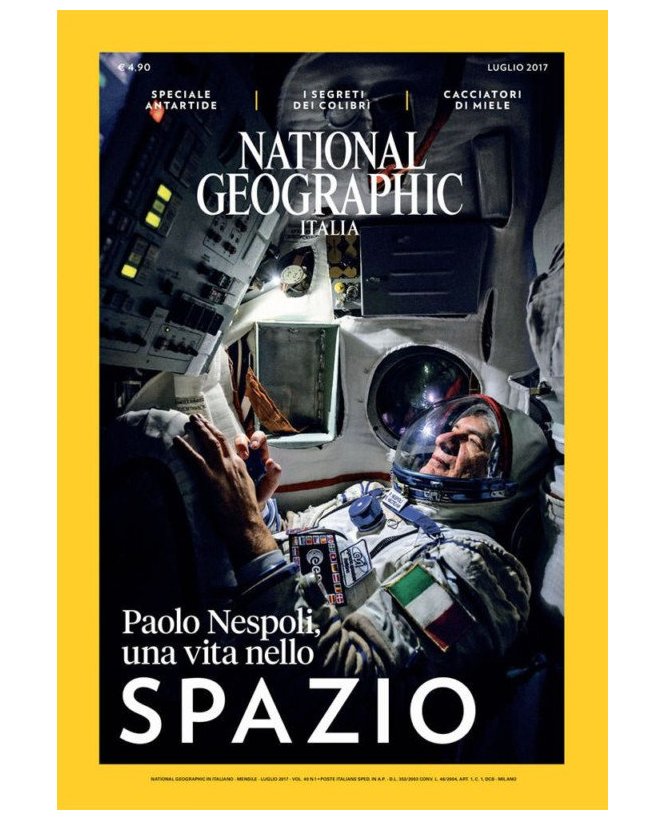
Since he couldn’t leave the module to fetch some lights — Barteletti only had a minute left in the module with Nespoli — he quickly whipped out his iPhone and turned on the built-in flashlight. He then shoved the iPhone in between two panels near the astronaut, and voila! The perfect light for that cramped scene.
“The module was so small, less than 2 meters of diameter, that the torch was enough to properly light the setting,” Barteletti tells DPReview. “I had only the time for two landscape shots and two portrait ones, just a few seconds before I was literally obliged to leave the module.”
One of those final photos Barteletti shot ended up being selected by National Geographic for the cover of the magazine.
Source: patepixel










