
NEWS

iOS 11 Automatically Ignores flaky Wi-Fi Connections

07/24/2017

2740

With iOS 11, your iPhone gets smart enough to realize when a Wi-Fi connection is flaky, and gives up trying to join it. This might be most useful if you’re one of those people who keeps your Ask Join Networks setting activated, but it should help anyone who uses their iPhone in multiple places — i.e. everyone ever.


It seems that iOS 11 notices when it encounters problems connecting to a Wi-Fi network, or if the network connects but provides a spotty connection, and just gives up trying. For instance, you might regularly walk through your office building and keep losing your cellular connection as your iPhone joins weak Wi-Fi networks along the way.
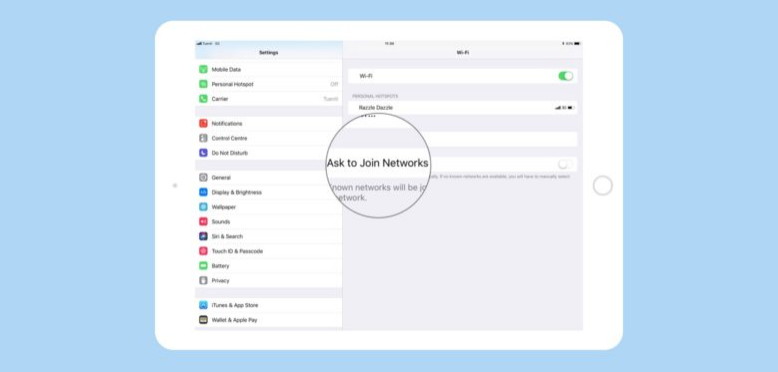

iOS 11 Automatically Ignores flaky Wi-Fi Connections


The only downside is that you will now need to manually join these networks. So far, I have been unable to test whether you can toggle this setting on a per-network basis. It’s not clear whether you can force iOS 11 to keep trying to join a network, even if it doesn’t want to, like a child forced to eat his gravy-coated vegetables long after they’ve gone cold.


Cupertino pitches macOS High Sierra as a Snow Leopard-style maintenance release, with lots of welcome tweaks and fixes. But it looks like Apple’s engineers also went over iOS 11 to improve all kinds of small details. That’s a welcome addition to all the headline features we’ve seen, like drag-and-drop, the updated iOS 11 dock, and the all-new multitouch gestures.


Source: cultofmac

Windows
Mac OS
iOS
Linux
3uTools
Win 64-bit For this device
V9.0 2025-11-11
Download
Win 32-bit For this device
V9.0 2025-11-11
Download
3uTools
Intel Chip How to Identify Chip Type
V9.0 2025-12-02
Download
Apple Silicon
V9.0 2025-12-02
Download
How to Identify Chip Type
1.  Click the Apple icon in the top-left corner of the screen and select About This Mac.
2.  Check the Processor or Chip field to determine if it is "Intel" or "Apple".
Please use the 3uTools PC client to install the iOS client:
1、 Install either the Windows or Mac version of 3uTools on your computer
2、 Open the PC client and connect your device to the computer via USB cable
3、 After the connection is successful, wait for the computer to automatically install the mobile app for the device, or locate “Install Mobile App” on the computer and manually click to install.
3uTools
deb file
V3.01 2025-11-20
Download
rpm file
V3.01 2025-11-20
Download
Windows
Windows
iOS
iOS
Android
Android
TV
TV
3uAirPlayer
Win 64-bit For this device
V6.0.2 2025-11-19
Download
Win 32-bit For this device
V6.0.2 2025-11-19
Download
iOS Device Mirroring (No App Required)
1、 Install 3uAirPlayer on the Windows PC
2、 Open Control Center and select Screen Mirroring
3、 From the list, choose your PC to start mirroring
4、 Or connect your iOS device to the PC via USB to begin mirroring
Scan to get "3uAirPlayer" App
3uAirPlayer TV V1.0.18
2025-11-28
TV System Requirements: Android 7.0 or later
Download the TV installation package, copy it to a USB drive, insert it into your TV or set-top box, then select the file from the home screen to install.




