 NEWS
NEWS
iPhone 8’s Touch ID Returns to the Back in New Leak
 07/21/2017
 3041
3041
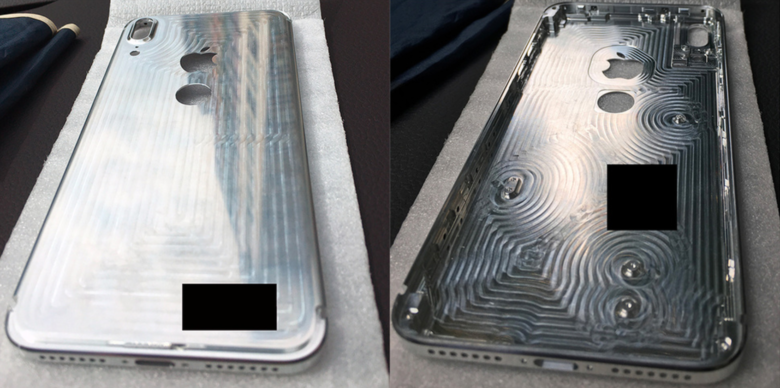
The positioning of Touch ID has changed yet again in the latest iPhone 8 leak.
A machined rear panel for Apple’s upcoming device suggests the company still has plans to put a fingerprint scanner on its back — as indicated by earlier leaks. But it won’t be a pain to reach like the Galaxy S8’s.
Let’s just get something straight: There’s nothing wrong with rear-facing fingerprint scanners. It might seem like a stupid idea if you’ve only ever used an iPhone, but those who have used rear-facing scanners on Android will know that they’re just as intuitive — if not more so.
Unlike Samsung, which made the Galaxy S8’s fingerprint scanner difficult to reach, Apple could place the iPhone 8’s beneath the Apple logo on its back. Your fingers will already be in this position when you hold the device, so using it won’t be a problem.
It might not be the most exciting solution — we’d much prefer Touch ID embedded beneath the iPhone 8’s display — but it is probably the simplest, and rumor has it Apple has been struggling to manufacture a fingerprint-scanning display in time for this year’s refresh.
There are other options the company could be exploring, however. A recent report suggested it could merge Touch ID with a larger power button on the iPhone’s side, while others have claimed it will scrap fingerprint scanning altogether in favor or facial recognition.
We’re no closer to finding out where Touch ID will be on the iPhone 8, then, and we probably won’t know for certain until it gets its official unveiling this September. But thanks to leaks like this one, we know Apple is at least exploring a rear-facing option.
This particular rear panel surfaced on Chinese website Baidu. It looks genuine, and could well be a final iPhone 8 chassis, or an early prototype. It could also be a third-party case designed to fool us, so don’t read too much into it just yet.
Source: cult of mac










