 NEWS
NEWS
10 Years Ago, the Original iPhone Officially Launched
 06/30/2017
 4548
4548
Exactly 10 years ago today, on June 29, 2007, the original iPhone went on sale, six months after Steve Jobs stood onstage at Macworld Expo 2007 in San Francisco and told the world Apple was reinventing the phone, revolutionizing an entire industry like it had done with the Macintosh in 1984 and the iPod in 2001.
The iPhone, with its 3.5-inch display, lack of a physical keyboard, Apple-designed touch-based user interface, and multi-touch support, was unique among phones of that era, and as Jobs promised, it changed everything. The product that some speculated would fail miserably shaped the smartphone industry and made Apple one of the most valuable companies in the world. 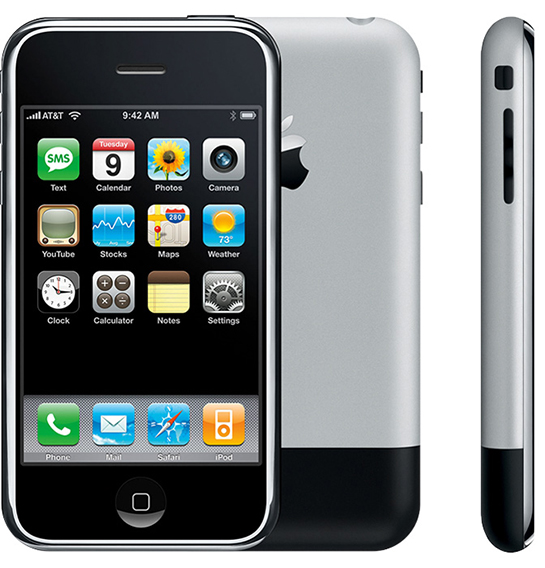
Even before the public had touched an iPhone, there was incredible hype, just like there is today with each new iteration. In the days leading up to the iPhone's release, MacRumors shared dozens of stories, like sightings out in the wild, photos of training manuals, benchmarks, in-store displays, and banners outside of stores. And of course, before the first iPhone launched, there were already rumors of an iPhone 2. 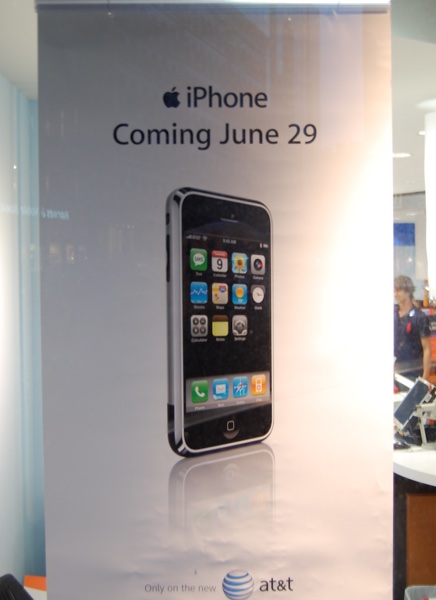
iPhone sales started at 6:00 p.m. local time on June 29, 2007, but people started lining up days ahead of time. Hours before the iPhone launched, hundreds of people were lined up at AT&T locations and the then-164 Apple Stores across the United States and around the world. 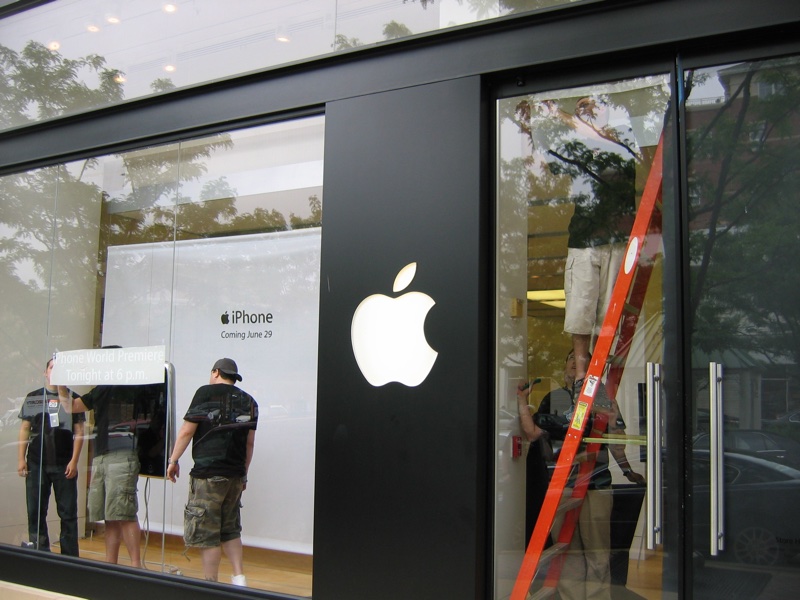
Apple Stores shut down at 2:00 p.m. to prepare for launch, and at 6:00 p.m. on the East Coast, the first iPhones were in the hands of customers. Apple Stores stayed open until midnight that day selling iPhones, and the rest is history. By October of 2008, Apple had sold 10 million iPhones, meeting an internal goal, and now, 10 years later on June 29, 2017, Apple has sold well over a billion iPhones.
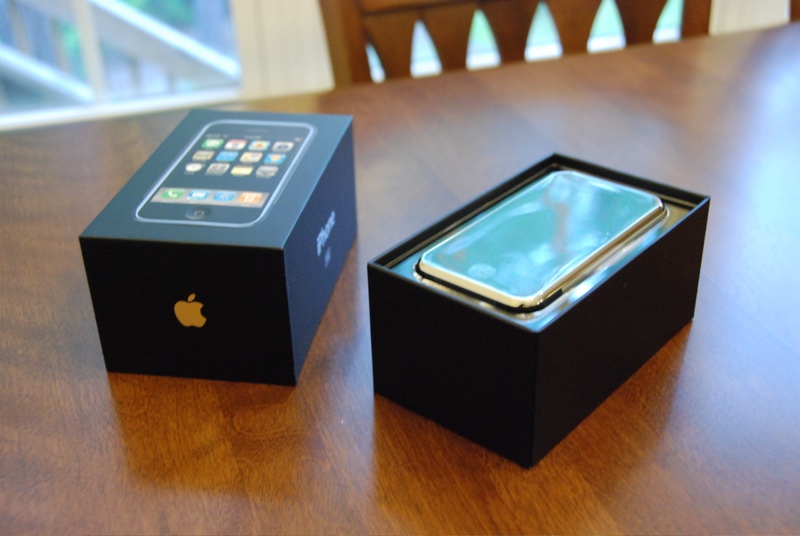
When Steve Jobs introduced the iPhone, he presented it as three revolutionary products: a widescreen iPod with touch controls, a revolutionary mobile phone, and a breakthrough internet communications device. "An iPod, a phone, and an internet communicator. Are you getting it? These are not three separate devices," said Jobs. "This is one device."
Over the years, the iPhone has evolved and it's not just three products -- it's over a dozen. What was once just a phone, an iPod, and an internet communicator is now also a high quality point and shoot camera, a camcorder, a GPS device, a scanner, a portable gaming system, a wallet replacement, an e-book reader, a TV, a newspaper, a flash light, and so much more.
At the end of the original iPhone event, then-CEO Steve Jobs said something that still dictates Apple's philosophy today. "You know, there's an old Wayne Gretzky quote that I love: 'I skate to where the puck is going to be, not where it has been.' We've always tried to do that at Apple. Since the very beginning. And we always will."
Source: macrumors










