NEWS

The $2000 Custom iPhone 7 Plus Review

05/15/2017

3656

The $2000 Custom iPhone 7 Plus Review


Do you know retro custom iPhone 7 plus? If some one buys it, a lot of people always seem to raise questions like, “Um…you spent that much money on…that?”. 


If you haven’t seen my unboxing and review of this Retro iPhone 7 Plus, I definitely recommend checking it out to see the first impressions and the live review of it right here:


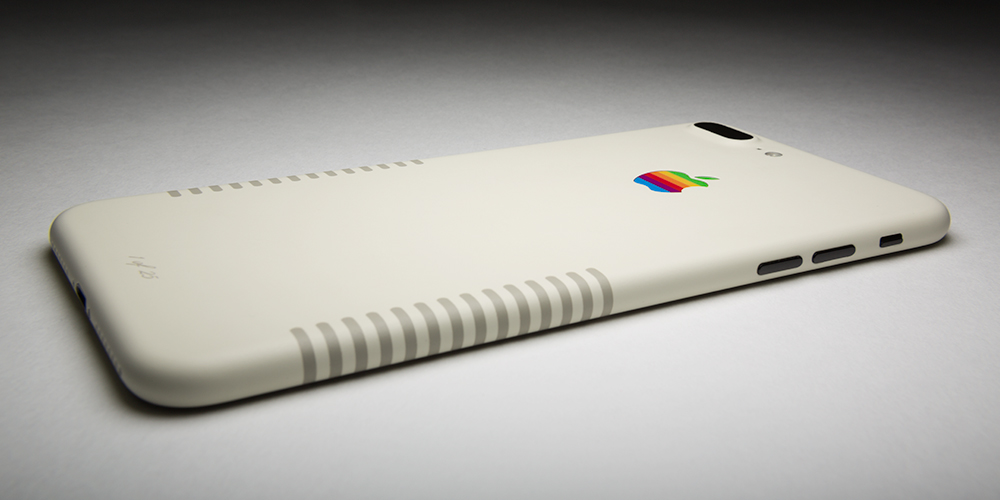
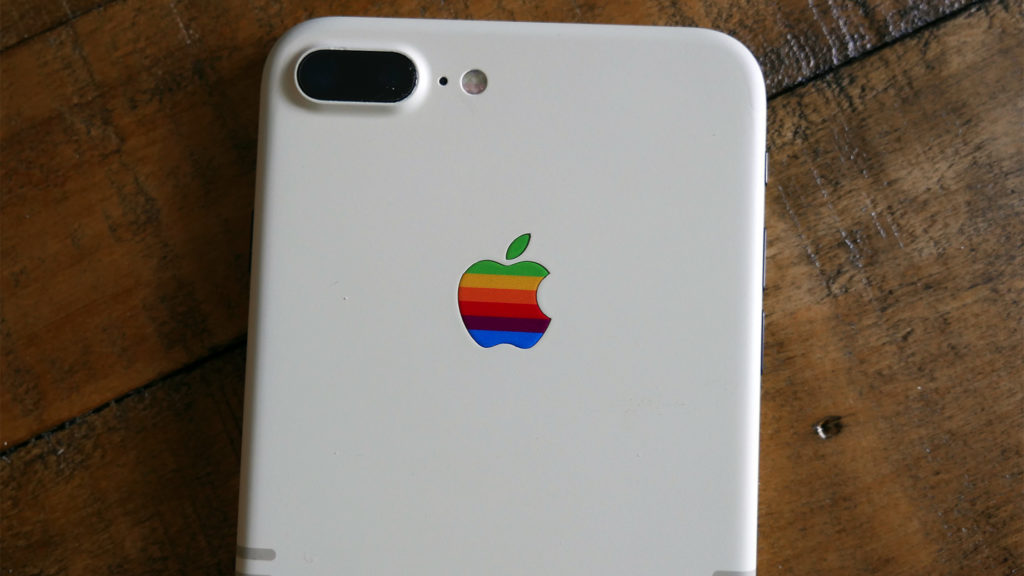
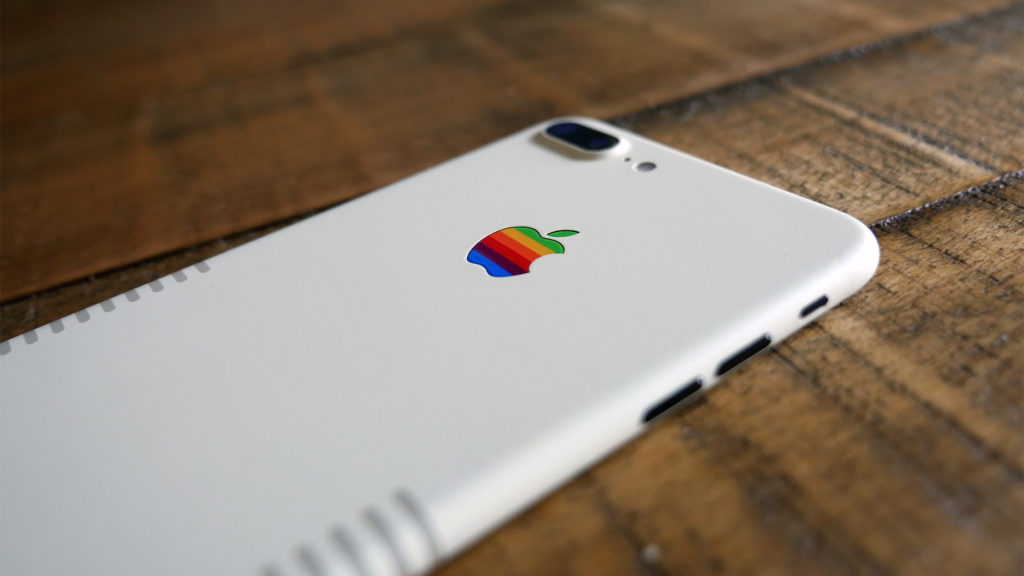
The purpose of the Retro iPhone is to mimic the old school 1980’s Macintosh. The beige color to match the vintage PC and the dark gray stripes on the sides to match the Mac’s vents back in the day, I think they did a really good job transforming the look of the Mac onto the back of an iPhone.

The $2000 Custom iPhone 7 Plus Review


The volume rockers/power button/mute switch are all still the matte black color, which I think look great. Since the front of the phone has a black faceplate, the buttons help transition from the black front to the beige back. There a few imperfections around the camera lens where just a little bit of paint had come off but was really only visible under a zoom camera lens. I showed the phone to some friends and they weren’t even able to tell when they looked at it.

The $2000 Custom iPhone 7 Plus Review


Source: iPhonehacks

Windows
Mac OS
iOS
Linux
3uTools
Win 64-bit For this device
V9.0 2025-11-11
Download
Win 32-bit For this device
V9.0 2025-11-11
Download
3uTools
Intel Chip How to Identify Chip Type
V9.0 2025-12-02
Download
Apple Silicon
V9.0 2025-12-02
Download
How to Identify Chip Type
1.  Click the Apple icon in the top-left corner of the screen and select About This Mac.
2.  Check the Processor or Chip field to determine if it is "Intel" or "Apple".
Please use the 3uTools PC client to install the iOS client:
1、 Install either the Windows or Mac version of 3uTools on your computer
2、 Open the PC client and connect your device to the computer via USB cable
3、 After the connection is successful, wait for the computer to automatically install the mobile app for the device, or locate “Install Mobile App” on the computer and manually click to install.
3uTools
deb file
V3.01 2025-11-20
Download
rpm file
V3.01 2025-11-20
Download
Windows
Windows
iOS
iOS
Android
Android
TV
TV
3uAirPlayer
Win 64-bit For this device
V6.0.2 2025-11-19
Download
Win 32-bit For this device
V6.0.2 2025-11-19
Download
iOS Device Mirroring (No App Required)
1、 Install 3uAirPlayer on the Windows PC
2、 Open Control Center and select Screen Mirroring
3、 From the list, choose your PC to start mirroring
4、 Or connect your iOS device to the PC via USB to begin mirroring
Scan to get "3uAirPlayer" App
3uAirPlayer TV V1.0.18
2025-11-28
TV System Requirements: Android 7.0 or later
Download the TV installation package, copy it to a USB drive, insert it into your TV or set-top box, then select the file from the home screen to install.