 NEWS
NEWS
Freak Accident Electrocutes iPhone User While Charging His Handset
 04/05/2017
 3343
3343
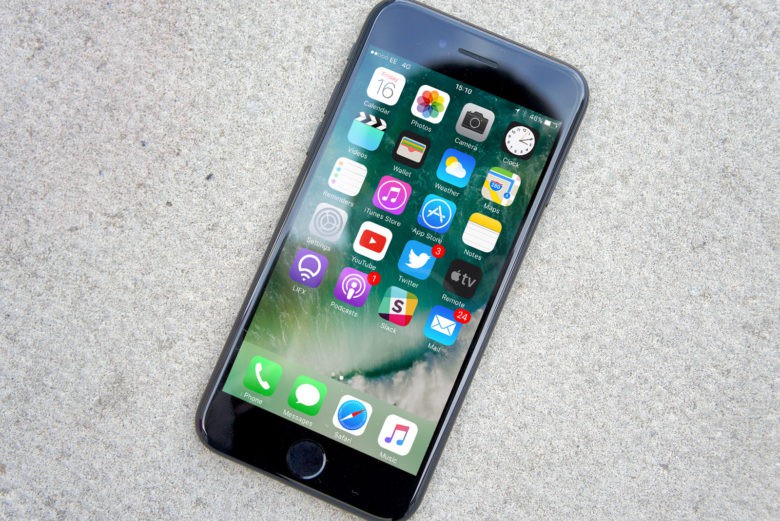
A 32-year-old man is recovering in hospital after he was electrocuted in a fluke accident, unrelated to Apple, while charging his iPhone in bed.
Huntsville, Alabama native Wiley Day was shocked with 110 volts of electricity after plugging his iPhone 7 into an extension cord so that it could charge in the bed next to him while he slept. Unfortunately, Day’s dog-tag necklace managed to slip between the exposed prongs of his charger and the extension cord, transforming his necklace into an electrical conductor.
“It was worst alarm clock you could ever have in life,” he told Buzzfeed in an interview. Day was able to tug the necklace away from his skin, but the incident made his bedsheets smoke and seared pieces of flesh on his neck where the chain had been in contact.
“I could taste burnt wire in my mouth,” he said. “My hand still has the chain print on it.”
Day drove himself to the doctor, who immediately sent him to hospital, before he was transferred again to the University of Alabama’s Trauma Burn Intensive Care Unit in Birmingham. As a result of the injury, Day suffered second- and-third-degree burns to his neck, chest, and hand. He also has torn tissue in his left shoulder from the electricity leaving his body.
While Apple hasn’t officially commented on the story, it has reminded customers that they should use “only accessories that Apple has certified.”
Apple has recently been clamping down on counterfeit cables and chargers being sold on platforms like Amazon. At the end of last year, the company filed a lawsuit against Mobile Star, claiming almost 90 percent of its accessories are fakes and pose a risk to users.
In this case, though, the problem isn’t so much an iPhone or third-party charger problem as it is a freak accident straight out of the Final Destination movies. But it’s a reminder, if one was necessary, that just because mobile devices are things we carry around routinely, you still need to be wary about having plugged-in electrical devices next to you as you sleep.
Particularly if you happen to be wearing metal dog-tags.
Source: cult of mac










